What is workflow automation? Meaning, benefits, and how it works?
Introduction
As teams grow, work stops flowing through conversations and starts depending on handoffs, approvals, and status updates that span people and tools. When these steps rely on manual effort, progress slows, and ownership becomes unclear. Workflow automation helps teams regain control by defining how work moves from one step to the next using structured rules and triggers. It turns routine coordination into automated workflows that respond in real time. In this guide, we explain the definition of workflow automation, break down how it works, and explore practical examples used across product, engineering, and operations teams.
What is workflow automation?
Workflow automation is the practice of designing repeatable work so that it progresses automatically based on clear rules. Instead of relying on manual handoffs, reminders, or follow-ups, automated workflows use triggers and conditions to decide what happens next. When a specific event occurs, the workflow performs a defined action such as creating a task, assigning an owner, requesting approval, or sending an update. In simple terms, workflow automation helps teams turn routine coordination into a predictable system that runs consistently as work progresses.
How workflow automation works in practice
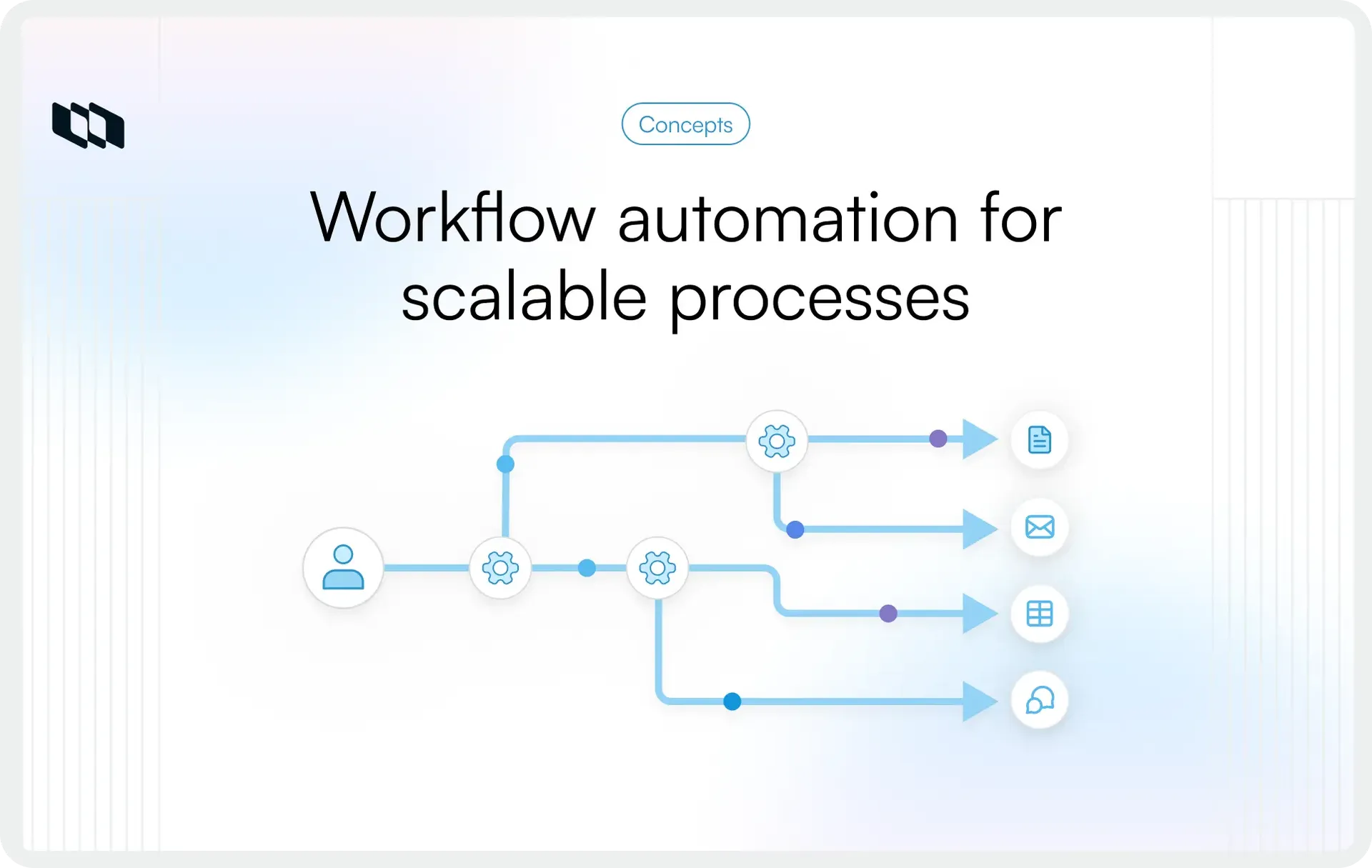
Most automated workflows follow the same structure. A trigger starts the workflow, such as when a request is submitted or a task changes status. Conditions evaluate context factors such as priority, owner, or deadline. Actions then move work forward by assigning tasks, routing approvals, updating records, or notifying the right people. This structure allows teams to manage work based on rules rather than memory, keeping execution reliable as volume increases.
A simple example of workflow automation
Consider a basic approval workflow. In a manual setup, a request arrives, someone reads it, decides who should review it, sends a message, waits for a response, and follows up again. With workflow automation, request submission triggers a workflow that assigns a reviewer, sets a due date, and sends a notification. Once the approval is completed, the workflow automatically updates the task status and routes it to the next owner. The same steps happen every time, with clarity and consistency.
How workflow automation supports teams
Workflow automation supports people by removing repetitive coordination work from their day. Teams stay focused on decisions, problem-solving, and delivery while automated workflows handle routing, tracking, and updates. Ownership becomes clear, progress remains visible, and work moves forward under shared rules everyone understands.
How workflow automation works
Most workflow automation systems follow the same underlying structure. Work progresses through a sequence of events defined in advance, so each step occurs at the right time and reaches the right person. Understanding this structure makes workflow automation easier to design and easier to trust.
1. Triggers start the workflow
A trigger is the event that starts an automated workflow. It signals that something meaningful has happened, and the workflow should respond. Common triggers include a form submission, a task creation, a status change, or an approaching deadline. Triggers anchor workflow automation to real activity, ensuring automated workflows respond immediately when work enters a new stage.
2. Conditions guide decisions
Conditions are the rules that determine what happens after a workflow starts. They evaluate context such as priority, team, ownership, or request type. Based on these rules, the workflow chooses the appropriate path. Conditions enable workflow automation to adapt to different scenarios while still following a consistent structure, keeping execution aligned with team processes.
3. Actions move work forward
Actions are the outcomes produced by the workflow. They include creating or assigning tasks, routing approvals, updating fields, sending notifications, or handing work to another team. Actions turn decisions into progress by automatically pushing work to the next step. In well-designed automated workflows, actions keep momentum steady and reduce coordination delays.
4. Human checkpoints keep control
Human checkpoints introduce moments where people review, approve, or handle exceptions. Approvals, reviews, and escalations often sit between automated steps. These checkpoints ensure workflow automation supports judgment and accountability while maintaining structure. By combining automated actions with human input, teams keep workflows flexible while staying consistent.
Together, triggers, conditions, actions, and human checkpoints form the foundation of workflow automation. This structure allows teams to design automated workflows that scale smoothly as work volume and complexity grow.
How is workflow automation different from other automation types?
Automation often gets used as a broad term, which creates confusion across teams. Workflow automation focuses on how work moves between steps, people, and systems, while other automation types address related but distinct problems. Understanding these differences helps teams choose the right approach for the kind of work they manage.
Workflow automation vs. workflow management
- Workflow management describes the practice of defining, tracking, and improving how work flows from start to finish. It focuses on visibility, ownership, and status across tasks and stages.
- Workflow automation builds on this foundation by automating specific steps. While workflow management shows how work should move, workflow automation ensures those movements happen based on rules and triggers as work progresses.
Workflow automation vs. business process automation
- Business process automation, often called BPA, examines end-to-end processes across departments and systems. It typically covers larger operational flows such as procurement, finance operations, or compliance processes.
- Workflow automation operates at a more granular level by automating the steps within those processes. Teams often use workflow automation to manage day-to-day execution inside a broader business process.
Workflow automation vs. robotic process automation
- Robotic process automation focuses on automating repetitive actions at the interface level, such as copying data between systems or filling out forms. It mimics human actions across applications.
- Workflow automation focuses on decision flow and coordination rather than interface tasks. It routes work, assigns ownership, and moves tasks forward based on logic, rather than requiring repeated clicks or keystrokes.
Where low-code and no-code tools fit
Low-code and no-code tools provide visual builders that make workflow automation accessible to more teams. They allow users to define triggers, conditions, and actions without writing code. These tools act as enablers rather than as automation tools themselves, helping teams design automated workflows that reflect their real processes while remaining easy to maintain.
Together, these approaches address different layers of work. Workflow automation sits at the coordination layer, connecting people, decisions, and systems so work moves forward with clarity and consistency.
Common workflow automation examples
Workflow automation shows its value most clearly in everyday team workflows. While the details vary by function, the underlying patterns stay consistent. Automated workflows handle intake, routing, approvals, and handoffs so work progresses without repeated coordination.
1. Operations workflows
Operations teams manage a steady flow of requests that need clear ownership and timely follow-through. Workflow automation helps by capturing requests through a standard intake process, assigning them according to rules, and tracking service levels. As requests move through review and execution, automated workflows update status and notify the right owners, which keeps operations predictable as volume increases.
2. Finance workflows
Finance workflows often depend on structured approvals and accurate records. Workflow automation routes invoices, purchase requests, or expense submissions to the right reviewers based on predefined criteria. Once approvals are completed, the workflow updates records and moves items to the next step. This pattern ensures financial processes stay consistent and traceable across teams.
3. HR workflows
HR teams manage sensitive workflows that span multiple systems and stakeholders. Workflow automation supports onboarding by triggering tasks for account setup, equipment access, and policy acknowledgments. During role changes or offboarding, automated workflows ensure each step runs in the correct order. This approach helps HR teams maintain clarity while handling complex employee lifecycle events.
4. Customer support workflows
Customer support teams rely on fast routing and clear escalation paths. Workflow automation assigns incoming tickets based on priority, category, or customer type. As cases progress, automated workflows trigger escalations, update statuses, and notify stakeholders. This pattern helps support teams maintain responsiveness while managing growing ticket volumes.
5. Engineering workflows
Engineering teams use workflow automation to manage handoffs between stages such as development, review, testing, and release. Status changes automatically trigger assignments, reviews, or checklist steps. Automated workflows keep progress visible across teams and reduce delays caused by missed transitions during delivery cycles.
6. Marketing and content workflows
Marketing and content teams coordinate reviews, approvals, and publishing across contributors. Workflow automation routes drafts for review, tracks feedback, and triggers publishing steps once approvals are complete. This pattern supports consistent execution while maintaining quality across campaigns and content programs.
Across all these examples, workflow automation follows the same principle. It defines how work should move, then uses rules to ensure it moves that way every time.
What a typical workflow automation process looks like
Teams get the most value from workflow automation when they approach it as a structured process rather than a configuration task. The steps below outline a practical way to get started.
Step 1: Write down the workflow as it runs today
Start by documenting the current workflow from start to finish. List each step, the person responsible, and the information required to move forward. Capture where work waits, where decisions are made, and where follow-ups usually happen. This step makes hidden coordination visible and prevents the automation of unclear processes.
Step 2: Mark the repeatable rules and decisions
Review the workflow and highlight decisions that follow the same logic each time. These often include routing rules, approval requirements, priority handling, or ownership changes. Repeatable rules form the backbone of workflow automation because they enable work to proceed without manual intervention.
Step 3: Choose one workflow to automate first
Select a workflow that runs frequently and causes visible coordination effort. Intake flows, approvals, and handoffs usually offer quick wins. Starting with a single workflow keeps the scope manageable and helps teams learn how automated workflows behave in real conditions.
Step 4: Define triggers, conditions, and actions
Translate the workflow into a simple structure. Decide what event starts the workflow, which conditions guide decisions, and which actions move work forward. Keeping this structure explicit helps teams validate logic before building anything.
Step 5: Test with real scenarios
Run the workflow using realistic examples. Check whether tasks get assigned correctly, approvals route to the right people, and updates remain accurate. Testing ensures the workflow behaves consistently across common cases.
Step 6: Assign ownership and launch
Before rolling out the workflow, assign an owner to monitor performance and handle exceptions. Clear ownership keeps automated workflows reliable and prevents silent failures as usage grows.
Step 7: Review and refine regularly
As work evolves, workflows need to be adjusted. Review performance, identify delays, and refine rules over time. Workflow automation improves when teams treat it as an ongoing system rather than a one-time setup.
When a workflow is ready for automation
Workflow automation delivers the most value when the underlying workflow is already clear. Before automating, teams can use the signals below to assess readiness and avoid building rules around unclear processes.
1. The workflow is repeatable and predictable
A workflow is ready for automation when it follows the same sequence most of the time. Requests enter through a defined starting point, move through known stages, and reach a clear outcome. Repeatability allows automated workflows to apply consistent rules without constant adjustment.
2. Inputs are structured and easy to interpret
Workflow automation works best when inputs arrive in a structured format such as forms, fields, or defined requests. When information is captured consistently, workflows can evaluate conditions and route work accurately. Structured inputs reduce ambiguity and keep automated workflows reliable.
3. Ownership and responsibilities are clear
Each step in the workflow should have a clear owner. Teams know who reviews, approves, or completes work at every stage. Clear ownership allows workflow automation to assign tasks, request approvals, and escalate work without confusion.
4. Exceptions are known and documented
Most workflows include edge cases. Teams that understand common exceptions can design workflows that handle them intentionally. Documenting exceptions helps automated workflows support flexibility while maintaining structure.
5. There is a single source of truth for status
Workflow automation depends on accurate status information. When teams rely on one system to track progress, automated workflows can update fields, trigger actions, and reflect reality consistently. A shared source of truth keeps visibility aligned across teams.
When these signals are present, workflow automation becomes easier to design and easier to trust. Teams gain confidence that automated workflows reflect how work actually flows and can scale with growing complexity.
Common workflow automation mistakes to avoid
Workflow automation improves execution when applied thoughtfully. When teams rush into automation without clarity, it can amplify existing issues rather than solve them. The mistakes below appear frequently and often limit the long-term value of automated workflows.
1. Automating broken or unclear processes
Workflow automation reflects the structure of the process behind it. When steps, ownership, or decision rules remain unclear, automation reinforces confusion. Teams benefit from clarifying workflows first so automated workflows support clear execution rather than masking underlying problems.
2. Over-automating too early
Teams sometimes attempt to automate every step at once. This approach increases complexity and makes workflows harder to understand and maintain. Starting with a small number of high-impact workflows helps teams build confidence while keeping automation manageable.
3. Ignoring edge cases and exceptions
Most workflows include scenarios that fall outside the common path. When these cases remain unaddressed, automated workflows can stall or route work incorrectly. Documenting exceptions and planning for them ensures that workflows remain reliable in real-world conditions.
4. Lacking ownership for maintaining automations
Workflow automation requires ongoing care. Without a clear owner, workflows degrade as team structures and processes change. Assigning responsibility for monitoring and updating automated workflows keeps them aligned with how teams work.
5. Relying on inconsistent or poor data
Automated workflows depend on accurate and consistent inputs. When data varies in quality or format, conditions break, and actions misfire. Improving data structure strengthens workflow automation and ensures rules behave as intended.
Avoiding these mistakes helps teams design workflow automation that remains effective as work volume, teams, and systems evolve.
How to choose workflow automation software
Choosing workflow automation software works best when teams focus on how well a tool supports real workflows rather than how many features it offers. The criteria below help teams evaluate tools based on execution needs and long-term use.
1. Ease of setup and everyday usability
Workflow automation software should make it easy to translate real workflows into rules and steps. Clear interfaces, visual builders, and readable logic help teams understand how automated workflows behave. Ease of setup matters because workflows evolve, and teams need to adjust rules confidently as processes change.
2. Flexibility in rules and conditions
Effective workflow automation depends on flexible logic. Teams need to define triggers, conditions, and actions that reflect how decisions are made in practice. Software that supports branching paths, conditional routing, and custom fields enables workflows to adapt to different scenarios while remaining structured.
3. Integrations with existing systems
Workflow automation works best when it connects with the tools teams already use. Integrations allow workflows to respond to events across systems and keep information in sync. Strong integration support reduces manual updates and keeps automated workflows aligned with daily execution.
4. Permissions, visibility, and audit logs
As workflows touch more teams and data, access control becomes important. Workflow automation software should support clear permissions so teams can control who can view, edit, or trigger workflows. Audit logs and activity history improve traceability and help teams understand how decisions and actions occurred.
5. Reporting and workflow visibility
Visibility helps teams trust automated workflows. Reporting features that show status, progress, and bottlenecks help teams understand how work flows over time. Workflow visibility supports continuous improvement by highlighting where coordination slows or rules need adjustment.
6. Ability to scale as workflows grow
Workflow automation software should support growth in volume, complexity, and teams. As workflows expand across projects and functions, the system needs to handle more rules, users, and integrations while remaining understandable. Scalability ensures automated workflows remain reliable as organizations evolve.
Evaluating workflow automation software through these criteria helps teams choose tools that support clarity, consistency, and long-term execution rather than short-term convenience.
Final thoughts
Workflow automation helps teams bring clarity to how work moves, consistency to how decisions get applied, and focus to where people spend their time. It works best when teams treat automation as a way to support execution rather than redesign work overnight. Starting with a small number of repeatable workflows allows teams to build confidence and learn how automated workflows behave in real conditions. Over time, teams can expand automation thoughtfully as processes mature. The most effective workflow automation supports how teams already work, reinforces shared rules, and keeps execution structured as complexity grows.
Frequently asked questions
Q1. What are the 4 types of automation?
The four common types of automation are workflow automation, business process automation, robotic process automation, and IT automation. Workflow automation manages how work moves between steps and people. Business process automation handles end-to-end processes across teams. Robotic process automation automates repetitive interface tasks. IT automation focuses on systems and infrastructure operations.
Q2. What are workflow automation examples?
Workflow automation examples include request intake and assignment in operations, invoice and expense approvals in finance, employee onboarding in HR, ticket routing and escalation in customer support, status-based handoffs in engineering, and content review or publishing workflows in marketing teams. These workflows use rules to move work forward automatically.
Q3. Which tool is used for workflow automation?
Workflow automation is handled using workflow automation software that supports triggers, conditions, and actions. These tools typically offer visual workflow builders, integrations with existing systems, permissions, and workflow visibility. Teams choose tools that fit their existing processes and scale with their coordination needs.
Q4. What is the difference between RPA and workflow automation?
Workflow automation focuses on coordinating work, decisions, and ownership across people and systems. Robotic process automation focuses on repeating manual actions such as data entry or copying information between applications. Workflow automation manages flow and logic, while RPA handles repetitive interface tasks.
Q5. What are the 4 pillars of automation?
The four pillars of automation are triggers, rules, actions, and visibility. Triggers start the workflow, rules guide decisions, actions move work forward, and visibility ensures teams can track status and ownership. Together, these pillars keep automated workflows reliable and understandable.
Recommended for you



 Download for Mac
 Download for Android