How Plane uses Plane to build Plane
A look at the system we built, and what you can borrow for your own team.
A look at the system we built, and what you can borrow for your own team.
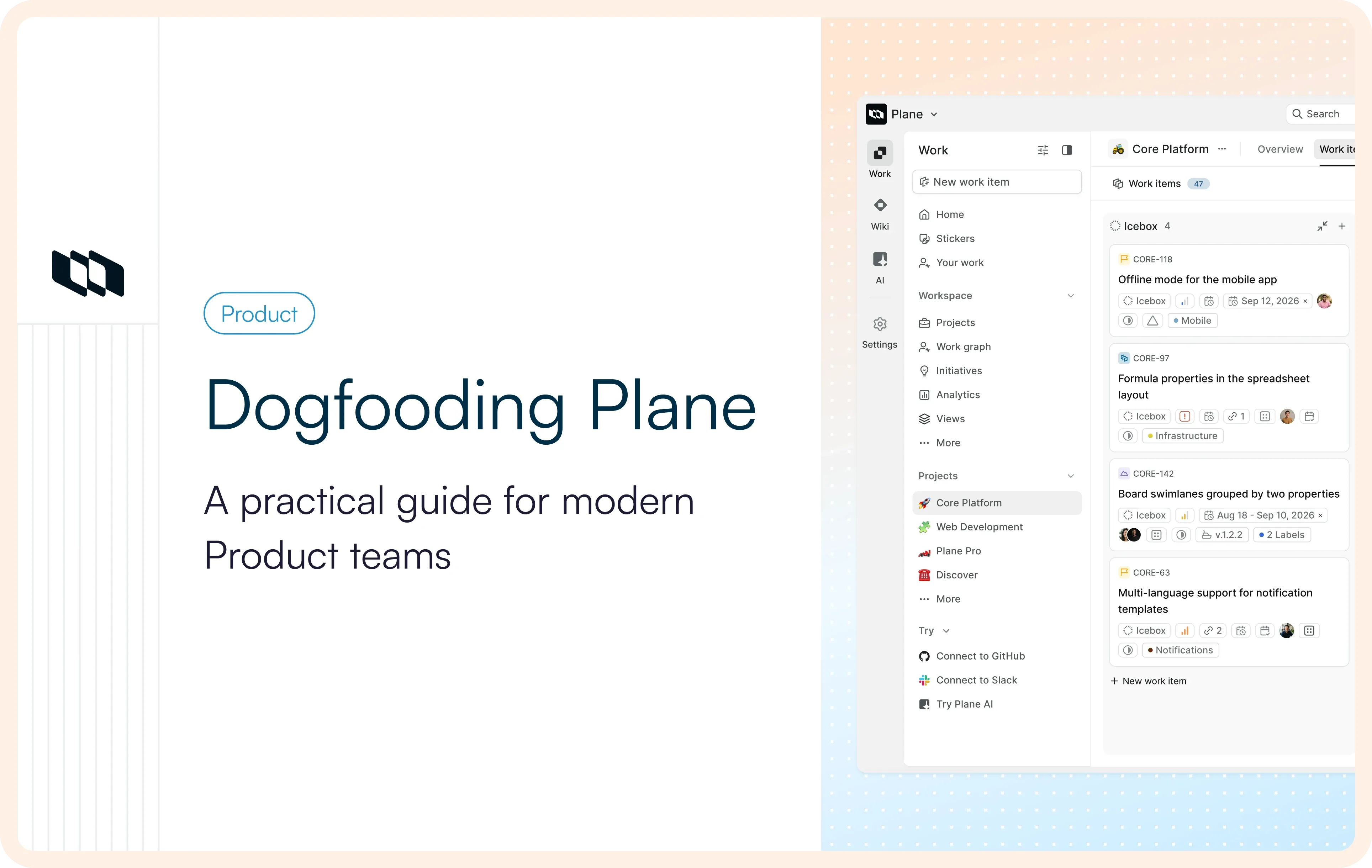
Every company buys tools to move faster. Then, one by one, the tools become work of their own. Someone keeps the tracker current. Someone reconciles the tracker against what the team is actually doing. Someone copies it all into a deck the night before the review, so there's something to present.
We built Plane because we lived that and got tired of it. So the honest test of whether we got it right isn't a demo. It's whether Plane can run Plane. It does. Every request, work item, cycle, release, and decision that goes into building this product lives in the same product itself.
This is a walkthrough of how that actually works, from a request landing to a feature shipping and the knowledge it leaves behind. Watch for one pattern the whole way down. Every stage has two versions: how we do it inside Plane, and how the same work gets done without anyone touching Plane at all. The work lives in Plane, but acting on it doesn't always mean sitting in the UI.
How we capture every incoming request
Ensure nothing gets lost with Intake
Requests come at us from multiple directions: a customer fills out a form, someone forwards an email, a teammate flags something from inside the app. All of it gets funneled into one Intake queue and triaged from there, accepting what's real, declining what isn't, and merging duplicates. Nothing jumps straight into a project and clutters it before we've looked at it.
Record the source with Customer Requests
When a request comes from a customer, we log it against that customer and link it back to wherever it started, the call, the email, the thread. Then we connect it to the work items that will actually address it. From then on, every one of those work items shows the customer on it, so whoever picks it up knows exactly who they're building for.
Agents file work without us opening Plane
Here's where it gets interesting: a lot of this work never touches the UI. We'll be in Claude, describe what needs to happen, and it lands in Plane as a work item. A Slack thread becomes one. A Sentry alert becomes one. Same queue, same context attached, same triage, we just didn't open Plane to get it there.
How we shape raw requests into real work
Hold work inside Projects
Everything we build sits under Work, and inside it are our Projects: Core Platform, Web development, and the rest. Every work item lives inside one of them, from the moment it arrives. Even in Intake, a request is already a work item in a specific Project; accepting moves it from the triage queue into the team's active work.
Categorize work with Custom Work Item Types
We don't file a bug the way we file a feature, so we categorize it with Work Item Types. Each type carries its own properties: our Bug type asks for steps to reproduce, our Feature type asks for a problem statement. The fields show up the moment we set the type, so whoever picks the work up isn't chasing down what it needs.
Break work down in sub-work items
More often than not, work takes more than one work item to finish. So we break it into sub-work items, the pieces that make up the whole. And because much of that work is cross-functional, a sub-work item can live in a different project than its parent, so one effort spreads across teams, each piece on its own board, still tied to a single parent.
Define exactly what we want with PQL
We use PQL, Plane Query Language, when we need a more precise slice of our work. It lets us combine conditions, query across the structure we've built, and get to exactly the work we're looking for without rebuilding a maze of filters. Here's a sample query:
Here's the best part: we don't even need to write the query ourselves. We just explain it in natural language and Plane AI translates it to PQL and runs the query for us.
Align work with vision in Initiatives
Before we sink weeks into something, we want to know if it adds up to where the company's actually going. So we link the work to an Initiative, the larger goal it belongs to. The Initiative's progress comes straight from that work, nobody has to manually update it.
How we turn strategy into execution
Give every work item type its own workflow
Bugs, features, and tasks don't need to move through the same process. Custom workflows let us define the states, transitions, and approvals that make sense for each work item type. A bug can move through triage, investigation, QA, and verification, while a feature can follow a path from validation and scoping to development and release.
Run our sprints with Cycles
When it's time to build, we link the work to a Cycle, the capability our team uses to plan and run sprints, so it ships against a real date instead of drifting.
Hold larger efforts together in Modules
Some work does not fit in a single Cycle like a migration, a campaign, or a big platform push. We group those into a Module, so the whole effort stays legible in one place while its pieces move through sprint after sprint.
Surface blockers with Dependencies
Work is seldom independent. When one work item cannot start until another finishes, we mark it blocked by that work item, and the relationship shows from both sides. This way, we can catch what's holding up a release before it slips.
Bring in agents to code and open PRs
We link the branch and the pull request straight to the work item, and as the PR moves from open to merged, the work item's state moves with it. That same wiring lets us hand the coding to Cursor: we assign it a work item, it reads the brief, writes the change, and opens a pull request back on the same item, state and all. One of us reviews the diff and decides what to merge. GitHub then syncs the work item with the merge and moves the state to Done.
Let Plane Runner handle the steps in between
Some processes need more than a trigger and a predefined action. Plane Runner lets us write custom logic that runs on a schedule or in response to events, so Plane can handle the steps that don't need someone watching them. We can use it to find stale work, update or create work items, enforce rules, or trigger the next step in a process.
How we ship and close the loop
Pull a launch together in Releases
When work is ready to go out, we pull it into a Release. Most of our launches don't come from a single project, so we gather the relevant work items from wherever they live into one place. Pulling a work item into a Release organizes what's shipping in one place.
Plane AI writes the changelog for us
We write and publish the changelog within the Release itself, not on a different surface. And since the shipped work is already sitting in the Release, we have Plane AI draft the changelog straight from it, then we edit before it goes out.
How we keep what we learn
Reasoning lives with work inside Pages
When we decide something, why we went this way, what we ruled out, what turned out harder than expected, we capture it in a Page with the work item attached. The next person finds the thinking, not just a closed work item. The reasoning doesn't live in someone's memory or a doc nobody reopens; it sits right with the work that prompted it.
Wiki maintains our org-wide knowledge
Pages sit close to a project's work. Wiki is where we put what the whole company needs, the runbooks, the references, the how-we-do-things, with Collections keeping it sorted instead of scattered across a dozen tools.
Plane AI takes up the first draft
Writing has its own second layer. We use Plane AI to draft, rewrite, and tidy a page right in the editor or in the sidecar, and the draft it generates can drop into a page in one click, ready for us to edit. Writing from a blank page is the slow way; letting AI take the first pass and then fixing it up is the fast one.
How we create visibility across teams
Slice the work into custom views
Once work is spread across projects, people, and states, no single screen shows all of it at once. So we save views for the conversations we keep having, the work in this cycle still in review, everything a team owns that's blocked, the bugs that came in this week. Anyone can build one and share it, so what a team looks at in standup is the live work, not a status export that went stale an hour ago.
Dashboards track the bigger picture
For the wider picture, we put Dashboards together. We use widgets to track incoming work, see what’s ageing, understand how work is distributed and progressing, and cut across the data to spot patterns that aren't obvious from individual work items. That gives us a live read on how we're working and where attention is needed.
Ask Plane AI because it is faster
Sometimes the fastest way to get an answer is to just ask. Instead of building a view, we ask Plane AI straight out, how a cycle's trending, what's stuck, which team is overloaded, and it answers off the same live work. No filters to set, just the question and the answer.
This is how Plane improves Plane
There's no separate version of Plane we keep for ourselves. The workspace we build this product in is the one you just read about, the same Intake, the same Cycles, the same Releases. That's the point: we hit the rough edges first, on our own work, and fix them before they ever reach you.
If it couldn't run a company, it wouldn't be running ours. It's free to start, and it's the same workspace we're in right now.
Recommended for you



 Download for Mac
 Download for Android