New work-item detail view, custom relations and more
A redesigned work item view, subscriber and voting controls, custom relations, and a transitions tab that records how long work sat in every state.
A redesigned work item view, subscriber and voting controls, custom relations, and a transitions tab that records how long work sat in every state.
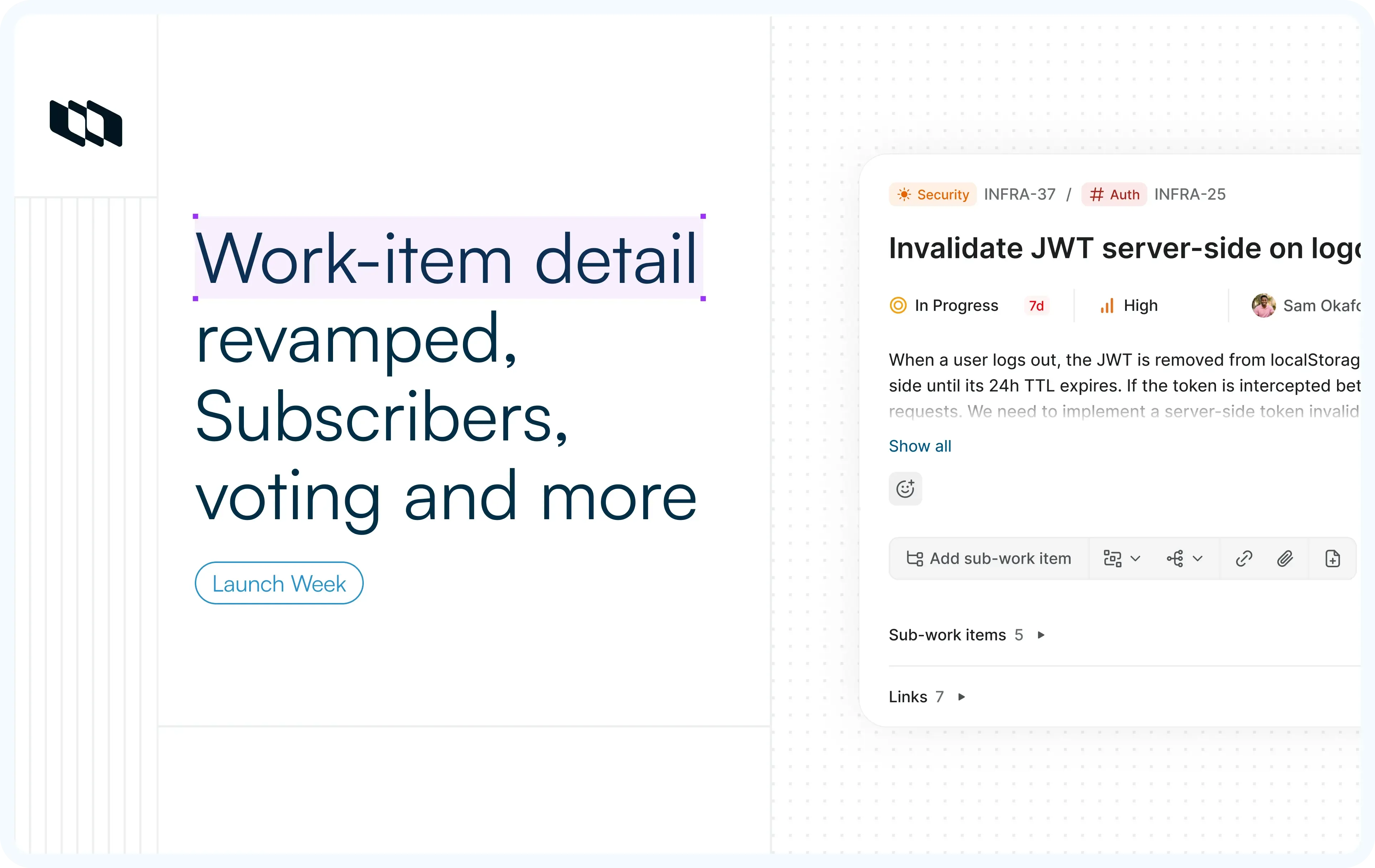
A new detail view for Plane's most-visited surface, plus four capabilities that change how teams structure and execute work.
What's shipping
- New work-item view. A redesign of the most-visited page in Plane.
- Time in state and transitions. A new tab on every work item that records every state change with a time-in-state badge between transitions.
- Custom relations. Define your own relationship types alongside the defaults.
- Subscribers. Follow a work item to get updates without owning it.
- Upvote / Downvote. A vote control on every work item, so planning has a tiebreaker that comes from the people closest to the work.
1. The new work-item view
The work item detail page is the most-visited surface in Plane. It is where teams read context, update State, leave comments, track time, and close things out. The original layout made sense for a handful of properties and one action button. Three years of new capabilities (custom properties, relations, dependencies, links, attachments, pages, worklogs) turned it into a dense surface that wasn't designed to hold all of that.
The redesign is built on four ideas: Group what belongs together, promote what matters most, collapse what can wait, and surface what was hidden.
Key properties move to the center
- State, Priority, Assignee, Start date, and Due date are no longer in the right-side rail.
- They sit in the center column, directly below the title, alongside Time in state (a new property, covered in section 2).
- The fields edited most frequently are now the ones you reach first.
The header surfaces context
- The work item type label appears next to the icon, not just the icon.
- The parent relationship, previously buried in the properties pane, now shows as a pill next to the work item ID. You can tell at a glance whether you're looking at a parent or a child.
The properties pane is grouped
Three collapsible sections replace the flat list:
- Details: Labels, Estimate, Tracked time.
- Project structure: Cycle, Module, Releases, Milestones, Customers.
- Custom properties: Anything your workspace has defined.
In research, users were scrolling past the same field more than once, trying to find it. Grouping plus collapse cuts that down.
Reference info, descriptions, and activity get out of the way
- Created by, created on, updated on, and completed on now sit in a compact row at the bottom of the properties pane.
- Long descriptions truncate at about seven lines with a "show more" affordance.
- Activity splits into five tabs: All, Comments, History, Transitions, and Worklogs.
The horizontal text-button row is gone
- Adding a sub-work item keeps a labeled button (it is the most common action).
- Everything else, relations, dependencies, links, attachments, and pages, is now a grouped icon button.
Power move: The header has a Copy branch name button. Plane generates a branch name from your username and the work item ID (e.g., sarah/DOCSW-606) and copies it to your clipboard. From plan to code without formatting branch names by hand.
2. Time in state and transitions
Open any work item. Click the Transitions tab.
Transitions shows every state change the work item has been through, from creation to current state. Each entry shows who changed the state, when, and the from-to states with color-coded status icons.
Between transitions, a time-in-state badge shows how long the work item stayed in the previous state 54m, 1m, 3d 2h.
Bottlenecks become immediately visible. If a work item sat in In Review for three days but spent ten minutes in QA, you know exactly where the delay was.
Transitions versus History
- Use Transitions for the state-only narrative.
- Use History for the full property audit, every property change with before-and-after diffs, including bot-initiated actions (e.g., "Cycle Automation Bot set the cycle to Cycle 1").
Workflows define the standards, while transitions serve as the verifiable evidence.
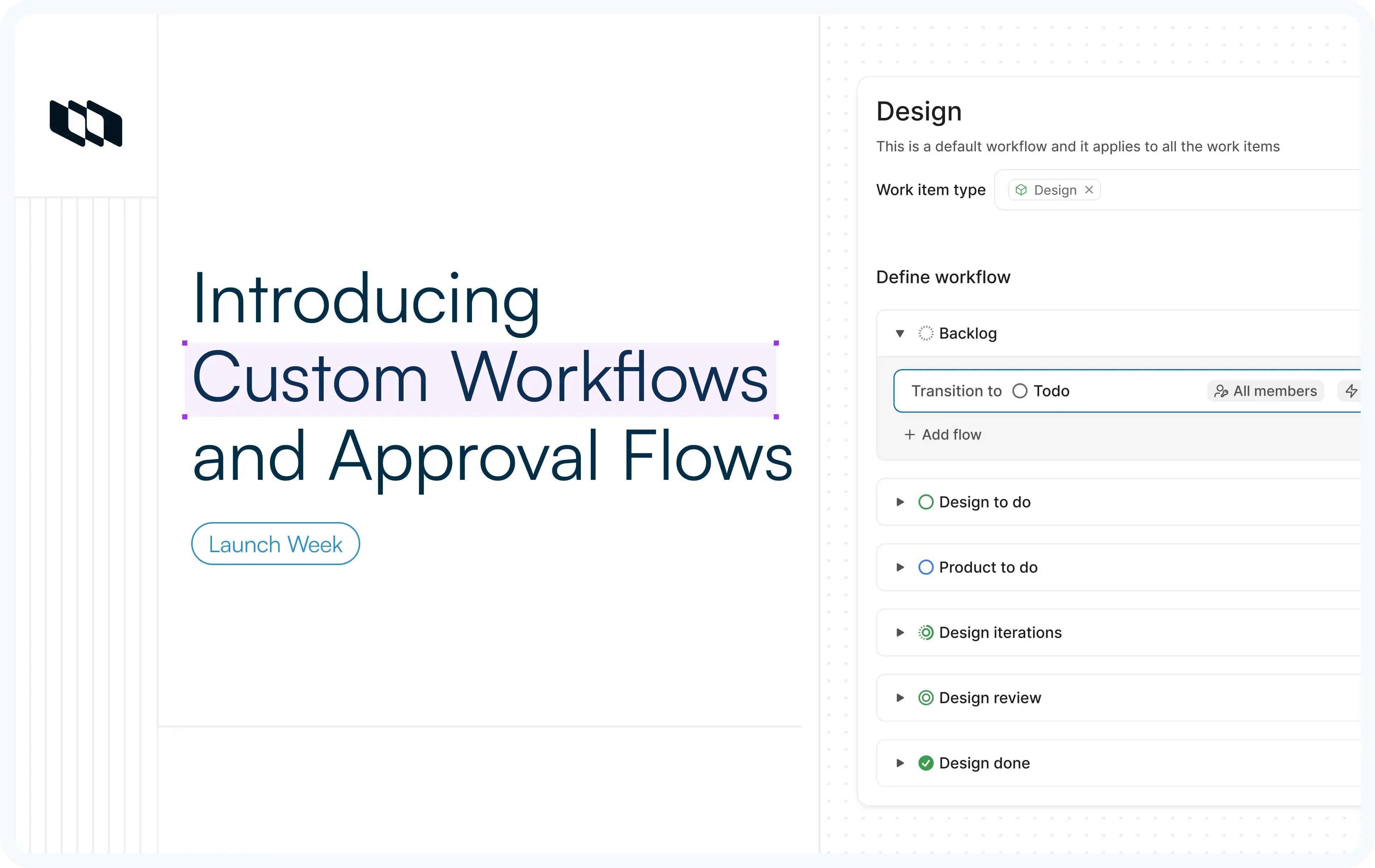
- State transitions can be governed by Workflows, guardrails that control which moves are allowed, who can make them, and whether certain moves require approval.
- Workflows are configured per project. On Enterprise Grid, additional workflows can be scoped to specific work item types.
Every enforcement event, restricted transition, approval gate, and reviewer decision is recorded in the item's transitions log.
Power move: Workflows can attach pre-validation scripts that run before a transition and post-action scripts that run after, both via Plane Runner. A pre-validation script can block a transition until required fields are filled, an estimate exists, or sub-work items are completed. A post-action script can post to Slack, create a linked work item, or call an external API. Pre-validation failures show a blocker message. Post-action failures don reverse the transition. Both are logged.
3. Custom relations
Plane ships three default relation types:
- Relates to
- Duplicate
- Implements
Plus three default dependency types:
- Blocked by
- Blocking
- Starts before
Relations describe how work items are connected by context. Dependencies enforce scheduling order and surface as connectors in the Timeline layout, with violated dependencies shown as red lines.
The defaults cover most engineering and product work. They don't cover every team.
Custom relations let workspace admins define new relationship types alongside the defaults, so the language on a work item matches the language a team actually uses.
Examples teams have set up: Mitigates, Tests, Validates, Replaces, Supersedes, Part of.
For confuguring this, see the Custom relations docs.
4. Subscribers and Voting
Two lightweight additions that help teams signal interest and intent around work items.
Subscribers
- You'll automatically receive email notifications for work items you've created or are assigned to, viewable in the Inbox on the sidebar.
- To follow any other work item, click Subscribe at the top right of the detail page. Click Unsubscribe to stop.
- Mentioning someone with
@usernamein a description or comment subscribes them to subsequent updates.
Upvote and Downvote
A vote control on every work item.
- Upvote what should be prioritized. Downvote what shouldn't crowd out higher-leverage work.
- Vote counts ensure that planning tiebreakers are decided by those closest to the work, rather than a single room of decision-makers.
Availability across plans
Feature | Plan |
New work-item view | All Plans |
Subscribers | All Plans |
Upvote / Downvote | All Plans |
Time in state + transitions | Business+ |
Custom relations | Enterprise |
Open any work item to explore the new detail view and these updates in context. Read the docs.
Recommended for you

 Download for Mac
 Download for Android