Introducing MCP Connectors and Cursor agent
A more connected Plane AI with MCP connectors, Cursor agent, Auto-run, and Bitbucket integration.
A more connected Plane AI with MCP connectors, Cursor agent, Auto-run, and Bitbucket integration.
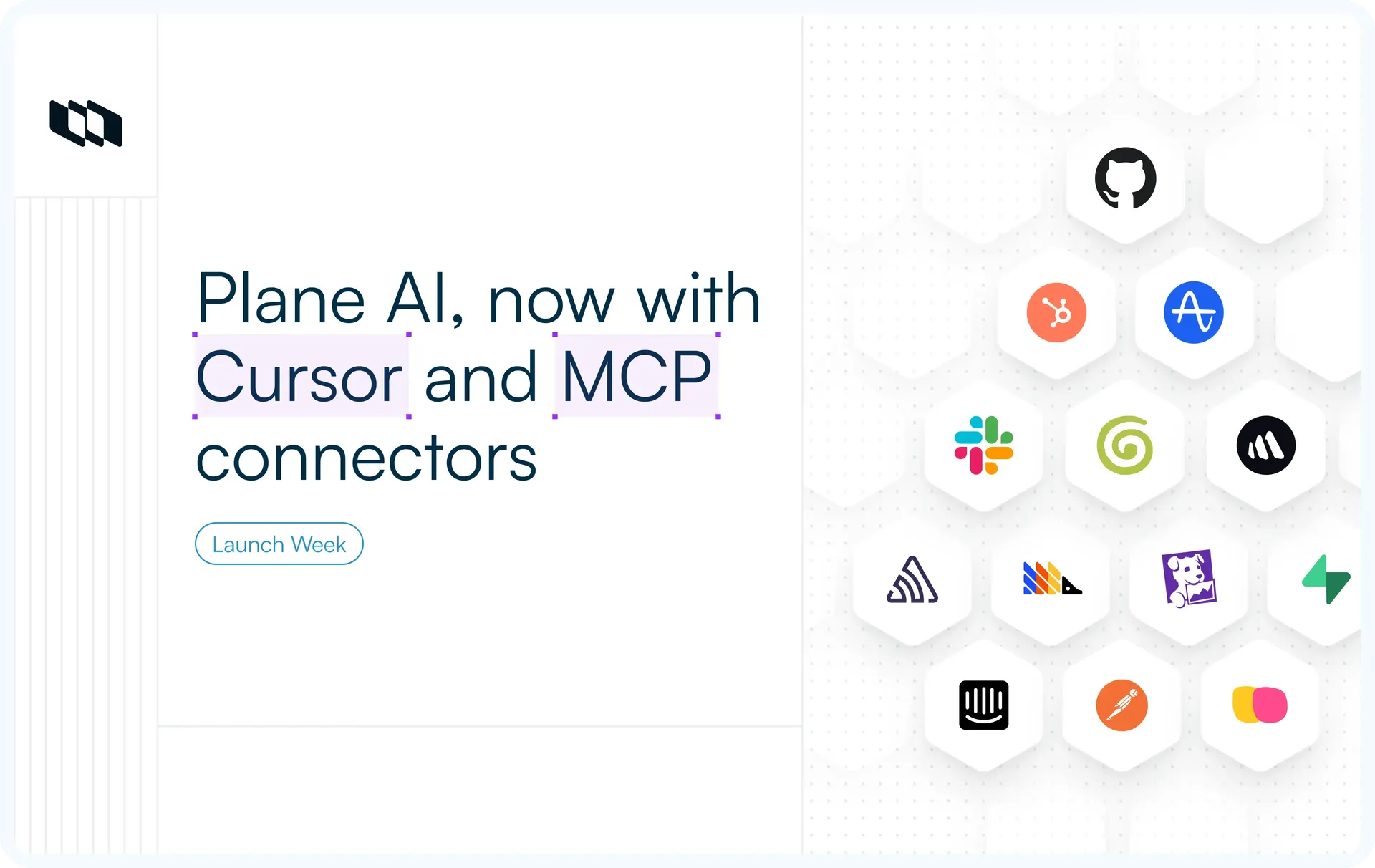
MCP connectors that bring outside tools like Granola into Plane AI, a Cursor agent that hands work items off to your IDE, Auto-run for multi-step actions without per-step confirmation, and Bitbucket integration that links PRs to work items.
What's shipping
Plane AI updates: Plane AI is now more capable across workflows: Multi-step actions run end-to-end, external tools connect via MCP connectors, and the assistant is available within the Cursor IDE.
- MCP connectors
Connect Plane to external MCP servers (Linear, Granola, partner tools) and call their tools from inside Plane AI. - Cursor agent
Assign work items to the Cursor agent and let it execute the changes in your codebase. - Auto-mode
A mode that skips the per-step confirmation Plane AI normally asks for, so multi-step actions execute end to end. - Bitbucket integration
Bitbucket joins GitHub and GitLab as a supported source repo.
1. MCP connectors
Plane already ships a native MCP server. External agents (Claude, Cursor, custom clients) can read and write your Plane workspace through it.
MCP connectors flip the direction:
- Plane connects to other MCP servers and uses their tools from inside Plane AI.
- Configure a connector once, and Plane AI can call its tools the same way it calls Plane's own.
- The connectors that work cleanly today are the ones that support OAuth without dynamic client registration: Linear, Granola, and a growing list. Some others (Slack, HubSpot) require additional implementation work and will follow.
- Adding connectors is self-service, with no approval queue. New servers appear in the catalog as they’re qualified.
For details on Plane's own MCP server, see the MCP server docs.
2. Cursor agent
The Cursor agent runs Plane inside the Cursor IDE.
- Open a work item
- Create a work item
- Link a branch
- Update the state without leaving the editor where the code already lives.
For developers who already work mostly in Cursor, this means the work item context comes to the editor instead of the developer context-switching to a browser tab.
- The branch you create from a work item carries the right name.
- The PR you open links back to the work item.
- State changes on the work item happen on the same surface as the code.
3. Auto-mode
When you ask Plane AI to make changes (create three work items, set up a cycle, add a property to a work item type), it normally proposes the change and waits for your confirmation. That's the right default for a workspace where mistakes are visible to everyone.
Auto-mode turns that off. Plane AI proposes and executes actions in one step.
- You review what was created afterward in a single confirmation pane, for example, three work items created, shown as a list.
- Useful when you trust the prompt, when you're scaffolding a project from scratch, or when you're in a flow where the back-and-forth slows you down more than it protects you.
- The mode applies per conversation. Use it for bulk-create sessions, then switch it off for one-off changes.
4. Bitbucket integration
Bitbucket joins GitHub and GitLab as a supported source repo for Plane. The integration matches the pattern:
- Branch creation from a work item
- Automatic PR linking
- Automatic state transitions on PR merge.
Configure it once in workspace integrations. From there, every work item gets the Git workflow you already use on GitHub or GitLab. Open a work item, create the branch, push the code, open the PR, and the work item carries the link and updates the state without anyone touching it.
Both Bitbucket Cloud and Bitbucket Data Center are supported, so Plane Cloud users and self-hosted Plane teams running self-hosted Bitbucket get the same workflow.
Power-user move: Combine the Cursor agent with the Bitbucket integration. Open a work item in Cursor, create the branch from the agent panel (Plane uses the configured branch-name format from your work item header), commit and push, open the PR. The work item updates state on PR merge without anyone touching it. Three surfaces, one continuous workflow.
Availability across plans
Feature | Plan |
Plane AI updates | Pro+ |
Auto-run | Pro+ |
MCP connectors | Pro+ |
Cursor agent | Pro+ |
Bitbucket integration | Pro+ |
Recommended for you



 Download for Mac
 Download for Android