How to manage scope creep in Plane
Review changing requirements, assess their impact, and keep delivery commitments on track.
Review changing requirements, assess their impact, and keep delivery commitments on track.
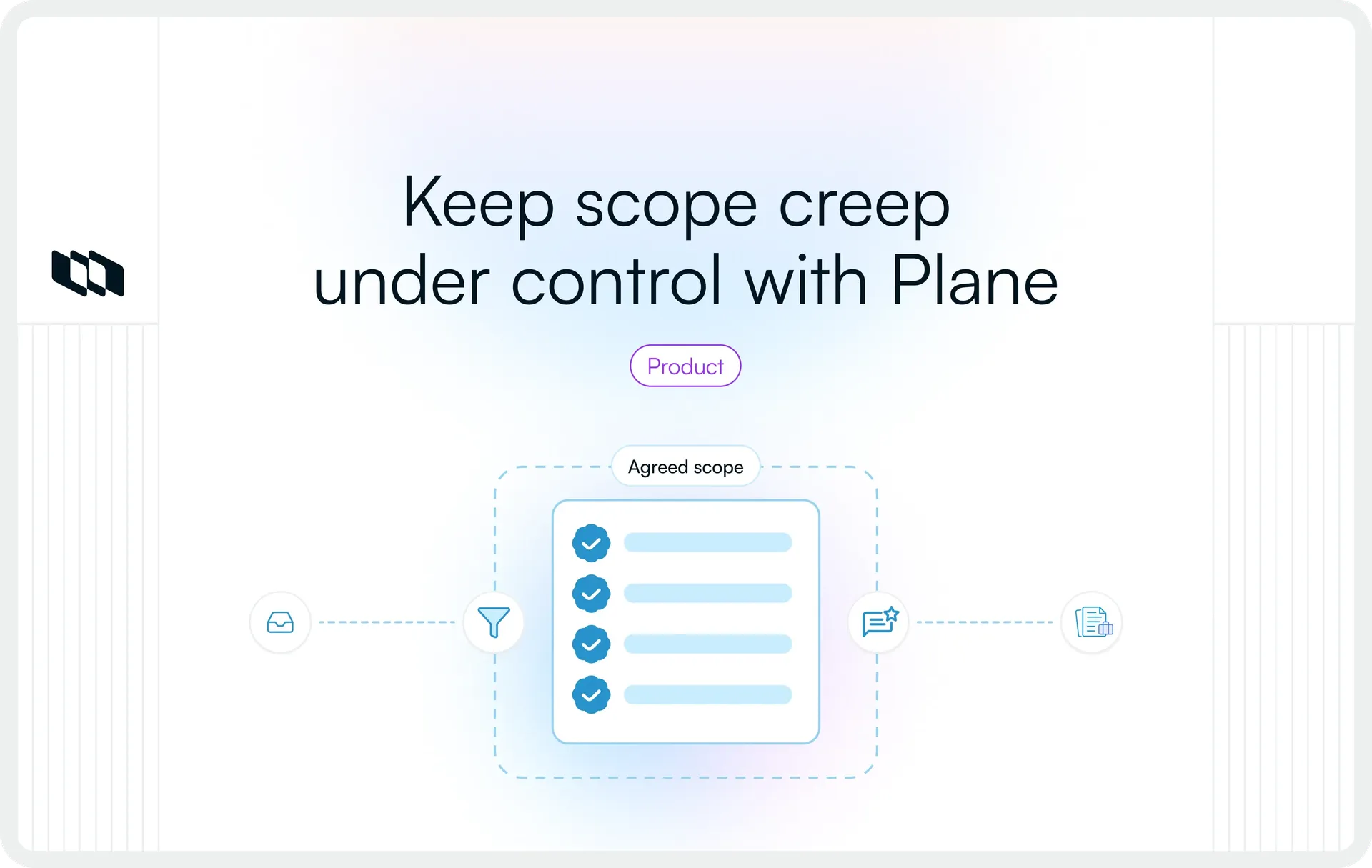
Scope creep happens when new requirements are added after a delivery plan is finalized. A customer requests additional functionality midway through implementation. The extra work needs development and testing, but the delivery date and existing commitments remain unchanged.
Before approving the request, compare it with the agreed scope. Estimate the additional work and decide whether to extend the deadline, replace an existing deliverable, or defer the request.
1. Document approved scope with Pages and Modules
Project Pages keep requirements, specifications, and decisions within the project they support. Create a page for the approved scope and record:
- Outcome: what the project or release is expected to deliver.
- Included requirements: agreed functionality, supported users, integrations, and data.
- Acceptance criteria: the conditions and checks required for completion.
- Exclusions and constraints: functionality outside the agreement, deadlines, and relevant restrictions.
For the subscription billing migration, document the agreed functionality and acceptance criteria. List requests such as mid-cycle contract amendments and custom billing schedules under exclusions until their impact has been reviewed.
Create a Module for the subscription billing migration. Add work items for subscriptions, invoicing, entitlements, and payment reconciliation to it.
For a capability with multiple implementation and testing tasks, such as invoice generation, create an Epic as a Work item type and organize those tasks under it. Link the approved requirements Page to the relevant work items so the team can check them against the agreed scope.
Missing tests for an approved invoice calculation may add effort without expanding the agreed scope. Adding mid-cycle contract amendments changes what the release needs to deliver.
2. Triage new requirements with Intake
Intake is Plane's review queue for new requests before they enter a project's workflow. Enable Intake in project settings and choose the submission channels the project needs: In-app, Forms, or Email. On Business, configure an Intake responsible member to be assigned and notified when a new request arrives.
In Intake, open the request and review the requested behavior, business need, deadline, and any missing specifications. Add context to the work item before moving it into the project's delivery workflow.
Requests arrive in Triage State. Accept a request, snooze it until a chosen review date, decline it, or mark it as a duplicate. Accepting a request moves it into the project's workflow.
Accept a request for mid-cycle contract amendments into the backlog so Engineering can assess the impact on invoicing and entitlements. Snooze a custom billing schedules request until a set review date while Sales gathers contract examples and expected invoice dates.
3. Assess delivery impact with agents, estimates, and layouts
To assess the technical impact of a change, identify the behavior beyond the original requirement. Consider a request to add automatic retries to outbound webhooks: it raises questions about failed deliveries, repeated events, and verification work.
Review proposed changes with Plane Agents
Plane Agents are configurable AI operators that can review work-item context within their permitted project scope. With an agent given project access and a mention trigger, mention it on the request work item. Include the approved requirements and exclusions in the work item description or comment for comparison, rather than assuming that linking a page automatically supplies its contents.
For example, ask: Our approved webhook requirement covers initial event delivery. The new request adds automatic retries. Compare these requirements, identify the additions, and list what Engineering needs clarified before estimating.
The review may surface retry limits, delivery identifiers, handling of repeated events, and what happens when every retry fails. Use those questions to refine the request before creating the implementation work.
Product confirms the requirement and decides whether the additional behavior belongs in the release. Engineering owns feasibility and estimates. The agent's findings support that review; they are not the approval.
Estimate the additional work
Capture the proposed behavior and acceptance criteria in the request work item. Use Relates to to connect it to existing work items affected by the change, then identify which work needs to be revised or added. This gives Engineering a clear basis for estimating the additional effort.
Create work items and sub-work items for the necessary implementation and verification tasks. Use the Estimate property on each work item to size the effort in story points, time, or categories, then compare the new work with what's already scheduled. If a task depends on an unanswered design decision, flag that before the team commits to a date.
Review dependencies and dates
Timeline is a date-based layout for viewing work items and their schedules. Set up dependencies between the proposed implementation and QA items, add start and due dates, and review their sequence on Timeline. Where the plan includes Timeline dependencies, connectors can show how dated work items depend on each other and highlight conflicts.
4. Record scope decisions in work item comments
Record the decision on the request work item. Note who approved it, the reason, the affected Release, and whether the work is included, replaces another commitment, is deferred, or has been declined.
For an approved addition, specify which existing work moves and who will update its estimate, dependencies, and dates. If the request is deferred, record what is missing or why it isn't being scheduled, along with a review point.
5. Update commitments in Release Scope
A Release groups the work items a team plans to ship together. Its Scope tab shows what's included, while the Changelog records what actually ships. After approving a scope change, add the new work or remove deferred items from the Release. For a broader walkthrough, see how to plan and ship releases in Plane.
Open the Release's Scope tab, click Add work items, and select the approved implementation and verification work. For displaced items, open the work item's menu and select Remove from release. Removal leaves the work item in its project and does not change its state. Assign it to another Release separately if it is still planned for a later delivery.
If the approved scope or acceptance criteria change, update the requirements page to reflect the revised commitment.
6. Track scope changes with Cycle progress charts
A Cycle organizes work into a defined period, such as a two-week sprint. A Release tracks what's planned to ship; a cycle tracks the work scheduled for that period. During an active cycle, check its progress charts for additions and removals. See how to plan sprints and run Agile delivery in Plane for a detailed walkthrough of Cycles.
The Scope metric counts work items in the cycle other than cancelled work. It changes as work is added or removed, and Plane displays how often the scope has changed. The chart is a signal to inspect the affected items, not a record of their approval.
Review the work items behind an increase in Cycle Scope and compare them with the approved requirements. If additions introduce new functionality, confirm the scope decision before keeping them in the Cycle, and update the Release or delivery dates if commitments change.
Keep scope creep under control
Scope creep is easier to manage when every new requirement has a clear decision and an accounted-for cost. A request may be worth approving, but the extra work still has to fit in the delivery plan. Record what was added, what was deferred, and whether estimates or delivery dates need to change. Update the affected work items, dependencies, Release Scope, and Cycle so the team is working against the revised commitment.
Keep scope creep visible from the first request through the final release in Plane. Get started with Plane for free.
Recommended for you




 Download for Mac
 Download for Android
