Plane Wiki and Pages: A guide to team documentation
Bring project documentation and shared knowledge into the same workflow with Plane Pages and Wiki.
Bring project documentation and shared knowledge into the same workflow with Plane Pages and Wiki.
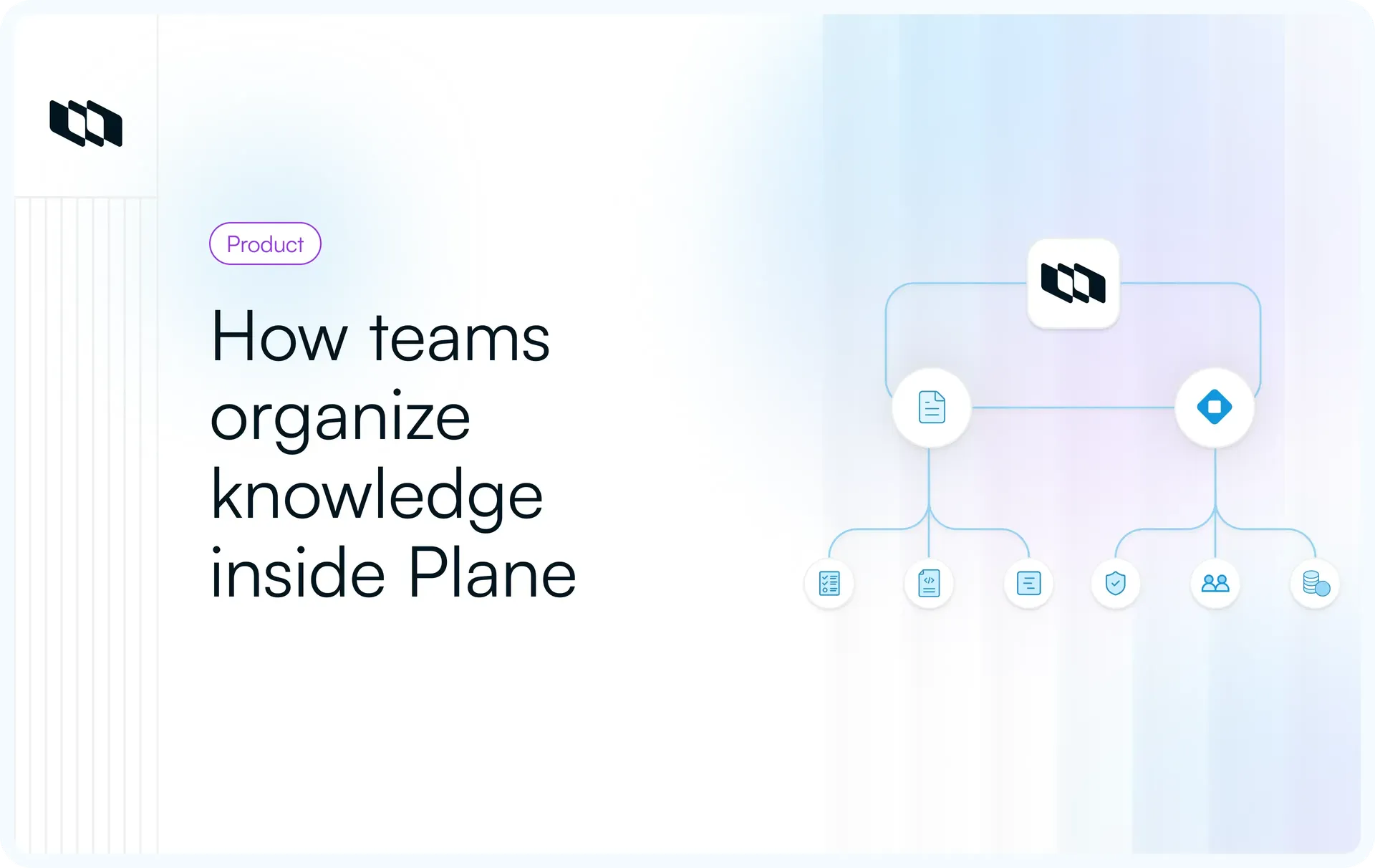
Documentation becomes a product decision when teams are running delivery in one system and maintaining the context around it somewhere else. Plane takes a different route: Project Pages stay close to active work, while Wiki gives shared knowledge a workspace-level home.
The interesting part is what happens after that split. How tightly can documentation connect to Work Items? How does the structure hold up as the knowledge base grows? What changes when permissions, plans, AI and migration happen? This guide walks through those questions so you can assess whether Plane can support execution and documentation in the workspace.
Pages vs. Wiki: when should you use each?
The first decision is where documentation should live. Project Pages keep information inside a project while Wiki gives shared knowledge a home at the workspace level.
Factors | Project Pages | Wiki |
Scope | Lives inside a project | Lives at the workspace level |
Best for | Requirements, technical specs, meeting notes, project decisions, rollout plans | Policies, onboarding guides, engineering standards, runbooks, shared references |
Availability | Free and above | Pro and above |
Use it when | The document mainly supports one project | The information should remain useful across projects or teams |
A product requirement, for example, can stay in the project where the feature is being planned and delivered. An engineering standard used across several projects belongs more naturally in Wiki.
That scope can change as the information becomes useful to a wider audience. A Project Page can be moved to another project, a Teamspace, or Wiki. Its sub-pages move with it, so teams can preserve the existing hierarchy as project knowledge becomes shared workspace knowledge.
For teams evaluating Plane as both project management and documentation system this creates a starting point: keep delivery‑specific context with the project then move reusable knowledge into a broader workspace structure when its audience grows.
How Pages connect documentation to project work
Documentation is most useful when the background behind a task stays easy to find as that task moves through delivery. In Plane teams can link Pages and Work Items in both ways: refer to tracked work from the document and start work from Page content, and keep the supporting notes open from the Work Item itself.
1. Reference Work Items inside Pages
The Work Item block lets teams reference an existing Work Item directly inside a Page, keeping its details and progress visible alongside the surrounding context.
This works well when a document needs to stay connected to delivery, for example:
- A PRD that maps requirements to the Work Items implementing them
- A technical design that references the related engineering work
- A rollout plan that tracks the work required before release
Teams can also type @ inside a Page and search for a Work Item by title or ID. The mention appears as an interactive link that opens the Work Item details.
2. Turn Page content into tracked work
When a requirement, decision, or follow-up emerges while a document is being written, selected Page text can be converted directly into a Work Item.
Plane uses the selected text as the Work Item title and replaces the original text with a Work Item mention that links back to the newly created item. This gives teams a direct path from planning or discussion into tracked delivery without recreating the same context elsewhere.
3. Link documentation from the Work Item
Teams can also link Project Pages and Wiki pages directly from a Work Item. Those documents show up in the Work Items Pages section allowing the person working on the task to quickly find specifications, design notes, rollout plans or other helpful information.
The Work Item can then hold the details of the work, such as who's assigned, the status, the priority the dates, Cycle and Modules, while the Page keeps the reasons and the documentation that goes along with the work.
Together, these connections let documentation remain part of the delivery workflow as requirements evolve, ownership changes, and work moves forward.
Plan availability: These workflows span Pro and Business capabilities. The plan comparison later in this guide shows the availability of each feature.
Create and manage project documentation in Plane
Project Pages keep documentation close to the project it supports. Teams can use them for product requirements, technical designs, meeting notes, implementation plans, rollout plans, runbooks, project updates, and other project-specific reference material.
1. Create project documentation with Pages
Pages are enabled by default in new projects. Teams can create one from the project's Pages area or press D while inside the project.
Each Project Page can be Public or Private. Public Pages are visible across the workspace, while Private Pages are restricted from general workspace access. We cover the administrative access rules for private content later in this guide.
2. Structure content with the Page editor
Plane's editor combines standard writing and formatting with richer blocks for technical documentation, media, project context, and AI-assisted work.
Capability | Examples |
Writing and formatting | Headings, lists, tables, quotes, code, callouts, checklists |
Media and layouts | Images, attachments, video, embeds, columns, tabs, toggles |
Technical and project context | Mathematical notation, Draw.io diagrams and whiteboards, Work Item, Date, and Status blocks |
Document assistance | Table of contents and AI Blocks |
Some advanced blocks vary by plan. Draw.io blocks also require the Draw.io integration to be connected to the workspace. Detailed plan availability is covered later in this guide.
The / command opens the available content blocks, while the toolbar and Markdown shortcuts handle common formatting.
Page content is block-based, so individual sections can be rearranged, duplicated, or removed as the document changes. Copy link to block also creates a direct URL to a specific block, which is useful when a discussion or Work Item needs to point to one requirement or decision inside a longer document.
3. Navigate and manage Pages over time
For longer documents, the Table of contents panel builds an outline from the Page headings and updates as the structure changes. The Info panel shows details such as word count, character count, paragraph count, estimated reading time, who last edited the Page, and when it was created.
A Table of contents block can also be placed inside the document itself, giving readers an inline way to move between sections.
As documentation changes through the life of a project, teams can:
- Make a copy of an existing Page.
- Move a Page to another project, a Teamspace, the workspace Wiki, or a specific Wiki Collection. Sub-pages move with it and retain their hierarchy.
- Archive a Page while keeping it available for restoration.
- Export a Page as PDF, Word, or Markdown.
- Publish a Page through a public URL that can be opened without signing in and can accept comments.
Pages must be unlocked and active before they can be moved. Private and shared Pages cannot be moved directly into a Teamspace.
Organize documentation as your knowledge base grows
Project Pages work well for documentation tied to one project. As knowledge starts serving several teams or projects, Wiki provides a workspace-level structure for organizing and maintaining it.
1. Use Wiki for shared knowledge
Wiki is designed for documentation that needs to remain useful beyond a single project, such as company policies, onboarding material, engineering standards, architecture decisions, runbooks, and shared technical references.
The audience is a useful guide for deciding where content belongs. Project-specific material can stay in Pages, while knowledge used across teams or projects can move into Wiki.
A recovery procedure created during one project, for example, may later become a shared operations runbook. An architecture decision may develop into a standard that several teams reference.
2. Organize Wiki with Collections
Every Wiki Page belongs to a Collection, which provides the top-level structure for the knowledge base. Teams might organize Collections around areas such as Engineering, Product, Operations, Security, or People.
Plane creates a General Collection automatically for Pages that have not been placed elsewhere. Collections themselves remain flat, while the Pages inside them can form deeper hierarchies.
Teams can search within a Collection by Page name and filter by creator, creation date, or favorites. Private Collections can also restrict an entire area of documentation to selected members, which we cover in the permissions section.
3. Build deeper structure with Nested Pages
Nested Pages add parent-child hierarchy when a topic needs several related documents. They work across both Project Pages and Wiki.
For example, an Engineering area could contain an Architecture Page with child Pages for authentication, data models, and API standards, alongside a Runbooks Page with deployment and recovery procedures beneath it.
Indentation, expand-and-collapse controls, and breadcrumbs make that hierarchy visible as the knowledge base grows.
Each Page keeps its own visibility setting. A private child can sit beneath a public parent and remain restricted, while users who cannot access a parent Page cannot see its nested Pages.
4. Connect related documentation with Labels
Page Labels provide a second way to organize knowledge across the hierarchy. Labels are shared across the workspace, and a Page can carry several, such as RFC, security, runbook, or architecture.
This is useful when related documentation lives in different Collections or branches. Collections define the broad area a Wiki Page belongs to, Nested Pages create hierarchy, and Labels make it easier to find Pages that share a topic across those structures.
Plan availability: Wiki and Collections are available on Pro and above. Nested Pages, Page Labels, and Private Collections are available on Business and above. The full plan comparison appears later in this guide.
Collaborate on and review documentation
Pages support a review workflow from collaborative drafting through feedback, revision, and finalization. Teams can keep much of that process with the document itself, while still deciding how formal approvals should be handled in their broader workflow.
1. Edit together in real time
Multiple people can work on the same Page at once. Plane shows active collaborators and live cursors, so teams can see who is editing and where they are working.
This works well for requirements, technical plans, and other documents that need input from several contributors before they are finalized.
2. Keep review feedback with the document
Inline comments let reviewers attach feedback to specific text instead of moving the discussion into a separate chat or meeting.
Reviewers can reply in threads, mention teammates, and resolve comments once feedback has been addressed. Comment access follows the Page's permissions, keeping the review conversation within the same audience as the document.
For a PRD or technical specification, this means questions and decisions can stay attached to the exact content being reviewed.
3. Track revisions and restore earlier versions
Plane automatically keeps a version history for Pages, showing what changed, who made the change, and when.
Reviewers can open an earlier version, highlight its changes, and restore it when needed. Restoring an earlier version creates a new entry in the history, preserving the subsequent record.
This gives teams a traceable history as a document moves through review and revision.
4. Lock stable documentation after review
Once a Page reaches a stable state, it can be locked to prevent further editing until it is unlocked. This is useful for finalized specifications, decisions, operating procedures, and other documents that should remain stable after review.
Page locking controls editing rather than acting as a formal approval workflow. Teams that require named document approvers, approval stages, or a formal sign-off record should account for that requirement when designing their review process.
Plan availability: Inline Page comments are available on Business. The full documentation feature comparison by plan appears later in this guide.
Permissions: Who can view, edit, share, and publish
Access in Plane depends on where the documentation lives. Project Pages follow project roles, Wiki access follows workspace roles, while private Pages and Collections provide narrower boundaries for restricted content. Workspace Owners and Admins retain administrative access across workspace and project resources.
1. Control access to Project Pages
Project roles determine what someone can do with Pages inside a project.
Action | Project Admin | Contributor | Commenter | Guest |
View accessible Pages | Yes | Yes | Yes | Yes |
Create and edit Pages | Yes | Yes | No | No |
Lock, archive, or restore Pages | Yes | Yes | No | No |
Delete Pages | Yes | No | No | No |
Publish Pages externally | Yes | Own Pages only | No | No |
Export Pages | Yes | Yes | Yes | Yes |
Project Pages can also be Public or Private. Public Pages are visible across the workspace. For regular members, a Private Page is limited to its creator. Workspace Owners and Admins retain administrative access under Plane's workspace-level permission model.
For teams evaluating access controls, the distinction is useful: project roles determine what someone can do inside a project, while Page visibility controls whether an individual document is broadly visible or creator-restricted.
2. Control access to Wiki Pages
Public Wiki Pages are available to Workspace Owners, Admins, and Members with Wiki access. Workspace Guests do not have Wiki access under Plane's standard system roles.
Private Wiki Pages are visible to their creator by default, while Workspace Owners and Admins retain administrative access across workspace resources.
The creator can also share a Private Wiki Page with selected workspace members using three access levels:
- Can view for read-only access
- Can comment for review and discussion
- Can edit for collaborative editing
Shared Pages appear in the recipient's Shared area in Wiki.
This works well when access needs to be limited to a small group without creating a separate knowledge area.
3. Restrict a complete knowledge area with Private Collections
Private Collections apply access controls to an entire group of Wiki Pages.
Invited members can receive:
- View access to read Pages in the Collection
- Comment access to read and comment
- Edit access to read, comment, and edit Pages
People who have not been invited do not see the Private Collection in their sidebar. Workspace Owners and Admins retain full access.
Private Collections are useful when a whole area of documentation needs a persistent access boundary, such as internal proposals, HR documentation, security procedures, or sensitive operational material. A Private Wiki Page is better suited when the restriction applies to an individual document.
For organizations that need more detailed authorization, Granular Access Control (GAC) lets administrators create custom roles from reusable permission schemes and define access more precisely across workspace, project, and Teamspace scopes.
Standardize common documentation with Page Templates
As teams create the same types of documents repeatedly, Page Templates provide a consistent starting point and help standardize how common documentation is structured across projects and teams.
Templates can include predefined sections, formatting, tables, checklists, instructions, and placeholder content.
Template | Example structure |
PRD | Context, goals, scope, requirements, success measures, open questions |
Engineering RFC | Problem, proposal, alternatives, trade-offs, rollout |
Incident report | Summary, timeline, root cause, resolution, follow-up work |
Retrospective | Outcomes, lessons, improvements for the next Cycle |
Meeting notes | Agenda, decisions, owners, follow-ups |
These are examples of templates a team can create rather than a fixed set supplied by Plane.
Manage templates at workspace or project level
Workspace-level templates help teams follow shared documentation conventions for recurring formats such as RFCs or incident reports. Project-level templates can support patterns that are specific to an individual project's workflow.
This gives organizations a consistent baseline for recurring documentation while letting teams and projects adapt formats as needed.
Plan availability: Page Templates are available on Pro and above.
Use AI and analytics with Pages
Plane adds two capabilities around documentation that matter for different parts of the workflow. AI helps authors draft and revise content inside Pages, while Page Analytics helps documentation owners understand how that content is being used after it is published.
1. Draft and revise Page content with Plane AI
Plane AI works directly inside the Page editor. Authors can select existing text and ask it to paraphrase, simplify, elaborate, summarize, or generate a title. The result can replace the selected text, appear on the next line, or be regenerated.
- Pages can also generate an AI summary. When the underlying Page changes, Plane marks an existing summary as potentially outdated so the author can regenerate it.
- For broader edits, Plane AI accepts free-form instructions at the Page level. An author could ask it to add an executive summary, introduce a risks section, revise an introduction, or draft acceptance criteria from the material already in the Page.
- Generated changes appear as proposals inside the editor. Authors can review and accept or reject individual proposals before they become part of the document, which gives teams a review step when AI is changing several parts of a Page.
- AI Blocks provide another option for generating content within a specific section. They support Page summaries and custom prompts for drafting or transforming content, with the generated output remaining editable.
2. Keep AI access within the user's workspace permissions
Plane AI can draw on workspace context such as Work Items, Projects, Cycles, Modules, Pages, Teamspaces, Initiatives, and member information.
Its access follows the signed-in user's existing permissions. It cannot retrieve private Pages that the user does not own or content from workspaces they do not belong to. Guest users cannot use Plane AI.
For an evaluator, this matters when documentation contains project or workspace information that should stay within existing access boundaries. AI features use the context available to that user rather than providing broader access to workspace content.
3. See how documentation is being used
Page Analytics gives documentation owners and editors visibility into readership and contribution patterns.
For individual Pages, analytics include:
- Total views and unique viewers
- View trends over time
- Contributors and contribution sessions
- Nested Page and attachment counts
- Viewer and contributor activity
Collection Analytics rolls usage data up across the Pages in a Collection, including total Pages, views, unique viewers, contributors, and per-Page usage.
This gives teams a way to see which documentation is receiving attention, compare usage across a knowledge base, and understand who is contributing to frequently used content. Page editors can access analytics for Pages they can edit, while workspace administrators can view analytics across all Pages.
Plan availability: Page-level AI writing assistance and summaries start on Pro. Free-form Page editing, AI Blocks, and Page Analytics are available on Business. For Plane Cloud, Pro includes 1,000 AI credits per seat each month, Business includes 2,000, and Enterprise Grid supports flexible AI credit allocations.
Which Plane plan supports the documentation setup you need?
The right plan depends on how far documentation needs to extend beyond individual projects, and how much structure, collaboration, and governance the organization needs around it.
If you need... | Minimum plan |
Project Pages | Free |
Workspace Wiki and Collections | Pro |
Page Templates | Pro |
Work Item blocks inside Pages | Pro |
Link Project Pages or Wiki pages from Work Items | Pro |
Move Pages between projects, Teamspaces, and Wiki | Pro |
Publish Pages externally | Pro |
Copy a direct link to a Page block | Pro |
Rich Page blocks such as embeds, attachments, columns, video, Date, and Status | Pro |
Plane AI selected-text assistance and Page summaries | Pro |
Nested Pages | Business |
Work Item | Business |
Convert selected Page text into a Work Item | Business |
Page Labels | Business |
Private Collections | Business |
Share Private Wiki Pages with selected members | Business |
Inline Page comments | Business |
Advanced Page blocks such as Tabs, Toggles, mathematical notation, Draw.io, and a Table of contents block | Business |
AI Blocks and free-form AI editing across a Page | Business |
Page Analytics | Business |
Granular Access Control | Enterprise Grid |
For teams that mainly need documentation alongside project work, Free provides the core Project Pages experience.
- Pro is the point where Plane becomes a broader knowledge system. It adds Wiki and Collections, reusable Page Templates, deeper connections between Pages and Work Items, external publishing, richer editor blocks, and AI-assisted writing.
- Business adds more structure and control around that knowledge base. Nested Pages and Labels support deeper organization, while private sharing, Private Collections, inline comments, Page Analytics, and broader AI editing become relevant when more teams are creating, reviewing, and maintaining documentation.
- Enterprise Grid becomes relevant when the organization needs more granular authorization than Plane's standard roles provide, through Granular Access Control.
Moving existing documentation into Plane
Teams evaluating Plane often already have years of documentation in another system. Plane provides importers for Confluence and Notion so that existing knowledge can move into the same workspace as project work.
Import documentation from Confluence and Notion
Both importers work from HTML ZIP exports and preserve the existing Page and subpage hierarchy.
Supported formatting, attachments, embeds, and other document content are carried into Plane, although some source-specific elements may be transformed during import. Imported Pages can be placed in a project, Teamspace, or Wiki depending on where that knowledge should live.
Plan the structure before a full migration
Before moving a large knowledge base, test a representative set of Pages and decide how the existing structure should map into Plane.
Review:
- Which documentation belongs in Wiki and which should stay closer to project work
- How the current hierarchy should map to Collections and Nested Pages
- How access rules should be recreated in Plane
- Whether complex formatting, attachments, and embeds come across as expected
- Which recurring documents should become Page Templates
This also gives teams a chance to clean up material that no longer needs to move. Frequently used knowledge can be reorganized around the projects, teams, and shared workspace structures that will own it going forward.
For larger migrations, Enterprise Grid includes migration and implementation support for organizations that need additional help with planning and rollout.
Plane Wiki vs. Confluence vs. Notion for team documentation
Plane, Confluence, and Notion all support team documentation, but they differ in how closely that documentation sits alongside project work.
Area | Plane | Confluence | Notion |
Documentation structure | Project Pages plus Workspace Wiki | Spaces with Pages and other knowledge content | Teamspaces, Pages, Wikis, and databases |
Project execution | Work Items, Cycles, Modules, and related planning objects | Commonly paired with Jira for structured delivery | Projects and Tasks built on databases, with dependencies, views, and Sprints |
Connection between docs and tracked work | Pages and Wiki connect directly with Work Items inside Plane | Confluence and Jira connect documentation with work across the Atlassian stack | Pages and databases can be linked through relations |
Knowledge organization | Collections, Nested Pages, and Labels | Spaces, Page hierarchy, and labels | Teamspaces, nested Pages, Wikis, and databases |
Migration into Plane | Already native | Confluence importer | Notion importer |
Where Plane's model is most useful
Plane is most useful for teams that regularly move between documentation and delivery.
A product team can keep requirements in a Project Page and connect them to the Work Items responsible for implementation. Engineering teams can keep design decisions close to the work they affect, while shared standards, runbooks, and reference material can live in the Wiki.
This can reduce the need to maintain a separate documentation system for knowledge that mainly supports project execution.
- Confluence is centered on organizational documentation and works closely with Jira for teams that already use the Atlassian stack. Notion combines flexible Pages and databases, giving teams more freedom to shape documentation and project workflows around their own structure.
- Plane approaches the problem from structured project work. Work Items, Cycles, Modules, and other planning objects form the execution layer, while Pages and Wiki keep the related context in the same workspace.
For teams comparing these tools, the key question is where documentation needs to live in relation to day-to-day work. If specifications, decisions, runbooks, and project knowledge frequently need to stay connected to delivery, Plane's combined model can simplify that workflow.
Bottom line
Plane is a strong fit for teams that want project documentation and shared knowledge to stay close to the work they support. Project Pages keep requirements, decisions, and project context with active delivery, while Wiki gives reusable knowledge a workspace-level home.
For teams evaluating whether they still need a separate documentation tool, the key questions are how closely documentation needs to connect with project execution, what level of governance the organization requires, and how existing content will migrate into the new structure.
A demo is the right next step if you want to evaluate those workflows against your own setup, including Pages and Wiki structure, permissions, migration requirements, and how documentation connects with Work Items.
Talk to Sales to see how Plane can support your team’s documentation and project workflows in one workspace.
Recommended for you



 Download for Mac
 Download for Android