Roles and permissions in Plane: Who can access what
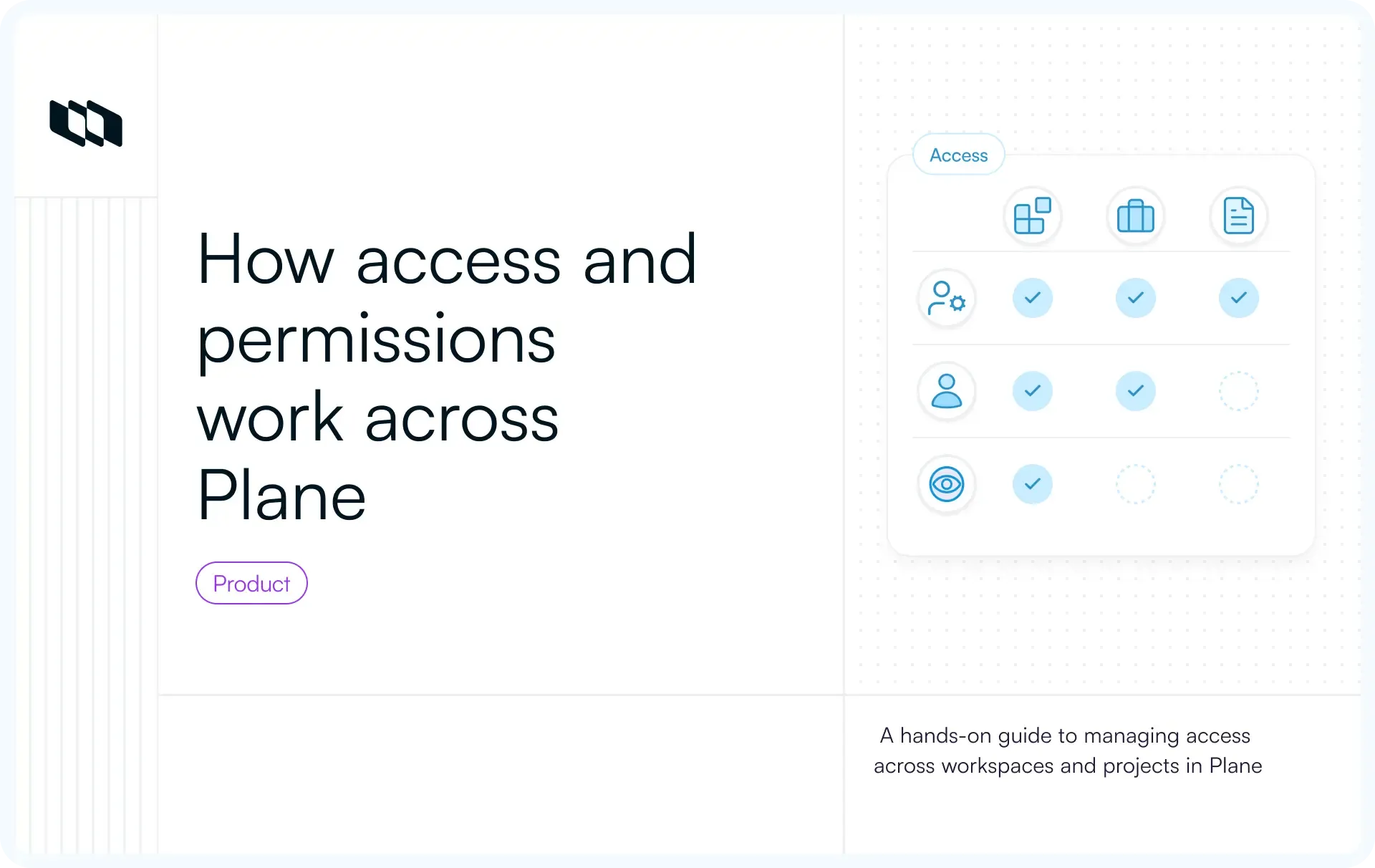
See how roles and permissions work in Plane across workspaces, projects, teamspaces, and private pages, and how to check who can access what.
See how roles and permissions work in Plane across workspaces, projects, teamspaces, and private pages, and how to check who can access what.
Introduction
Alex is a Guest in a Plane project. He can also edit its work items. Both are true. His project role says Guest, but a linked teamspace gives him Contributor access. One person, two permission paths, and a membership list that tells only part of the story.
For teams evaluating Plane, this raises a bigger question: can you tell exactly who has access to what, especially when private projects, external collaborators, and sensitive work enter the picture? The answer starts with one rule: Plane checks every path a person has into a project, and if any one allows the action, it goes through.
How does Plane determine what someone can access?
Plane uses role-based access control, so what someone can do depends on the roles they hold across the workspace, its projects, and its teamspaces. The sections below cover what each level controls and the order Plane checks them in.
Understanding the different levels of access
Six things decide what someone can do in Plane:
Access level | What it controls |
Workspace role | Workspace administration and shared resources |
Project role | Actions within an individual project |
Project visibility | Who can discover and join public or private projects |
Teamspace access | Contributor permissions in linked projects |
Resource permissions | Access to private pages, collections, and restricted work items |
Custom permissions | Specialized roles built from permission schemes on Enterprise Grid |
How Plane resolves effective permissions
When someone attempts a project action, Plane checks permissions in a defined order:
- Direct project role: Does the assigned role permit the action?
- Linked teamspaces: Does teamspace membership provide the required permission?
- Workspace role: Does the person's workspace-level authority grant access?
- Default denial: If no applicable grant exists, the action is denied.
One grant at any level is enough.
This explains why someone can retain access through a teamspace after their direct project membership is removed, or why a workspace Admin can manage a private project without appearing in its member list.
For details, see Plane's Roles and permissions documentation.
What do workspace and project roles actually allow?
Plane assigns roles at two levels. Workspace roles govern administration and shared resources, while project roles control what people can do within individual projects.
What can workspace Owners, Admins, Members, and Guests do?
Free and Pro include Owner, Member, and Guest. Workspace Admin is available on Business and Enterprise Grid.
Workspace role | Main permissions | Important boundary |
Owner | Full workspace administration, including ownership transfer and deletion | Private resources have separate access rules |
Admin | Manage members, settings, billing, integrations, and projects | Cannot transfer ownership or delete the workspace |
Member | Participate in workspace activities and join public projects | No workspace-wide administrative authority |
Guest | Access explicitly assigned projects | Limited to project Guest or Commenter assignments |
What can project Admins and Contributors do?
Project Admins manage project configuration and membership, while Contributors handle regular execution.
Capability | Project Admin | Contributor |
Create and edit regular work items | Yes | Yes |
Create and manage cycles and modules | Yes | Yes, but they can edit or delete only their own |
Manage project settings, roles, and membership | Yes | No |
Create or modify the project's label and state configuration | Yes | No |
Delete regular work items | Yes | Only those they created |
Create, edit, or ship project releases | Yes | No |
Contributors can apply existing labels and change work item states through permitted editing actions. Managing the project's available labels and states requires administrative permissions.
Project releases are available on Business and above. Contributors can view releases and change the Releases property on work items they are allowed to edit, but only project Admins and workspace Owners or Admins can create, edit, or ship a release.
For example, an engineering lead can be a workspace Member and project Admin. They can manage their engineering project's settings, members, and work without receiving workspace-wide administrative authority.
What is the difference between project Commenter and Guest?
Action | Commenter | Guest |
View regular work items | Yes | No |
Create or edit regular work items | No | No |
Comment on regular work items | Yes | No |
Submit Intake requests | Yes | Yes |
View Intake submissions | All | Own submissions only |
View project updates | Yes | Yes |
Commenter suits stakeholders who need to follow project progress and participate in discussions. Guest is better suited to customers submitting requests through Intake.
Who can discover and join public or private projects?
Plane supports two project visibility settings:
- Public: New projects are Public by default. Workspace Members can discover and join them, receiving Contributor access. Workspace Guests cannot independently join.
- Private: A workspace Member cannot self-join. A project Admin must add them, or they can receive access through a linked teamspace. Workspace Owners and Admins retain their project-level authority.
If you make a project private, check its linked teamspaces as well, since every member of a linked teamspace gets in as a Contributor whether the project is private or public.
For operation-specific differences, see Plane's Permissions matrix.
How do teamspaces change someone's project permissions?
Available on Pro and above, teamspaces give eligible members Contributor access to linked projects, including private ones.
How does teamspace membership grant project access?
When a teamspace is linked to a project, its members receive Contributor permissions without being added to the project's direct member list. Existing project roles remain unchanged.
The project role now called Contributor was previously named Member in older Plane terminology.
Teamspace membership is open to workspace Owners, Admins, and Members, while workspace Guests cannot join teamspaces. Only teamspace Leads and workspace Owners or Admins can link or unlink projects, and a teamspace Lead does not automatically become a project Admin.
Can someone with project Guest permissions still edit work items?
Return to Alex, who has three access relationships:
- Workspace role: Member
- Direct project role: Guest
- Teamspace: Member of a teamspace linked to the project
Although his direct project role is Guest, the teamspace independently grants Contributor access. Alex can therefore edit ordinary work items while his project membership continues to show Guest.
To verify his permissions, an administrator should check his direct project role, teamspace membership, and linked projects.
What happens when project or teamspace access is removed?
Removing one permission source leaves other valid grants intact.
Administrative change | Result |
Remove direct project membership | Teamspace-derived access remains |
Remove teamspace membership | Direct project role remains |
Unlink the project from the teamspace | That teamspace's Contributor grant disappears |
Change a workspace Member to Guest | Project access drops to Guest, and teamspace memberships are removed |
Remove someone from the workspace | Their workspace, project, and teamspace access is revoked |
So when someone moves to another team, remove them from the old teamspace too, along with any projects they were added to directly.
See Plane's teamspaces documentation.
Can workspace and project administrators access every resource?
Project administration provides broad authority, but private pages, collections, and work item security have additional access rules.
Who can open private pages and collections?
Plane applies different rules depending on where documentation lives:
- Private project pages: Visible only to their owners and the people they're shared with. Workspace Owners, Admins, and project Admins have no override.
- Private wiki pages and collections: Private wiki pages follow the same rule, so only their owners and the people they're shared with can open them. Private collections, available on Business and above, are visible to their owners and added members. Workspace Owners and Admins do not see a private collection unless they own it or were added to it.
- Teamspace pages: Accessible to teamspace members and workspace administrators. Teamspace pages have no individual Private setting.
For example, a workspace Admin can manage a private engineering project while remaining unable to open an employee's private project page.
For documentation-specific workflows, see Plane Wiki and Pages: A guide to team documentation.
Can a project Admin view every work item?
On Enterprise Grid, work item security audiences can restrict visibility even for project Admins.
The important access rules are:
- Workspace Owners and Admins retain access to restricted work items.
- Project Admins see a restricted work item only if its audience includes the Project Admin role or names them directly.
- Assignees and subscribers retain access even when excluded from the configured audience.
Audiences can apply to individual work items or work item types. Active item-level audiences take precedence over type-level audiences, and matching any one applicable audience at the same level is sufficient.
Disabling an audience stops it from enforcing restrictions. Affected work items may become visible through normal project access unless another active audience or applicable type-level restriction remains.
Consider a security incident restricted to a small audience. A project Admin outside that audience may be unable to view the work item, while a workspace Admin still sees it.
See the work item security documentation for configuration details.
When do teams need custom roles and granular permissions?
On Enterprise Grid, you can build your own roles from permission schemes, which Plane calls Granular Access Control.
When are built-in project roles insufficient?
Consider a Release Manager who needs to publish project releases without managing project settings or membership.
An Enterprise Grid custom role can combine Contributor permissions with selected release management operations.
How do custom roles and permission schemes work together?
A permission scheme is a reusable group of capabilities. Plane combines permissions from attached schemes using a union.
For example, a Release Manager role might include:
- Project Contributor scheme: Regular project execution permissions.
- Release Publishing scheme: Selected release management permissions.
When permissions overlap, an unconditional grant takes precedence over a creator-specific condition. Reserved Owner-only operations, such as deleting the workspace or transferring ownership, cannot be assigned through custom roles.
Adding a scheme can broaden authority, while editing a shared scheme affects every role using it. Administrators should review the combined permissions before assigning the role.
For setup details, see Custom roles and Permission schemes.
How should teams configure access for different people in Plane?
Person | Suggested configuration | Access provided |
Engineering lead | Workspace Member + project Admin | Manage assigned project and members |
Internal engineer | Workspace Member + project Contributor | Create and manage regular project work |
External reviewer | Workspace Guest + project Commenter | View and comment on regular project work |
Customer requester | Workspace Guest + project Guest | Submit and manage own Intake requests |
Release Manager | Enterprise Grid custom project role | Perform selected release operations |
Security investigator | Project Contributor, added to the incident's audience | Access authorized restricted work items |
Before rollout, verify each configuration against linked teamspaces, resource restrictions, and edition availability. Test access using the intended user's account, especially for external collaborators and sensitive work.
How can administrators verify and troubleshoot access in Plane?
When someone has unexpected permissions or cannot perform an authorized action, administrators can trace the relevant access paths using five steps.
Step 1: Identify the exact access requirement
Start with the person, resource, and attempted action. For example, if a Contributor cannot edit a work item, establish whether the issue involves ordinary editing, deletion, or a restricted resource. Confirm that the required feature is available on the organization's plan.
Step 2: Review direct and inherited permissions
Check the person's workspace role, direct project membership, project visibility, and linked teamspaces.
On Enterprise Grid, also inspect applicable custom roles and permission schemes. These grants may independently authorize the requested action.
Step 3: Check resource-specific restrictions
Review any additional conditions affecting the resource:
- Work items: Active security audiences, assignee or subscriber exceptions, and creator-based permissions.
- Pages: Privacy, ownership, sharing, and private collection membership.
Step 4: Investigate how access was granted or changed
On Enterprise Grid, audit logs show who changed a person's membership or role, and when.
- Workspace audit logs: Record events including member invitations, removals, and workspace role changes.
- Project audit logs: Record members added to the project, removed from it, or leaving it, along with project role changes.
Logs identify the actor, event, affected object, and timestamp. A log records what changed, so to see what someone can do today, check their current roles. A field-by-field history of permission changes isn't available yet, and Plane's roles docs still mark it as coming soon.
For details, see Workspace audit logs and Project audit logs.
On Enterprise Grid in self-hosted Commercial and Airgapped Editions, IdP group sync can manage workspace roles, project memberships, and private wiki collection access.
Group sync never touches access someone was given by hand. It removes access only when Auto remove is on, and that setting is off by default.
If an employee retains access after leaving an IdP group, check whether a manual assignment or another valid permission path remains.
See IdP group sync documentation.
Step 5: Correct the permissions and test the result
Update the relevant role, membership, teamspace link, or resource permission, then repeat the original action using an account with the intended access.
Test both a permitted and restricted action. For example, a project Commenter should be able to view and comment on an eligible regular work item while remaining unable to edit it through their standard role.
Common access configuration mistakes to avoid
Watch for these seven mistakes:
- Overusing workspace Admin: Assign project Admin when someone only needs to manage an individual project.
- Treating project Guest as read-only access: Guest focuses on Intake. Use Commenter when stakeholders need regular project visibility and feedback.
- Checking only direct project membership: Linked teamspaces may continue providing Contributor access after direct membership is removed.
- Overlooking private-resource restrictions: Private pages, collections, and audience-restricted work items have separate access rules.
- Combining permission schemes without reviewing the result: Additional schemes can grant broader authority than intended.
- Disabling security audiences without checking visibility: Inactive audiences stop enforcing their restrictions, potentially exposing work items.
- Assuming IdP changes revoke all access: Manual assignments and other valid grants can survive group sync changes.
Bottom line: Know exactly who can do what in Plane
Access in Plane comes from more than one place: workspace role, project role, linked teamspaces and, on Enterprise Grid, custom roles. If any one of them allows an action, it goes through. So when someone can do more or less than you expect, look past the member list and check every path they have into the project.
See how Plane handles your organization's access requirements.
Talk to sales to evaluate custom roles, resource-level restrictions, and access management using the scenarios that matter to your organization.
Frequently asked questions
1. Why can someone with the Guest role edit work items in Plane?
Someone assigned Guest directly to a project may also belong to a linked teamspace that grants Contributor access. Plane evaluates both permission paths, so the person can edit ordinary work items through their teamspace membership. This scenario applies to an eligible workspace Member; workspace Guests cannot join teamspaces.
2. Can a workspace Guest become a project Contributor?
No. Workspace Guests can only receive project Guest or Commenter assignments. Regular Contributor access requires an eligible workspace role. This restriction helps organizations limit the permissions assigned to external collaborators.
3. Does teamspace membership automatically grant access to linked projects?
Yes. Every eligible teamspace member receives Contributor access to linked projects, independently of direct project membership. Removing someone's direct project assignment does not revoke their teamspace-derived permissions.
4. Can workspace Owners and Admins view every private page?
No. Private pages, whether in a project or the wiki, are visible only to their owners and the people they're shared with. Workspace Owners and Admins do not receive a universal override for these private resources.
Recommended for you



 Download for Mac
 Download for Android
