Drag and drop in the Plane editor, rebuilt
Drag to nest list items, split lists with headings, and put blocks side by side.
Drag to nest list items, split lists with headings, and put blocks side by side.
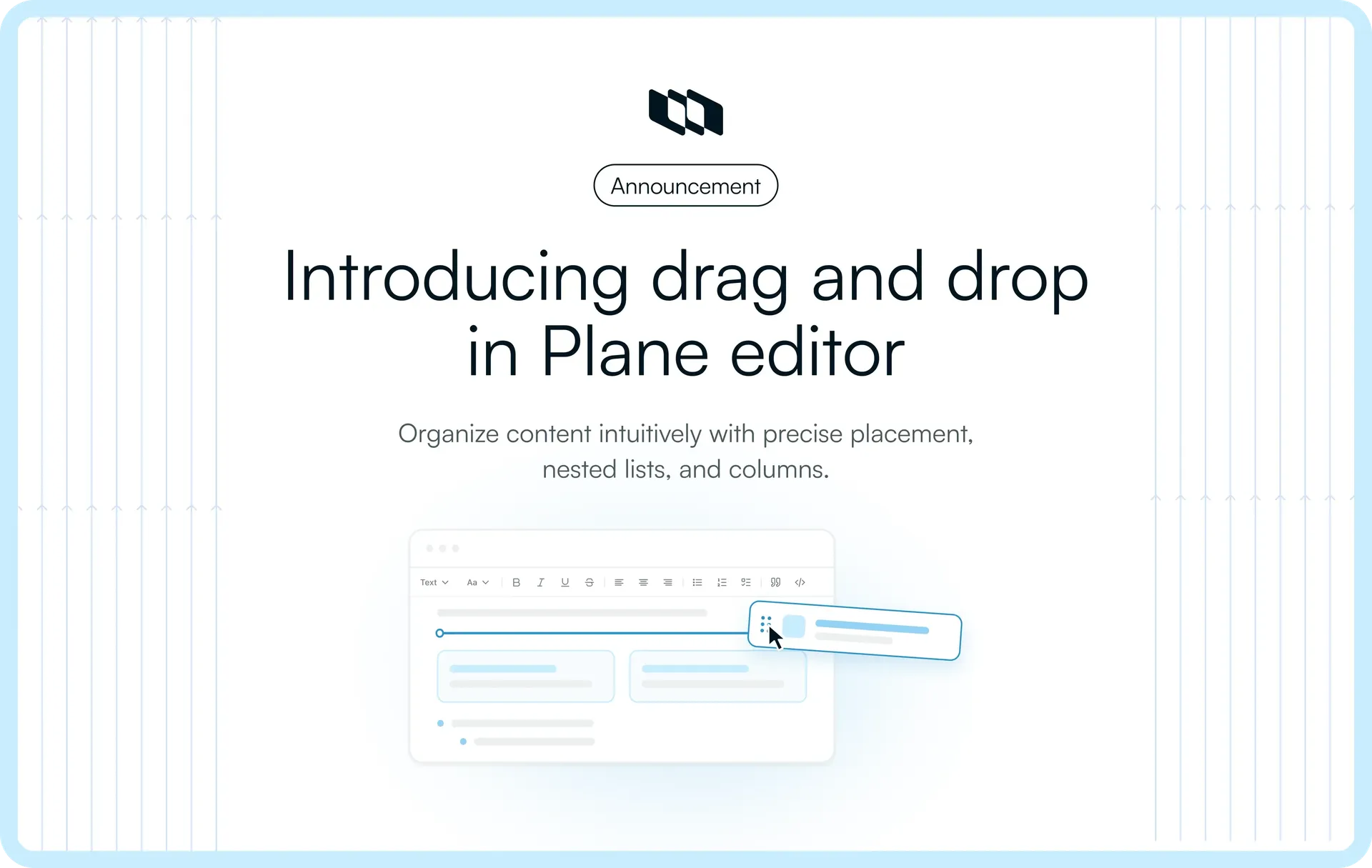
We've rebuilt drag and drop in the Plane editor. Drag a bullet sideways to nest it, drop a heading into a list to split it, or drop a paragraph on another's right edge to make columns. Blocks also land where the line points now. We've also grouped the slash menu and added screen reader labels to the formatting toolbar.
A launch brief typed with slash commands on a wiki page, then rearranged by dragging
Here's what's new.
What's new
1. Blocks land where the line shows
A dropped block now lands where the line points. Before, the line and the drop were worked out separately, so a block could end up one spot off, usually when you let go near the left margin. Now they use the same logic.
Before and after of a paragraph released in the left margin. After, it lands below the paragraph, where the line was
2. Nest and un-nest list items with a drag
Drag a bullet right to nest it under the one above, or left to pull it back out. The line shifts to the new indent as you move, so you can see the level before you drop.
A bullet dragged right to nest under the first bullet, then left to come back out
3. Split a list with a heading
Drop a heading between two bullets and the list splits around it. Before, the heading jumped above the whole list.
Before and after of a heading dropped between two bullets. After, it splits the list in two
4. Make columns with a drag
Drop a paragraph on another paragraph's right edge to put the two side by side. Column layouts are still in the slash menu too.
A paragraph dragged to another paragraph's right edge, becoming a column beside it
5. Grouped slash menu
The "/" menu now groups commands under headings like Basics, Lists, Layout, and Media. The formatting and alignment buttons over selected text also have labels for screen readers.
The slash menu on an empty page, with commands grouped under headings
Put it to work
Turn meeting notes into a plan
Notes from a launch sync often end up as one flat list with an Open heading at the bottom. Drag the heading up under the last decision to split the list, then drag each owner's line under the item they own.
Meeting notes become a plan. A heading splits the list, then two owner lines nest under their items
Clean up a work item description
Before you hand a work item off, drag the due date to the top and nest the stray outline points, in the full view or the peek view.
A due date moved up and an outline point nested, inside a work item description
Rearrange a brief
Draft a brief with slash commands, then drag the callout under the heading and nest the last bullet. That's the clip at the top of this post.
Where it works
- Wiki pages, project pages, and teamspace pages
- Work item descriptions, in the full view and the peek view
- Descriptions of initiatives, teamspaces, and customers
Teamspaces, initiatives, and customers need to be turned on for the workspace first.
Good to know
- One block moves per drag.
- Columns come from a block's right edge, not its left. Aim for the middle of the block, since near the bottom the column can attach to the block below.
- Moving the only block out of a column leaves an empty column.
- A numbered list restarts at 1 when you drop a block into it.
- The slash menu now opens on Heading 1 instead of Text, and the order has changed.
- Expand a collapsed work item description with Show all before dragging. Dropping a block onto the comment box duplicates it.
For admins and self-hosted teams
Drag and drop follows existing edit permissions, and there's nothing to turn on. The editor now runs on Tiptap 3. Existing content doesn't need a migration, and page IDs, URLs, and permissions don't change.
Availability
The rebuilt drag and drop is available on Plane Cloud and in self-hosted Plane.
Recommended for you



 Download for Mac
 Download for Android