How to track OKRs and Goals in Plane
Set up measurable Key Results, connect them to the work behind them, and run the quarter with a clear view of outcome and execution.
Set up measurable Key Results, connect them to the work behind them, and run the quarter with a clear view of outcome and execution.
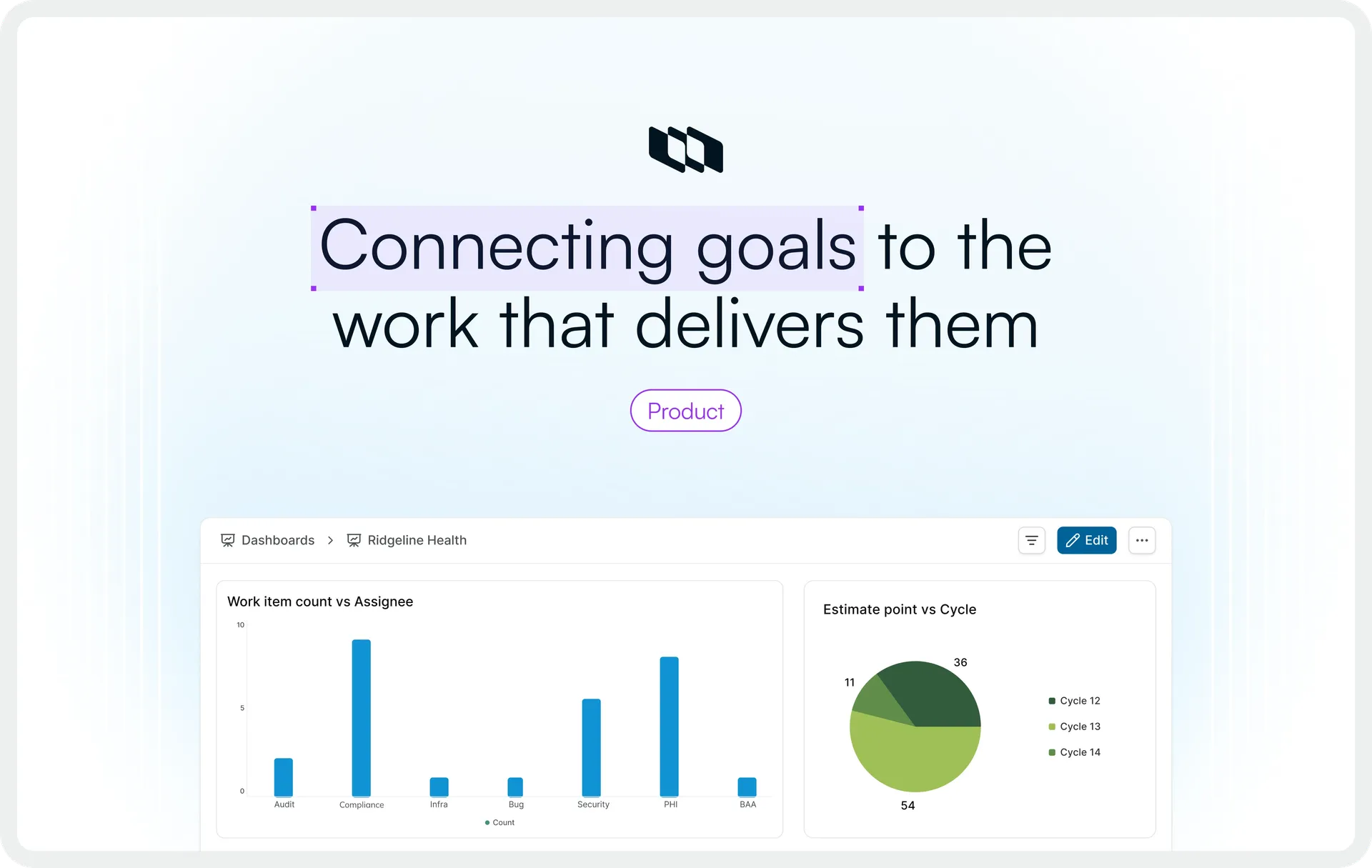
Goal tracking gets messy when the goal and the work behind it live in different places.
The result is usually a second layer of reporting. Someone updates a status in a doc, changes a confidence score, or maintains a percentage by hand while the projects keep moving somewhere else. Over time, the goal starts to drift away from the work that is supposed to move it.
That becomes obvious during reviews. Teams end up pulling together project status, metric updates, and context from different places just to explain where a goal stands.
This guide shows one way to avoid that in Plane. We'll use a Q4 activation objective as the running example, with three Key Results and the projects and execution work behind them.
The work can ship without the goal moving
Execution tells you if the work is moving
Execution answers one question: are we delivering the work we planned? Projects move, work items close, blockers clear. It is countable, and it is honest about what the team has done.
Outcome tells you whether the result is moving
The outcome answers a different question: is that work changing the thing we wanted to change? Activation climbing from 42% toward 55%. Time-to-first-value dropping from eighteen minutes to ten, or onboarding support contacts falling. These numbers don't move because work closed. They move because the work happened to be the right work.
The two signals belong together, and they should never collapse into one number. Three of four projects shipping is not seventy-five percent of a goal achieved. A team can close every planned work item and watch activation sit exactly at its baseline. Shipping the work is not sufficient evidence that the bet worked.
Set the objective and measurable key results
In Plane, start by creating a dedicated KR Work iIem Type. Each KR you track will be a work item of this type, with the same custom fields.
Structure the objective as an Initiative
The objective sets the strategic direction. In Plane, structure it with an Initiative. For this example, create one called Activation Growth.
Then add the projects contributing to that objective to the Initiative:
- Signup experience
- Onboarding
- Activation analytics
This lets the Initiative bring related work across several projects into one view, while each project keeps its own work and ownership.
Create key results as custom Work Item Types
A KR measures a change in an outcome and the work is the bet you make to try to move it.
Key Result | Work |
Increase activation from 42% to 55% | Redesign signup flow |
Reduce TTFV from 18 to 10 min | Ship onboarding checklist |
In Plane, track KRs as work items. Create a custom Work Item Type so every KR follows the same structure inside the relevant project.
Add the properties every key result needs
Give the KR type three mandatory properties:
- Baseline: Where the metric starts. Activation begins the quarter at 42.
- Current: Where the metric stands now. At setup this also reads 42.
- Target: Where the metric should reach by the end of the period. Activation is aiming for 55.
Current is the metric value, not a completion percentage. If Current reads 44, activation is at 44%. It does not mean the KR is 44% complete. Then add a confidence dropdown with On Track, At Risk, and Off Track which is the owner's judgment about whether the metric will reach Target.
Add key results inside the contributing projects
Create each KR as a work item of the Key Result type inside the relevant project.
For the activation example:
- Key Result: Activation 42% → 55%
- Redesign signup flow
- Ship onboarding checklist
- Run lifecycle email experiment
- Test verification flow
The KR stays as the parent work item. The execution work sits beneath it as sub-work items. That keeps the outcome and the work connected without turning delivery progress into KR progress. The parent carries Baseline, Current, Target, Confidence, and ownership. The sub-work items carry the actual execution state.
Use the key result type to evaluate the work
Halfway through the quarter, activation has moved from 42% to 44%.
The signup redesign has shipped, the onboarding checklist is live, but the lifecycle email experiment underperformed. The verification-flow experiment is the next bet the team wants to test.
The KR is still at 42% → 55%. What changes is the work the team chooses to invest in.
That is the point of keeping the outcome separate from the work. Completing sub-work items shows what the team has executed. The KR shows whether those bets are moving the metric.
If the work keeps shipping and Current barely moves, the team has evidence to reconsider what it tries next without changing the result it is aiming for.
Review key results from two angles
Once several KRs are running, you need two different views of progress.
Track the outcome across all KRs
Create a View filtered to the KR type and surface the fields that matter for review:
- Baseline
- Current
- Target
- Confidence
This gives the team one place to scan how each KR is tracking against its target.
Track execution progress across the KRs
On the Dashboard, use the KR Progress widget to see how much of the execution work beneath each key result has been completed.
The widget rolls up progress from the sub-work items under each KR, so the team can quickly see which KRs have most of their planned work complete and which still have significant execution left. This progress is an execution signal. It does not tell you how much of the KR itself has been achieved.
Together, the two views answer different questions: How is the outcome moving? and How much of the work behind it has been completed?
Ask Plane AI what needs attention
Once the KR view shows which outcomes are behind and the progress widget shows how execution is moving, the next question is what needs attention.
Plane AI can help pull together the context spread across the KR, its sub-work items, and the projects contributing to the objective. Instead of opening each item individually, ask questions such as:
- Which Key Results are at risk?
- What is blocking the time-to-first-value Key Result?
- What changed across the activation work this week?
For example, if activation is still at 44% while most of its execution work is complete, Plane AI can summarize what has shipped, what remains open, and any blockers or recent changes around that KR.
The AI brings the relevant context together. The owner still decides whether to change the work, adjust Confidence, or keep the current bets running.
Keep the goal current through the quarter
The setup only works if the KRs stay current as the quarter moves.
Update Current when the metric changes
When the activation rate changes, update Current on the KR. If activation moves from 42% to 44%, Current becomes 44. Plane is not measuring that business metric automatically in this setup. The owner brings in the latest value from the system where the metric is tracked.
Update Confidence when the outlook changes
Confidence is different from Current. Current tells you where the metric is now. Confidence tells you how likely the owner thinks it is to reach Target. A KR can still be at 44% and move from On Track to At Risk if the team no longer believes the current bets will close the gap.
Run the goal review in Wiki
At quarter close, the review runs on a Wiki page for the objective.
Embed the relevant Dashboard widgets so the page carries the execution context into the review. Then use the page itself to capture what the widgets cannot: how the KR moved, what shipped, what the team learned, the decisions made, and what changes next quarter.
For the activation objective, that might mean activation reached 51% against a 55% target, the signup redesign and onboarding checklist shipped, the lifecycle email experiment underperformed, and the verification-flow experiment showed enough promise to continue.
The Wiki page becomes the record of the quarter, with live execution context from the Dashboard and the reasoning behind what the team decides to do next.
Connect the result to the work behind it
The value of OKR tracking comes from keeping the result close to the work that is meant to move it.
Through the quarter, that gives the team a clear view of where the metric stands, how execution is progressing, and which bets are still worth pursuing. By the time the review comes around, the context is already there.
The quarter leaves behind more than a final number. It leaves a record of the work, the decisions, and the learning that should shape what happens next.
Set up the objective, connect the work, and run the quarter in Plane.
Recommended for you
.webp&w=3840&q=75&dpl=dpl_HA17qnitKVddYuCtgqK7LTRe1y1d)



 Download for Mac
 Download for Android