Introducing Custom Workflows and Approval Flows
Bring more structure to work execution with work item-specific workflows, approval flows, and automated transition conditions.
Bring more structure to work execution with work item-specific workflows, approval flows, and automated transition conditions.
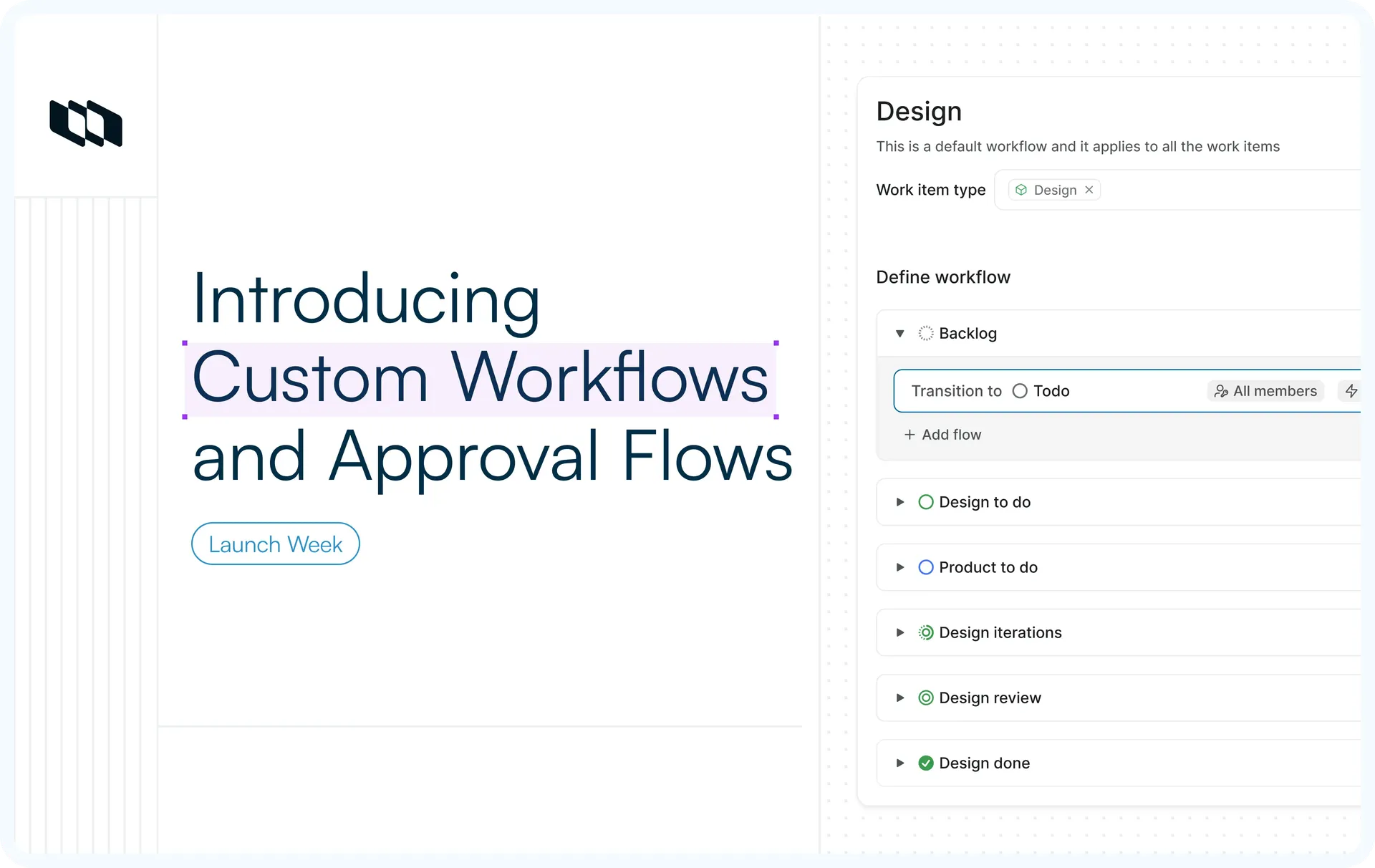
Create workflows for specific work item types alongside the project default workflow. Require approvals before a transition can proceed, with separate outcomes for approval and rejection. Attach Plane Runner scripts to validate a transition before it happens and perform actions after it completes.
What's shipping
- Custom workflows
Create additional workflows for specific work item types alongside the project default workflow. - Approval Flows
Hold a transition until designated approvers accept or reject it, with a separate destination state for each outcome. - Transition Conditions
Attach Plane Runner scripts to a transition, one to validate it before it happens, one to act after it completes. - Pre-validation
Run scripts before a transition to verify the work item is ready to move. - Post actions
Run scripts after a transition completes to perform follow-up work.
Custom Workflows
Every project has a default workflow that governs how work moves through its states. A single workflow is often sufficient until different types of work require different rules. Example: A bug fix may require stricter review than a routine task.
- Create work item type-specific workflows
Create workflows tied to specific work item types. When a work item's type matches a type-specific workflow, that workflow takes precedence over the default. - Define the path
Add the states a workflow includes, then add flows that define the permitted moves between them. Use the Allow new work items setting to control which states a work item can be created in. - Restrict who can move work
A transition can be available to all project members or restricted to specific members.
For more details, see the Custom Workflows docs.
Approval Flows
Some transitions require explicit approval before they can proceed. An approval flow turns a move into a decision.
- Separate approval and rejection paths
Define the routing paths for approved and rejected items. Until a decision is finalized, items will remain in a pending state. - Approvers of your choice
Make an approval available to all members or restrict it to designated approvers. - Decision on the work item
Approvers see Approve and Reject buttons on the work item, and the item routes to the matching destination state.
For more details, see the Approval Flows docs.
Transition Conditions
A workflow controls where work can move. Transition conditions control whether it should, and what happens once it does. They run Plane Runner scripts, the same engine introduced earlier in the week, attached directly to a transition or approval flow.
- Pre-validation runs before the move
Verify the work item is ready: required fields are filled, an estimate is set, and sub-work items are complete. If a script fails, the transition stops, and the user sees why. You can attach multiple pre-validation scripts, and all of them must pass before the transition proceeds. - Post-actions run after the move
Once a transition completes, run follow-up actions such as posting to a channel, creating a linked work item, adding a label, updating a property, or calling an external API. Post-actions do not block the transition.
For more details, see the Transition conditions section of the docs.
Availability across plans
Feature | Plan |
Custom Workflows | Enterprise Grid |
Approval Flows | Enterprise Grid |
Transition Conditions | Enterprise Grid |
Recommended for you



 Download for Mac
 Download for Android