Introducing Plane Runner and Scheduled Automations
Explore Plane Runner and scheduled automations to automate workflows, run custom scripts, and turn Plane into a system of action.
Explore Plane Runner and scheduled automations to automate workflows, run custom scripts, and turn Plane into a system of action.
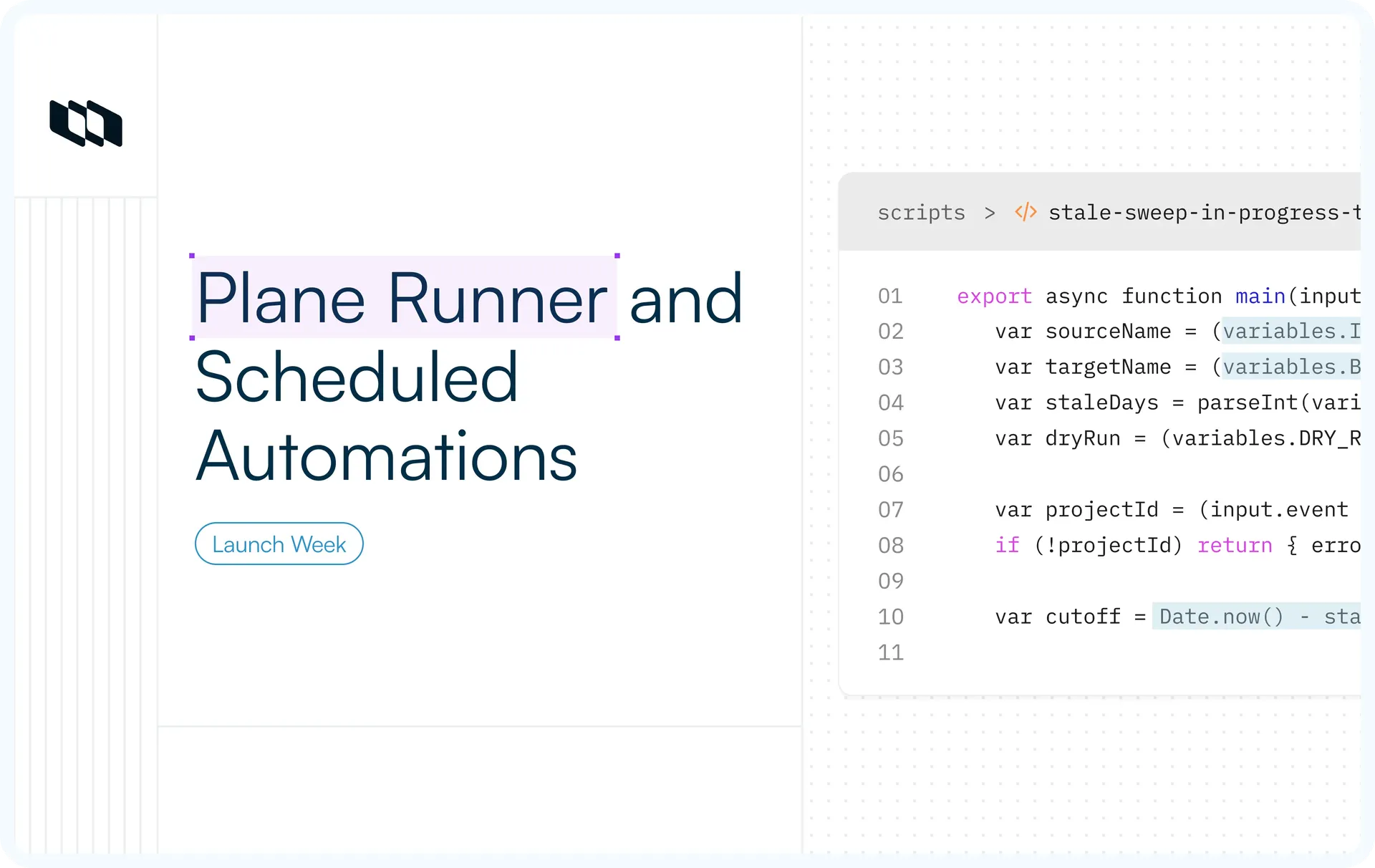
Plane Runner executes custom scripts in response to workspace events. Scheduled automations execute scripts on a schedule. Together, they enable custom automation workflows in Plane.
What's shipping
The Enterprise Grid execution layer includes two components:
- Plane Runner
A scripting environment for running JavaScript or TypeScript on Plane events, with access to workspace data through the SDK. Available on Enterprise Grid. - Scheduled automations
Time-based triggers that run on a schedule rather than in response to an event. Available on Enterprise Grid.
Plane Runner
Plane's built-in automations handle common cases: changing a property, posting a comment, and changing a state. They do not handle logic. "Close the parent when all children are done" and "create a linked QA item when this reaches In Review" require a script.
Plane Runner is where you write, test, and manage custom automation scripts.
There are two building blocks:
- Scripts are the executable unit. A script is a JavaScript or TypeScript function that runs in response to a trigger: a workspace event, a scheduled time, or a workflow transition. Each script runs in a sandboxed environment with access to the Plane SDK, reusable functions, and environment variables.
- Functions are reusable pieces of logic that you write once and call from any script. Plane ships a set of built-in system functions out of the box (
getSiblings,getChildren,addComment,addLabel,postToSlack, andhttpRequest). You can also define your own functions.
Scripts run in response to triggers, whereas functions are called.
The script can be executed in two ways:
- Event-based scripts run when something happens in your workspace: a state change, a new work item, or a label applied. The script receives the full event payload and can act on it accordingly.
- Scheduled scripts run at a time you set.
System scripts
Plane ships two ready-to-use templates you can attach without writing any code.
- Mark the parent as done if all children are done
When a work item completes, it checks its siblings. If every sibling is also completed, it automatically marks the parent as done. - Create a linked work item in another project
When a work item reaches a specified state, it creates a copy in a destination project with arelates_tolink.
Both appear in the Scripts tab alongside your custom scripts.
For details, see the Plane Runner docs.
Scheduled automations
Event-driven automations run when something happens. Scheduled automations run at a time you set.
Some operations aren't tied to a specific event in your workspace. Running a daily cleanup of inactive work items, syncing data to an external tool every night, or posting a recurring status update on open work items are all time-based and require a schedule.
How to set up a scheduled automation:
- Go to Workspace Settings → Automations, Create an automation, and select Scheduled as the trigger type.
- Choose a frequency: Daily, Weekly, or Monthly. Set the time and time zone. Or switch to Cron mode and enter a five-field cron expression
- The only available action is Run script. There is no triggering work item, so there is nothing to apply a property change or comment to directly. The script determines what to query, which items to act on, and what actions to perform.
- Scheduled automations are checked approximately every 5 minutes. Scheduled times use the project's time zone, then the workspace time zone, and finally UTC.
- Every run is logged in the automation's Activity tab, including timing, the script's return value, and full error details if something fails.
Power-user move: Run a nightly sync between Plane and an external tool. The script queries work items in a specific state, formats the data, and posts it to an external endpoint. Pair it with an event-based automation that writes back to Plane when the external system updates. The scheduled automation sends updates to the external system, while the event-based automation writes external changes back to Plane. Together, they maintain bidirectional synchronization.
For details, see the Automations docs.
Availability across plans
Feature | Plan |
Plane Runner | Enterprise Grid |
Scheduled automations | Enterprise Grid |
Try it: Workspace Settings → Plane Runner to activate scripting. For Scheduled automations, Workspace Settings → Automations → Create an automation → Select Scheduled as the trigger.
Recommended for you



 Download for Mac
 Download for Android