How Plane Airgapped licensing and offline upgrades work
Explore the operating model behind Plane Airgapped, from offline license validation to controlled upgrades and production recovery.
Explore the operating model behind Plane Airgapped, from offline license validation to controlled upgrades and production recovery.
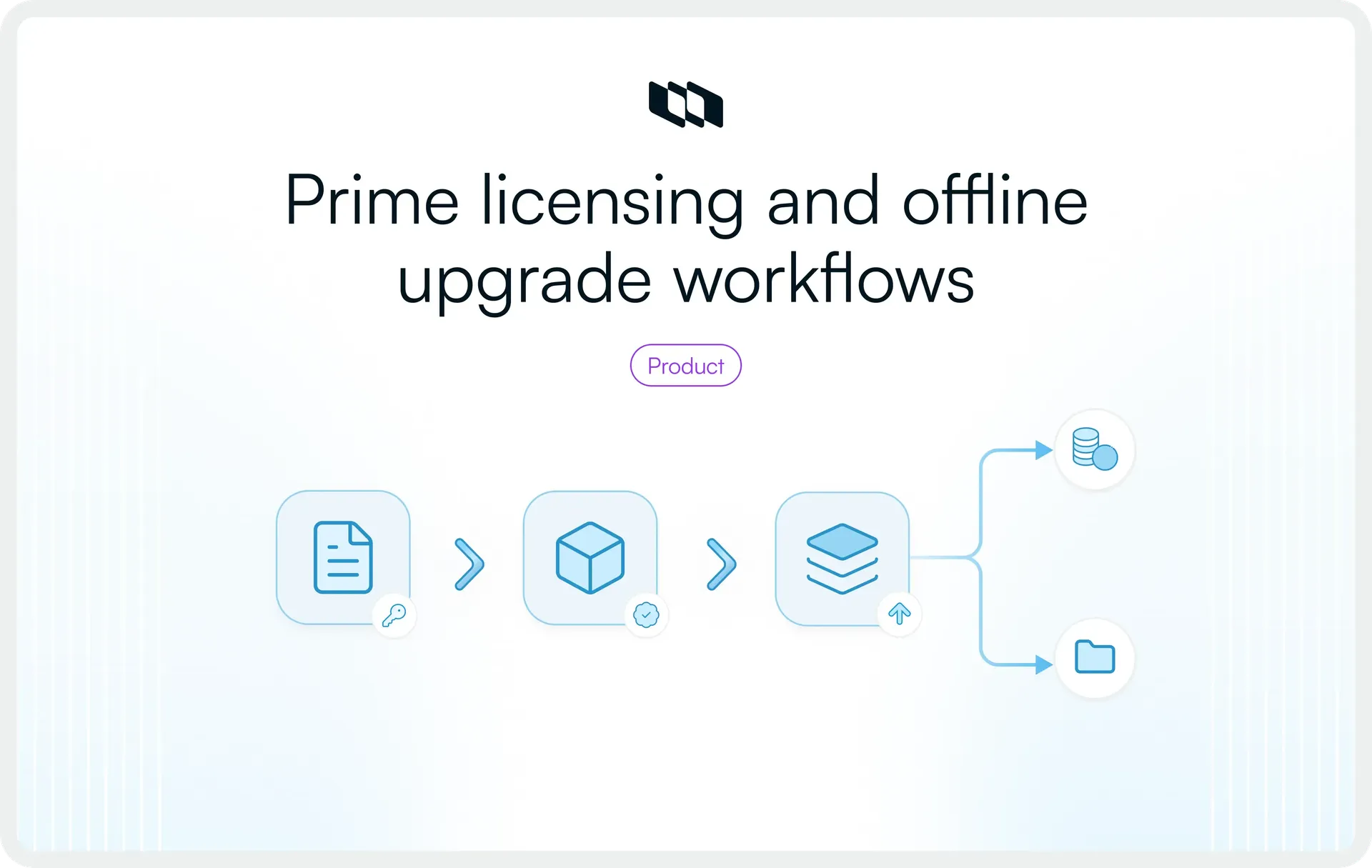
The quickest way to pressure-test an air-gapped product is to ask two questions: How does the license stay valid? And how does the next version get in? The answers tell you where external dependencies still exist, what your infrastructure team will have to operate, and how much control you really have once the product is in production.
For Plane Airgapped, those answers span offline licensing, controlled artifact transfer, Docker and Kubernetes upgrades, database migrations, and recovery. This guide walks through the model from an evaluator’s perspective, including the parts worth validating before your security team gives it the green light.
How does Airgapped licensing work in Plane?
Plane uses different licensing paths for connected Commercial Edition and Airgapped Edition deployments. The distinction matters for security teams assessing whether commercial licensing introduces an outbound network dependency.
Plane offers Airgapped Edition exclusively with Enterprise Grid, with a minimum commitment of 100 seats. Plane directs Airgapped customers to Sales for trial discussions, exceptions to the seat cutoff, tailored pricing, and licensing information. Enterprise Grid applies across the entire Plane instance and covers every workspace.
On an Airgapped instance, Enterprise Grid is activated from God mode using an offline license file. The running instance validates the file without connecting to prime.plane.so
Connected Commercial and Airgapped licensing use different validation paths
A connected Commercial Edition instance requires outbound HTTPS access to prime.plane.so on port 443 for licensing. It periodically refreshes its licensing state against Prime. If those refreshes fail, the instance keeps its paid entitlement only until the current licensing authorization expires, after which it moves to Free.
Airgapped Edition uses an uploaded license file for offline licensing, while network isolation is enforced by the deployment environment. Plane does not disable outbound calls in application code on Airgapped installs: telemetry is sent to telemetry.plane.so by default, and the license refresh still targets prime.plane.so. The Airgapped network should therefore block external egress. With those controls in place, telemetry or licensing refresh attempts cannot reach external Plane services.
Area | Connected Commercial | Airgapped Edition |
Entitlement artifact | License key |
|
Licensing connectivity | Outbound HTTPS to | No runtime Prime connection |
Activation | License key in God mode → Billing for Enterprise Grid | License file in God mode → Billing |
License/version relationship | License key validated through Prime | License file issued for one Plane version |
How the Airgapped license reaches Plane
An administrator checks the licensing details in God mode → Billing. On a separate machine with internet access, they sign in to the Prime portal, open the Enterprise Grid license, and download the offline license file. The organization then transfers the file through its approved process and uploads it in God mode → Billing.
The high-level flow is: Download offline license → approve and transfer → upload in God mode → activate locally
Airgapped licenses are obtained through Sales rather than self-service checkout, while the corresponding license file is downloaded through the Prime portal.
Prime portal, prime.plane.so, and Prime CLI have different roles
The similar names can create confusion during a security review:
- Prime portal: The connected administrative surface used to manage self-hosted licenses and download an Airgapped Enterprise Grid license file.
prime.plane.so: Plane’s licensing endpoint for connected Commercial Edition deployments.- Prime CLI: Administration tooling for supported Commercial Edition Docker installations originally installed with
prime-cli.
What information does Plane require to issue the offline license?
Under Plane’s updated Airgapped licensing model, the administrator provides the instance’s Instance ID when requesting the signed .lic grant.
The grant is issued for that Instance ID and validates only on the corresponding Plane instance. A Plane app version is no longer used to bind the license grant.
Organizations whose approval process depends on the grant’s cryptographic implementation or signing details should confirm those specifics directly with Plane.
How does instance-bound licensing work?
Plane’s updated Airgapped licensing model uses a signed .lic grant tied to the instance’s Instance ID. The grant carries its own expiry and does not check the running Plane app version.
As a result, upgrading Plane does not require a new license grant simply because the application version changes.
The license follows the instance, not the Plane version
The signed grant validates only on the Instance ID for which it was issued. Plane version upgrades can use the existing grant until that grant expires or needs to be replaced for another licensing reason.
If an Airgapped deployment moves to a new instance with a different Instance ID, the existing grant will not validate there. A new grant must be issued for the new Instance ID.
Seat changes require an updated license grant
Airgapped customers should work with their Plane contact when changing licensed capacity. Once the updated .lic grant is issued, uploading it replaces the existing grant.
Delinking the current license is optional in the updated licensing flow.
What should be clarified before production approval?
Teams should confirm any licensing procedures that affect their operating or recovery runbooks, including:
- How renewal works when the current grant approaches expiry;
- How a replacement grant is obtained if the existing file is lost;
- Whether a rebuild preserves the existing Instance ID and grant validity;
- How a new grant is issued during disaster recovery if the Instance ID changes.
How do offline upgrades work in Plane Airgapped?
An Airgapped Plane instance does not fetch updates from the public internet. Release artifacts are acquired on a connected machine, moved through the organization’s approved controls, and deployed from infrastructure inside the isolated environment.
Plane documents a controlled process for transferring application images and deployment artifacts into the Airgapped environment. Container images are staged in a private or internal registry before deployment.
A typical enterprise flow is: Acquire release → verify and approve → transfer → stage internally → deploy → validate
What enters the environment during an update?
The artifacts depend on the deployment method. Docker upgrades use target Plane images, an updated Docker Compose file, and a new environment template. Kubernetes upgrades use target Plane images and an updated Plane Enterprise Helm chart. Both workflows also require a license file matching the Plane version running after the upgrade.
How Docker Airgapped upgrades work
On a connected machine, the administrator pulls the target Plane images and pushes them to the Airgapped Docker registry. The updated docker-compose.yml and environment template for that Plane version are also transferred into the isolated environment.
Plane instructs administrators to use the new environment template as the base and copy existing custom values into it, since newer releases may introduce additional variables. The existing plane.env should be backed up before it is replaced.
Plane is then restarted with Docker Compose. Once the target version is running, the matching Airgapped license file is applied and the application version is verified.
How Kubernetes Airgapped upgrades work
For Kubernetes, the target Plane images are pushed to the private registry used by the Airgapped cluster, and the updated Plane Enterprise Helm chart is transferred into the environment.
Administrators compare their current values.yaml with the new chart defaults and carry their existing configuration into the new base. The planeVersion value is set to the version of the images staged in the registry, after which the Helm release is redeployed. The matching license file is then applied.
Upgrade area | Docker | Kubernetes |
Plane software | Target container images | Target container images |
Deployment artifact | Updated Docker Compose file | Updated Enterprise Helm chart |
Configuration | New environment template with existing custom values | New chart defaults with existing custom values |
Registry | Private Docker registry | Private registry used by the cluster |
Deployment | Docker Compose | Helm |
License | Matching file after restart | Matching file after redeploy |
This process leaves release timing with the customer, allowing Plane updates to follow the organization’s existing software approval and change-management process.
What happens to your data during an upgrade?
Plane stores its durable application state separately from its versioned application services. PostgreSQL holds core application data such as workspaces, projects, work items, users, and settings, while S3-compatible object storage holds attachments, uploaded files, and other stored assets.
What can change during an upgrade?
Docker Compose or Helm redeploys Plane’s versioned application services as part of an upgrade. The persistent data stores remain separate from those application workloads.
Plane also runs a Migrator service during deployment. Migrator applies database schema changes and data migrations, then exits. This means an upgrade can modify PostgreSQL even though the database itself is separate from the application images being redeployed.
What should be protected before the change?
Plane’s backup guidance identifies PostgreSQL, object storage, and deployment configuration as the core state to protect before an upgrade. For Kubernetes deployments, configuration includes Helm values, ConfigMaps, and Secrets.
If Plane AI is enabled, its database should also be included in backup planning. By default, Plane AI uses a separate plane_pi database on the same PostgreSQL server.
A production upgrade plan should therefore account for recoverable copies of the relevant databases, object storage, and deployment configuration before migrations run.
What does your team manage in Plane Airgapped?
Plane provides the Airgapped software, licensing artifacts, and deployment guidance, while the customer operates the infrastructure and controls how releases enter production. Establishing that responsibility split early helps infrastructure and security teams assess the operational commitment before deployment.
Area | Plane provides | Customer manages |
Licensing | Airgapped Enterprise Grid license file and activation workflow | License retrieval, approved transfer, storage, and activation |
Releases | Plane application images and release artifacts | Release selection, security review, approval, and transfer |
Registry | Support for private-registry deployment | Internal registry and imported images |
Deployment | Docker Compose and Kubernetes/Helm procedures | Staging, production deployment, and maintenance timing |
Configuration | Version-specific templates and charts | Environment-specific values, credentials, secrets, and configuration |
Persistent data and recovery | Architecture and backup guidance | Database and object-storage operation, backups, retention, restore testing, and recovery |
Validation | Product and licensing checks documented by Plane | Post-upgrade health checks and organizational acceptance testing |
Backup tooling follows the deployment method
Plane's prime-cli backup command applies only to Commercial Edition Docker installations originally installed with Prime CLI. It should not be assumed to apply to every self-hosted or Airgapped deployment.
For Kubernetes and other deployment methods, Plane directs customers to use platform-native backup tooling. The backup and recovery approach should therefore match the infrastructure used for the Airgapped deployment.
What happens when an upgrade fails?
Airgapped upgrade failures have different recovery implications depending on whether they occur before deployment, during licensing, or after database migrations begin.
If the license does not match the running Plane version
After an Airgapped upgrade, a Sync error can indicate that Plane cannot find a license file matching the version currently running. Plane instructs administrators to obtain the correct file, delink the existing license, and upload the replacement.
If recovery leaves the environment running a different Plane version, the licensing plan should include a file that matches that version.
Failures before deployment are easier to contain
The Airgapped release process gives teams several checkpoints before the application or database changes. A release can be stopped if an artifact fails security review, verification fails, or staging does not pass the organization’s acceptance checks.
Plane’s image-copy workflow uses crane to pull and save container images into the offline bundle before they are transferred into the Airgapped environment.
Failures after migrations require separate recovery planning
Plane’s Migrator runs during deployment and can apply database schema changes and data migrations to PostgreSQL. Once that occurs, restoring the application version and recovering database state become separate parts of the recovery plan.
Plane’s public Airgapped documentation does not state that reverting application images or a Helm release restores PostgreSQL to its pre-upgrade state. Teams should therefore retain the release artifacts, configuration, persistent-state backups, and license files required by their recovery plan.
Plane does not currently document one universal rollback procedure for every failed Airgapped migration scenario. Organizations that require a guaranteed downgrade path should confirm the supported recovery process for their planned source and target versions before production approval.
What should teams verify before production approval?
Before approving an Airgapped deployment, security and infrastructure teams should confirm that Plane’s licensing, software transfer, upgrade, and recovery processes fit their existing controls.
Licensing and runtime connectivity
Verify:
- Does the deployment meet the organization’s requirement for no runtime internet or Prime connectivity?
- Can version-specific license files be incorporated into the release and change-management process?
- Have licensing procedures for renewal, rebuilds, disaster recovery, and rollback been confirmed where they affect the production runbook?
Software-transfer controls
Verify:
- Which connected system is authorized to acquire Plane releases, and which artifacts are allowed to cross the transfer boundary?
- Which internal registry will hold the imported images?
- Which security scanning, approval, and chain-of-custody controls apply before the artifacts reach production?
- What release evidence does the organization require, such as image signatures, provenance, SBOMs, or hashes, and how will that evidence be obtained, verified, and retained separately from the offline bundle?
The Airgapped bundle contains plain image .tar files and does not include signatures, hashes, or SBOMs alongside the images. Plane’s release images are cosign-signed with build provenance, while SBOMs are generated through a separate manual workflow. Teams that require this evidence should plan to obtain and retain it separately from the offline bundle.
Upgrade and recovery controls
Verify:
- How will the target release and configuration changes be tested before production?
- How will the running Plane version and license state be validated after deployment?
- What database migrations or other state changes need to be considered for the planned upgrade?
- Have backup and restore procedures been tested for the deployment architecture?
- What recovery path applies if migrations fail, and is downgrade supported for the planned source and target versions?
- Which previous release, configuration, backup, and licensing artifacts need to be retained for recovery?
For Docker, this includes reviewing the new environment template before carrying forward existing values. For Kubernetes, it includes comparing the current configuration with the updated Helm defaults and confirming the target planeVersion.
Operational ownership
Before production approval, assign clear responsibility for:
- acquiring, verifying, and transferring release artifacts;
- operating the internal registry and deploying releases;
- validating application health and licensing after a change;
- stopping or recovering a failed deployment and escalating to Plane support when required.
Any licensing, migration, downgrade, or supply-chain requirement that remains unresolved should be closed through documentation, a technical review, or a POC before the deployment is approved.
Is Plane’s offline licensing and upgrade model a fit for your operating environment?
Plane Airgapped is designed for organizations that can operate the application inside an isolated network while managing software transfer, upgrades, infrastructure, and recovery through their own controls.
Plane is worth moving forward with when
The model aligns well with environments where:
- runtime internet access for licensing and updates is prohibited;
- software enters production through a controlled acquisition, verification, and transfer process;
- the organization can operate the required registry, database, storage, configuration, backup, and recovery infrastructure;
- release timing and version changes are managed through formal change-control processes;
- version-specific license files can be incorporated into the release lifecycle.
Validate carefully when
A deeper technical or contractual review is warranted when:
- the organization expects Plane to manage production upgrades or infrastructure operations;
- automatic internet-delivered updates are required;
- the infrastructure team cannot take responsibility for backup, restore, and recovery;
- the change process cannot accommodate a new license file when the Plane version changes;
- production approval depends on a guaranteed downgrade path after database migrations;
- security requirements call for specific signing, SBOM, provenance, or attestation formats that need to be confirmed against Plane’s available supply-chain evidence.
These conditions help determine whether Plane’s Airgapped operating model fits the organization’s technical, security, and change-management requirements.
Bottom line
Plane Airgapped keeps commercial licensing and software updates compatible with a disconnected runtime. License files are handled offline, release artifacts move through customer-controlled infrastructure, and the organization decides when an approved Plane version reaches production.
If Plane’s model fits your security and operational requirements, the next step is to validate it against your environment. Talk to our Sales team to review your Airgapped architecture, licensing lifecycle, software-transfer process, upgrade path, and recovery requirements, or book a demo to see how Plane would operate inside your infrastructure
Frequently asked questions
Q1. Does Plane Airgapped connect to Prime for license validation?
Plane Airgapped uses a signed .lic grant for offline license validation. The grant is issued for the instance’s Instance ID and validated locally inside the Airgapped environment. The deployment’s network controls should block external egress, so any outbound licensing or telemetry requests cannot reach Plane services.
Q2. How does Plane validate an Airgapped license without internet access?
An administrator downloads a license file for the Plane app version being used, transfers the file into the isolated environment, and uploads it from God mode → Billing. The Airgapped instance validates the uploaded offline license locally, without requiring a successful connection to Plane’s licensing service.
Q3. Does a Plane Airgapped upgrade require a new license grant?
No. Under Plane’s updated Airgapped licensing model, the signed .lic grant is bound to the instance’s Instance ID, not to a specific Plane app version. The existing grant can continue to validate across Plane upgrades until it expires or needs replacement for another licensing reason.
Q4. Is a Plane Airgapped license tied to a specific instance?
Yes. Under Plane’s updated Airgapped licensing model, the signed .lic grant is bound to the instance’s Instance ID and validates only on that instance.
If the deployment moves to a new instance with a different Instance ID, a new grant must be issued for that Instance ID.
Q5. What happens to existing Plane data during an Airgapped upgrade?
Plane stores core application data in PostgreSQL and files and attachments in object storage. Those persistent stores are separate from the versioned application services, but Plane’s Migrator can apply schema and data migrations during an upgrade. Backup and recovery planning should therefore protect the persistent stores and deployment configuration before the change.
Recommended for you
.webp&w=3840&q=75&dpl=dpl_HA17qnitKVddYuCtgqK7LTRe1y1d)



 Download for Mac
 Download for Android