A guide to integrations in Plane
A practical guide to connecting your tools with Plane, from setup and synchronization to automating workflows across teams.
A practical guide to connecting your tools with Plane, from setup and synchronization to automating workflows across teams.
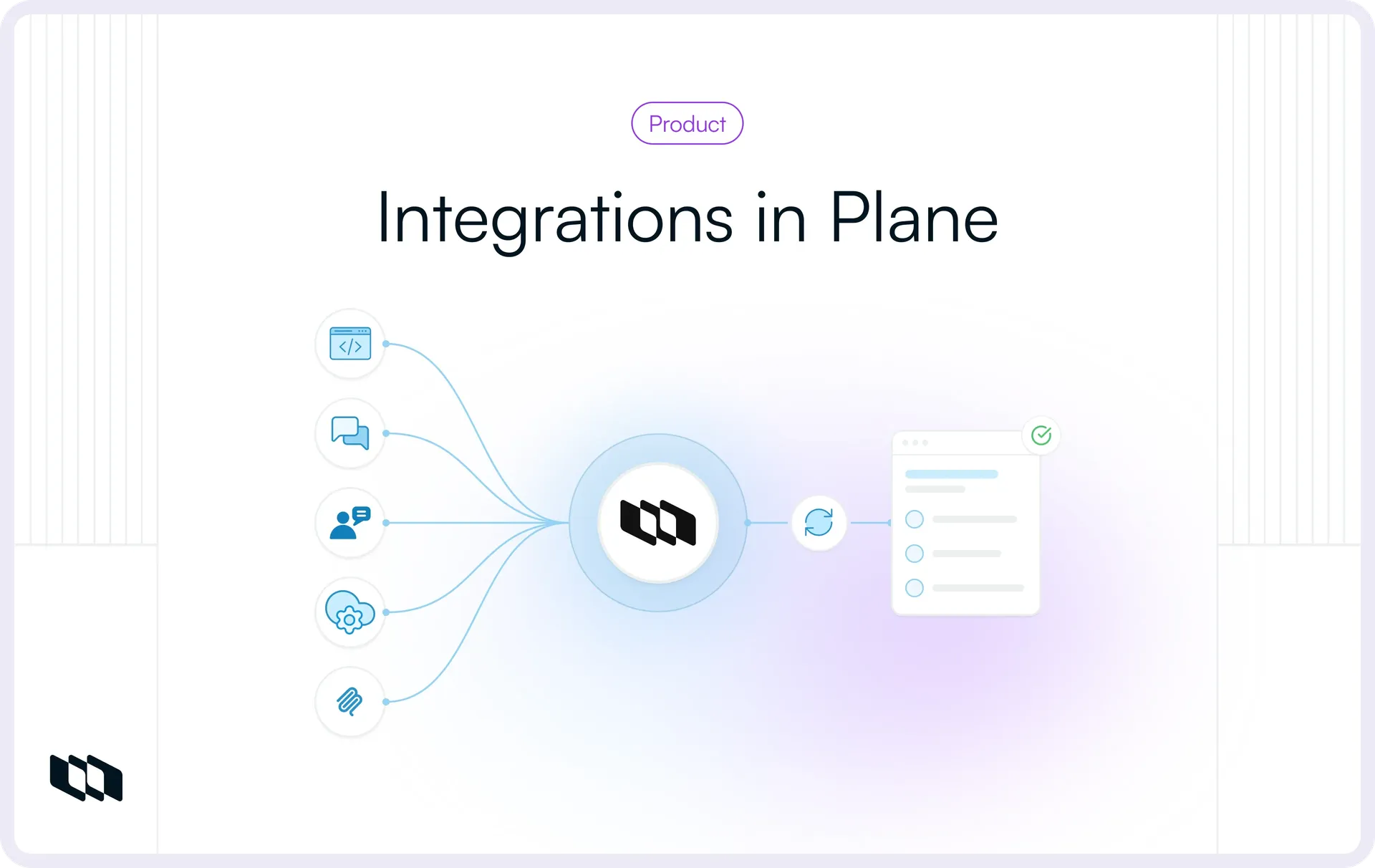
A Slack message can become a work item in Plane. Sentry alerts can also automatically create work items in the relevant project when configured conditions are met. A GitHub pull request can then update a linked work item's state as the fix progresses. These connections do different jobs. One captures new work, another keeps a work item's context current, and another moves its state as the code changes.
Take a checkout failure a customer reports. The discussion sits in Slack, the error details in Sentry, and the development in GitHub. With the right integrations in place, Plane ties those records to the work item where the fix is owned, prioritized, and tracked.
Plane offers native integrations for common tools, MCP connections for AI-driven work, and APIs and webhooks for custom systems. Teams connect what they need and keep working in the applications they already use.
How integrations work in Plane
The Plane Marketplace is where you discover the applications Plane supports and request or build ones that do not exist yet. Not every connection is set up from there: native integrations are configured in Plane's workspace settings, while MCP connections and developer-built integrations follow their own configuration paths.
Native integrations
Native integrations are prebuilt connections to tools like Slack, GitHub, GitLab, Bitbucket, and Sentry. What each does depends on the tool: Slack creates work items from messages, Sentry creates them from production errors, and GitHub and GitLab handle issue synchronization and pull request automation while Bitbucket handles pull request automation. A team connects the tool and maps it to its projects rather than building anything, and the exact setup differs by integration.
Importers are different. They bring existing projects and issues into Plane from a tool you are leaving, such as Jira or Asana, in a one-time or repeatable transfer, rather than keeping a tool you stay on connected as work happens.
MCP connections
MCP connections use the Model Context Protocol to let AI tools and Plane share context. In one direction, an external AI client works with your Plane data; in the other, Plane AI reaches a supported external system during a conversation. The section on AI and development tools covers both.
APIs, webhooks, and custom apps
When nothing prebuilt fits, the developer platform lets you build the connection yourself. The REST API reads and writes Plane data, webhooks notify your service when something changes in Plane, and official SDKs and custom apps provide the building blocks. It suits internal systems and automation you build and maintain yourself.
Bring conversations into Plane
Work often begins with a message: someone reports a problem, asks for a change, or makes a decision that needs a follow-up. Creating a work item at that moment keeps it from scrolling out of the channel unrecorded.
Slack
Once an admin has enabled the integration, a team member can create a work item directly from the checkout report. The create action opens a form where you pick the project and work item type and set the owner, priority, and state yourself, with the Slack message prefilling the description. You can add it to the project as a work item, or send it to the project's Intake queue for triage first.
Work does not always start in Slack, so you can also link an existing work item to a thread, which then shows a live preview with quick actions to open it in Plane, assign yourself, or edit its fields. Thread sync connects the discussion to the item's comments: a reply in the Slack thread appears on the work item, a comment on the work item appears in the thread, and changes to supported fields like state and assignee show up in Slack. The Slack integration docs cover setup and notification controls.
Microsoft Teams
MS Teams integration works the same way as Slack: create work items from messages, link threads to existing items, keep comments in sync between a Teams thread and a Plane work item, and use Plane AI inside Teams.
Route production issues into engineering work
Not everything reaches the team through a conversation. Sentry surfaces production errors directly, often recurring ones that would otherwise wait for a support report, and engineers still have to judge which of them deserve tracked work.
Create work items from Sentry alerts
The Sentry integration gives an error two routes into Plane. A Sentry alert rule can include an action that creates a work item when its conditions are met, with the priority and assignee set in advance, so a spike in errors arrives in the right project already shaped for triage. Or, looking at an issue in Sentry and deciding it needs tracked work, an engineer links it to a new or existing work item from the issue itself. Either way, the error becomes a work item the team can rank against its planned work, rather than a line in a monitoring dashboard that someone has to notice.
Keep issue resolution states connected
Once an issue and a work item are linked, their resolution state stays connected. Resolving the issue in Sentry moves the linked work item to the resolved state you configured in Plane, and moving the work item to that resolved state resolves the issue in Sentry. Moving the work item back to its configured unresolved state reopens the issue. The connection covers the resolution state, not every field or workflow step.
Keep development activity tied to work items
Once the fix moves to source control, the work item should reflect what is happening in the repository without anyone copying updates across. Teams usually need one of two things here: issue records kept aligned between Plane and the provider, or code changes associated with a work item so its state moves as the pull request does. GitHub and GitLab offer both; Bitbucket focuses on the second.
Sync issues between Plane and GitHub or GitLab
Issue synchronization connects GitHub or GitLab issues with Plane work items through configured project mappings and labels. Teams can bring existing issues into Plane or create linked issues from Plane, with supported properties synchronized according to the selected direction. Comments sync too, though the behavior differs by provider: on GitLab, replies in the synced comment thread return to GitLab while other Plane comments stay in Plane.
Direction is a choice, and it comes down to where the source of truth sits. A one-way sync pulls issues from the provider into Plane and lets the provider's data overwrite the work item. A two-way sync lets either side make changes that carry across. GitLab defaults to two-way, with the outbound label creating an issue only in that mode, while on GitHub you set the direction when you map the repository. A team that wants issues to live in both places picks two-way; one that only needs visibility in Plane stays one-way.
Track pull requests and automate work item states
Many teams skip issue sync and instead connect the pull request to the work item, which is where the checkout fix picks up. The engineer opens a branch and a pull request, then references the work item in the pull request title or description. How the reference is written decides what happens:
- Writing the work item ID in square brackets links the pull request and turns on state automation, so the item advances as the request is opened, reviewed, merged, and closed, following the states an admin has mapped.
- Writing the same ID without brackets links the work item for visibility but leaves its state alone.
Plane reads the reference from the title and description, not from branch names or commit messages, and keeps a comment on the pull request listing the linked items, with a backlink on each work item. The review, the diff, and the merge stay in GitHub or GitLab, while in Plane the work item moves from in progress to done as the code does. Plane supports self-managed Git through GitHub Enterprise Server and GitLab Enterprise.
Connect Bitbucket pull requests to Plane
Bitbucket connects pull requests to work items with a narrower scope. The Bitbucket integration supports pull request automation and does not synchronize issues. You connect a repository, and Plane receives its pull request events. References behave as they do in GitHub and GitLab: a work item ID in square brackets turns on the mapped state automation, while the same ID without brackets links the item without changing its state, so a merged pull request can advance its item to done. The item carries a link back to the pull request, and the integration supports both Bitbucket Cloud and Bitbucket Data Center.
Access Plane from AI and development tools
AI tools connect with Plane in two directions. External AI clients can access and update work in Plane, while Plane AI can connect to other systems for additional context and actions.
Connect external AI clients through Plane's MCP server
The Plane MCP server lets tools like Cursor, Claude Code, and VS Code access work items, read project context, and update progress directly from the development environment.
These tools can also handle coding work. An engineer can give Cursor or Claude Code a work item as the implementation brief, have it make code changes and prepare a pull request, then review the changes before merging. With the relevant Git integration configured, pull request activity can also update the work item's state in Plane.
We explore this workflow in more detail in How modern teams run agentic workflows in Plane.
The hosted MCP server connects to Plane Cloud, while self-hosted instances can run their own server.
Connect Plane AI to external tools through MCP
MCP connectors work in the other direction, letting Plane AI access external systems during a conversation. Depending on the connector's capabilities and permissions, Plane AI can retrieve information and perform supported actions.
Teams can bring in repository context from GitHub, production errors from Sentry, product analytics from PostHog, and customer conversations from Intercom. For instance, a product manager can use this context to evaluate release readiness or prioritize incoming requests.
Connections are authenticated per user and enabled per conversation. Plane Agents can also use configured MCP tools in their workflows, with external access governed by the connected service's authentication.
Build the connections Plane doesn't ship
When no native integration exists, the developer platform lets a team wire Plane into its own systems. Take an internal support tool that escalates certain tickets to engineering. When a support ticket requires engineering attention, the tool opens work in Plane through the API and follows that work through webhooks, with SDKs and a custom app available to make the integration easier to build.
Read and update Plane through its REST API
The support tool creates the work item through Plane's REST API, placing it in the right project at the right priority, and reads or updates it the same way. The API works against Plane Cloud and against a self-hosted instance at that instance's own address, and a request carries either a personal API key, which acts with its owner's permissions, or an OAuth token limited to the scopes a user granted. The API reference has the detail.
Receive updates through webhooks
The API handles the support tool asking Plane for something. Webhooks handle Plane telling the support tool when something changed. The tool registers a URL, subscribes to the events it cares about, and Plane sends a notification there when one occurs, so the escalated ticket can reflect the engineering work reaching done without the tool polling for it. Webhooks deliver event notifications, which is not the same as full two-way synchronization; pairing them with the API is what gives the support tool both sides.
Extend Plane with SDKs and custom apps
The SDKs are optional. Plane publishes them for Node.js and Python, wrapping the API with typed clients and OAuth helpers so the support tool's developers are not writing HTTP calls from scratch. For a fuller integration, a registered Plane app can bundle the API calls, webhooks, and OAuth, authenticating as a bot for automation or on behalf of a user; the app build guide covers the setup, and Plane apps are currently in beta.
Choose integrations by where your work moves
Choosing an integration comes down to where the work starts, which information has to move between tools, and whether those updates travel one way or both. The owner of each record and your deployment settle the rest.
Workflow | What stays connected | Integration approach |
Capturing work from team conversations | The discussion and the work item | Native Slack or Microsoft Teams integration |
Managing production errors | Resolution state between the Sentry issue and the work item | Native Sentry integration |
Keeping issue records aligned across systems | Issues in both tools | GitHub or GitLab issue synchronization |
Connecting code changes to work items | Work item state as pull requests move | GitHub, GitLab, or Bitbucket pull request automation |
Working with Plane from an AI client | Plane work, read and updated in place | Plane MCP server |
Giving Plane AI external context | Read, and actions where a connector supports them | MCP connectors |
Connecting an internal or custom system | Work item creation and event notifications | REST API and webhooks |
Two of these shape how a sync behaves. Settle your source of truth first, then match the direction to it: a one-way sync when the provider should own the record and overwrite the work item, a two-way sync when either side can change it. Deployment options and setup requirements vary by integration, so check the relevant documentation for current availability. Native integrations have their own setup flows, while custom connections built with APIs and webhooks require development and maintenance.
Keep the tools, connect the work
Plane brings the work generated across your existing tools into one place, with a clear owner and current status on every item. Start with the connections your team needs most, whether that is capturing incoming requests or following engineering work through to delivery. Connect your tools and start managing work in Plane.
Recommended for you





 Download for Mac
 Download for Android