Migrating from Jira to Plane: The complete guide
Before you import from Jira, know exactly what should move, what needs cleanup, and what must be rebuilt. Use this guide to plan a clean Plane migration.
Before you import from Jira, know exactly what should move, what needs cleanup, and what must be rebuilt. Use this guide to plan a clean Plane migration.
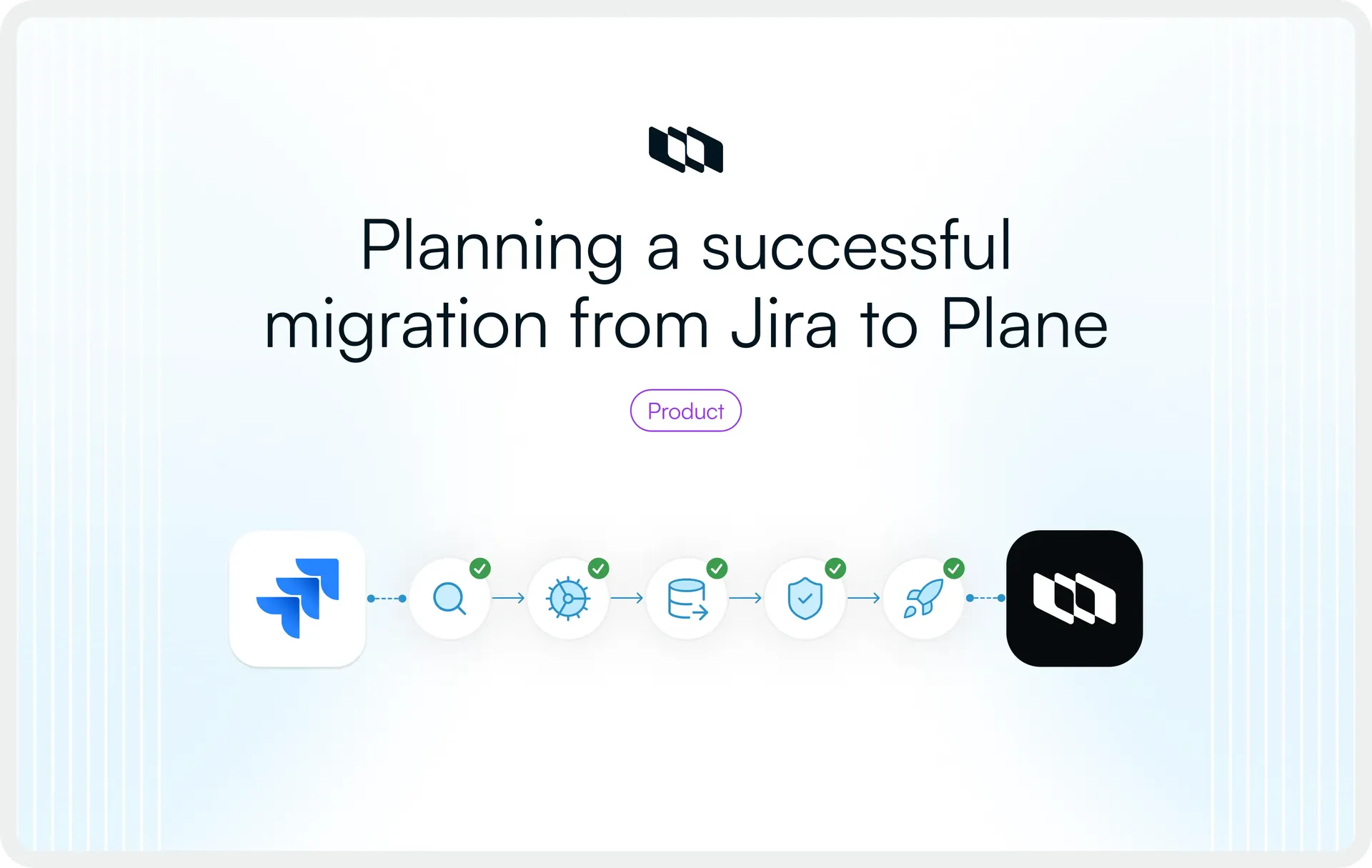
Moving from Jira to Plane is a real operating change. It touches how your team tracks work, runs planning cycles, communicates progress, manages access, and connects work to the tools around it. Without a plan, teams can carry years of Jira complexity into a new system and spend months cleaning it up later. With a plan, they can move the work that matters, document what needs manual rebuild, and land in a Plane workspace that teams can actually use.
This guide walks decision influencers, migration admins, and project leads through the full process: what to clean up before import, how Plane’s Jira importer works, where Jira concepts land in Plane, what transfers cleanly, what needs a deliberate decision, and how to sequence a 100-seat rollout from discovery to stabilization.
The Jira-to-Plane migration path at a glance
Before going in depth on any individual step, here is the full migration journey in sequence.
Phase | What happens | Output |
Scope | Decide what moves and what stays behind | Migration scope |
Audit | Review Jira data manually or with the Jira Discovery Script to understand projects, fields, workflows, users, relationships, attachments, automations, integrations, reports, and permissions | Jira migration inventory |
Prepare | Confirm Plane workspace, target project, Jira access, import scope, user handling, attachment preference, and optional JQL | Import-ready configuration |
Import | Run Plane’s Jira importer, confirm the import choices, and download the Import Summary after the job completes | Imported pilot project with import report |
Validate | Check imported work items, users, fields, attachments, relationships, skipped data, and unsupported objects | Approved pilot |
Roll out | Import remaining projects in waves | Migrated active work |
Cut over and stabilize | Freeze or restrict Jira, redirect work to Plane, clean up, and support adoption | Plane as the active system |
Each phase has its own readiness check. Phases 4 through 7 become harder when teams rush phases 1 through 3.
Decide what should move before touching the importer
The biggest migration mistakes happen before a single import runs. Teams open the importer, point it at Jira, and pull in everything: closed issues from years ago, deprecated statuses, labels nobody remembers creating, and automations that no longer serve a purpose. The new system inherits the old system’s noise.
Before you configure anything, make deliberate decisions about scope.
- Active work vs. closed and historical issues
Most teams need their active sprints, open issues, and recent project context. They may not need every resolved issue from the past several years. Historical issues can support compliance, auditability, or traceability, but they also add volume to searches, filters, and views in Plane. Decide what “active” means for your organization and use that threshold. - Jira project structure
Not every Jira project should become a Plane project. Some Jira projects exist because of how permissions were structured, not because the work still needs a separate project. This is the moment to decide which projects should remain separate, which should merge, which should be restructured, and which should stay archived. - Status sprawl
Jira workflows often accumulate statuses over time. “In Review,” “In QA Review,” “In Design Review,” and “Awaiting Review” might all exist in the same project. During import, treat Jira as the source of truth. The audit should help the team understand which statuses will come into Plane, where workflow noise exists, and what should be cleaned up after migration. - Labels and custom fields
Audit labels and custom fields for actual usage. Plane’s Jira importer brings supported custom fields and specific supported system fields into Plane as custom properties, while unsupported field types are skipped. The audit should help teams understand which fields may appear after import, which unsupported fields need a workaround, and which imported properties may need cleanup later. - Automations
Jira automation rules do not migrate through the importer. Before import, document active rules and decide which are worth rebuilding in Plane. This review should focus on whether each automation still supports the team’s future workflow. - Integrations
GitHub, GitLab, Slack, Sentry, and other integrations need to be configured directly in Plane. List the integrations your teams rely on daily and confirm they have a path forward before you commit to a cutover date. - Project-to-project mapping
For each Jira project, ask: does this become a Plane project, does it merge with another project, does it get restructured, or does it remain archived? Answering this before import makes the setup phase much cleaner.
A good migration does not move everything. It moves the work the team still needs and documents what should be rebuilt, archived, or left behind.
Audit Jira for migration readiness
Before you run the importer, you need a clear inventory of what exists in Jira. The goal is to understand what will be imported, what needs validation after import, and what may require cleanup or manual rebuild outside the importer.
Plane’s Jira Discovery Script helps teams audit their Jira Cloud or Jira Server/Data Center instance before import. It generates an XLSX inventory of migration-relevant Jira data, so teams can review the source system before making import, cleanup, and validation decisions.
Whether the audit is done manually or with the Jira Discovery Script, use the output to review the following areas.
- Projects
Document every active Jira project with owner, issue count, active sprint status, and cross-project dependencies. - Issue types
List every issue type in use across your projects. Jira issue types are imported into Plane as Work Item Types, so the audit should help teams understand which types will come into Plane and which ones may need cleanup after migration. - Statuses and workflows
Review workflow configurations and status usage. During import, Jira is treated as the source of truth, so statuses come into Plane first. Use the audit to identify duplicate, obsolete, or confusing statuses that should be reviewed after the pilot import. - Priorities
List your priority scheme and validate priority behavior during the pilot. This helps teams understand whether any cleanup is needed after import. - Labels
Audit labels for active use. Imported work items also receive aJIRA IMPORTEDlabel automatically, so any label cleanup you do before or after import will make post-migration organization cleaner. - Custom fields and issue properties
Document custom fields and issue properties with their types. Supported custom fields and a specific set of supported Jira fields can become custom properties in Plane. Unsupported field types are skipped. Supported property types include dropdowns, dates, text, checkboxes, selects, radio fields, and user dropdowns. - Rich text fields
Rich text custom fields require Plane’s rich text property feature. Confirm this is available in your workspace before treating these fields as cleanly imported. - Sprints
Note active and recently closed sprints. These become Cycles in Plane, including associated work items and start/end dates. - Components
Components become Modules in Plane. Document which components are actively used for grouping work and which are legacy structure. - Story points
Story points are imported as Estimates in Plane. Validate this during the pilot so teams can confirm that estimation data works correctly for planning. - Fix versions and affected versions
These are imported as Releases in Plane. If your team uses versions heavily for release planning or reporting, validate the imported Releases during the pilot. - Users, reporters, and assignees
Get a full user list. For Jira Cloud, decide how users should be handled during import because this affects assignees, reporters, and comment attribution. For Jira Server/Data Center, active users are imported as active members, inactive users are imported as suspended users, and active users above the available seat limit are also imported as suspended users. - Comments
Comments migrate with author and timestamp where user data is available. This is directly tied to how you handle user import. - Attachments
Attachments on issues and comments are imported when the importer can access them. If you are importing from Jira Server/Data Center with attachments behind web SSO, note this during the audit because attachment import may need additional handling. Custom attachment download endpoint support is available for Plane self-hosted deployments. For Plane Cloud, contact Plane support instead of assuming this configuration is available directly. - Sub-tasks and hierarchy
Sub-tasks import as work items linked to their parent. Document any complex nesting to verify during validation. - Issue links
Issue links become relations in Plane. Supported relations, custom relation types, and cross-project links should be validated after related projects have been imported. - Worklogs
If your team uses Jira time tracking, worklogs import and time tracking is enabled in Plane. Confirm this is the behavior you want. - Watchers
Watchers become subscribers in Plane. - Resolution
Resolution data is imported where available and should be validated during the pilot. - Issue activity and change history
Issue change history is preserved as work item activity in Plane. - Jira issue key or sequence
The original Jira issue key or sequence is preserved for traceability. Validate this during the pilot so teams can reference old Jira issues during stabilization. - Automations and scripts
Automation rules and ScriptRunner or Groovy scripts do not migrate through the importer. Document the ones your teams rely on. Each item will need manual review and, where still required, a separate rebuild plan. - Integrations
List every Jira integration with its use case, owning team, and whether there is a Plane configuration or external process that will replace it. - Dashboards, boards, and reports
Treat these as manual review or rebuild items unless separately validated with Plane. Document which reports and views your teams use for sprint reviews, stakeholder updates, and planning. - Permissions and access model
Jira permission schemes do not migrate through the importer. Document your current access model by project and role. You will recreate access intentionally in Plane, not copy Jira permissions one-to-one.
Prepare Plane and Jira access before import
A thorough audit is useful only if what you learn from it feeds directly into setup. This phase makes the destination workspace ready and confirms that the source system can be read correctly.
Plane workspace readiness
- Target workspace
Plane’s Jira importer is available on Plane Cloud and on all plans of the Commercial Edition for self-hosted instances. - Target Plane projects
Create the Plane projects that will receive imported Jira projects. Use the project structure decisions from Phase 1, not a one-to-one copy of your Jira project list by default. - User handling
Decide how users should be handled during import. For Jira Cloud, confirm whether users should be imported from Jira or skipped. For Jira Server/Data Center, active members are imported as active members, inactive members are imported as suspended users, and active members above the available seat limit are also imported as suspended users. Suspended users can be re-invited later to make them active. - Imported structure to validate
The latest Jira importer handles Jira issue types and statuses during import, so teams do not need to pre-create Plane states or manually enable Work Item Types as a separate setup step before importing. Treat Jira as the source of truth during import, then validate imported states, Work Item Types, and priorities after the pilot to decide what needs cleanup. - Labels
If you want additional label organization beyond what carries over from Jira, create those labels before import. - Integrations
Identify which integrations need to be active at cutover and begin configuration ahead of that date. Do not wait until the day of cutover to test a critical GitHub, GitLab, Slack, or Sentry connection. - Pages or Wiki
If you have project context, runbooks, or team documentation that should live in Plane after migration, plan that content separately in Plane Pages and Wiki. The Jira importer does not handle Confluence content.
Jira access readiness
- Account access
Confirm that the Jira account used for import can read the project and the data required for import. - Token, email, and domain
Have your Jira token, associated email, and Jira domain ready before starting the import configuration. For Jira Cloud, this is your*.atlassian.netdomain. For Jira Server/Data Center, this is your self-hosted URL. - Project scope
Confirm which Jira project you are importing and whether the import should cover all issues or only a specific set. - JQL scope
If you are importing only part of a Jira project, prepare the JQL filter before import. - Attachment access
For Jira Server/Data Center instances protected by SSO, confirm whether attachments will be accessible to the importer or whether a custom endpoint is needed.
How Plane’s Jira importer works
Plane supports two Jira importer paths: one for Jira Cloud (.atlassian.net domains) and one for Jira Server and Data Center, which covers self-hosted Jira. Both import into a selected Plane project. The differences between the two paths are primarily in how you connect, how users are handled, and some deployment-specific considerations.
Jira Cloud import flow
- Go to Workspace Settings and navigate to Imports.
- Select Jira Cloud as the import source.
- Connect using your Jira token, user email, and Jira domain.
- Select the target Plane project where Jira issues will be imported.
- Choose the Jira site and Jira project.
- Choose the import options required for the migration, such as user handling, attachment preference, and optional JQL scope.
- Review the selected project, import scope, and import choices before confirming the import.
- Confirm and run the import.
- After the import completes, download the Import Summary. This HTML report lists imported, skipped, and errored items, and can be shared with the Plane team if further assistance is needed.
- Validate imported work items.
User import caveat: For Jira Cloud imports, user handling affects attribution after migration. If users are skipped, assignees may be left blank and comments or work items may be attributed to the migration runner rather than the original Jira users. If attribution matters for traceability, confirm the user-import path before running the migration.
Jira Server/Data Center import flow
The general flow follows the same structure with these differences:
- Use the Server/Data Center importer path rather than the Jira Cloud path.
- There is no separate user-import step. Plane automatically syncs users referenced in imported issues.
- User status and seat limits affect how users are imported. Active members are imported as active members. Inactive members are imported as suspended users. If active members exceed the available seat limit, additional active users are imported as suspended users. Suspended users can be re-invited later to make them active.
- If your Jira Server/Data Center instance has attachments behind web SSO, attachment import may need additional handling. Custom attachment download endpoint support is available for Plane self-hosted deployments. For Plane Cloud, contact Plane support instead of assuming this configuration is available directly.
Import Summary
After an import completes, Plane provides an Import Summary that can be downloaded as an HTML report. This report shows what was imported, what was skipped, and what errored during the import. Keep this file with the migration records for the pilot and each rollout wave. If the team needs help investigating skipped or errored items, the Import Summary can also be shared with the Plane team for further assistance.
Both import types run in the background. Depending on project size, imports can take anywhere from a few minutes to several hours. You do not need to keep the import configuration open while the job runs.
Jira-to-Plane mapping: workflows, fields, users, and relationships
Understanding the mapping before you run the importer prevents surprises during validation. Here is how each major category translates.
1. Workflow mapping
Jira statuses are brought into Plane during the import. The importer treats Jira as the source of truth, so this is not the place to redesign or selectively exclude statuses. If a Jira project has duplicate, obsolete, or confusing statuses, validate them after the pilot import and decide what needs cleanup before broader rollout.
Priorities should also be validated after import so teams know whether any post-import cleanup is needed.
2. Issue type import
Jira issue types are imported into Plane as Work Item Types based on what exists in Jira. This helps preserve the issue-type structure during migration while still giving teams the opportunity to review which imported types should remain part of the active workflow after the pilot.
One important distinction: Jira Epics import as a regular work item type called “Epic.” They do not become Plane’s dedicated Epics feature. If your team uses Plane Epics for hierarchical planning, you will need to handle the structural relationship between Epic-type work items and Plane Epics separately after import.
3. Field import
Supported custom fields and a specific set of supported Jira fields become custom properties in Plane. Unsupported field types are skipped by the importer. This is not an import failure, but it should be documented during the pre-import audit so the team knows which Jira data needs validation, workaround planning, or post-import cleanup.
Rich text custom fields require Plane’s rich text property feature to be available in your workspace. Jira fix versions and affected versions are imported as Releases, not custom work item properties.
4. User mapping
For Jira Cloud, user handling depends on your choice during import configuration: CSV import or skip. CSV import preserves attribution on work items and comments more reliably. Skipping leaves assignees blank and attributes authorship to the migration runner.
For Jira Server and Data Center, users referenced in imported issues are synced automatically. No CSV step is required.
5. Relationship mapping
Sub-tasks and parent links become parent-child relationships in Plane. Sub-tasks import as work items connected to their parent, preserving the hierarchy.
Linked issues become relations. Jira’s supported link types map directly to Plane relation types. Link types without a Plane equivalent are created as custom relation types.
Cross-project links resolve once both referenced Jira projects have been imported into Plane. If projects are imported in waves, validate these relationships after the dependent projects have also been imported.
6. Planning-object mapping
Sprints become Cycles, including the work items assigned to each sprint and their start and end dates. Components become Modules, including the work items associated with each component. Story points are imported as Estimates. Worklogs are imported and enable time tracking in Plane. Watchers become subscribers. Change history is preserved as work item activity. The original Jira issue key is preserved on each imported work item for traceability.
Import coverage at a glance
Jira data | Plane import result | Migration note |
Summary/title | Work item title | Jira issue summary becomes the Plane work item title |
Description | Work item description | Formatting is preserved; inline images are re-uploaded |
Priority | Priority | Imported from Jira and should be validated after pilot import |
Status | State | Jira statuses are brought into Plane as states |
Assignee | Assignee | User handling affects whether assignees are preserved correctly |
Comments | Comments | Includes author and timestamp where user data is available |
Issue types | Work Item Types | Imported automatically based on Jira issue types |
Epics | Work Item Type | Imported as a regular work item type called “Epic,” not Plane’s dedicated Epics feature |
Sprints | Cycles | Includes work items and start/end dates |
Components | Modules | Includes related work items |
Story points | Estimates | Imported as Estimates |
Start date | Start date | Preserved where available |
Due date | Due date | Preserved where available |
Created date | Created at | Preserved from Jira |
Updated date | Updated at | Preserved from Jira |
Created by | Created by | Preserved where user data is available |
Issue links | Relations | Includes supported relations, custom relation types, and cross-project links after related projects are imported |
Sub-tasks/hierarchy | Parent-child relationships | Preserves issue hierarchy where available |
Issue properties | Custom properties | Supported property types include dropdowns, dates, text, checkboxes, selects, radio fields, and user dropdowns |
Labels | Labels | Imported work items also receive a |
Users | Members | User behavior differs between Jira Cloud and Jira Server/Data Center imports |
Attachments | Attachments | Imported when accessible; Server/Data Center instances behind SSO may need additional handling |
Fix versions / affected versions | Releases | Imported as Releases |
Resolution | Resolution | Imported where available and should be validated during pilot import |
Issue activity/change history | Work item activity | Preserved as activity |
Watchers | Subscribers | Jira watchers become Plane subscribers |
Jira issue key/sequence | Jira reference | Original Jira issue key or sequence is preserved for traceability |
What transfers cleanly once import choices are right
When the pre-import work is done correctly, the following objects generally transfer reliably through Plane’s Jira importer.
- Issues become work items: Titles, descriptions, and inline images carry over. Inline images are re-uploaded to Plane.
- Statuses become states: Jira statuses are brought into Plane during import. Validate them after the pilot to identify duplicate, obsolete, or confusing workflow states that may need cleanup.
- Priorities transfer where supported. Validate priority behavior during the pilot so teams know whether any post-import cleanup is needed.
- Labels transfer, with imported work items also receiving a
JIRA IMPORTEDlabel for filtering after import. - Comments transfer with author and timestamp when user import is handled correctly.
- Attachments transfer when access is available. Server and Data Center environments behind SSO may require additional endpoint configuration.
- Start and due dates are preserved.
- Story points become Estimates in Plane.
- Fix versions and affected versions become Releases in Plane.
- Worklogs import and enable time tracking automatically.
- Watchers become subscribers.
- Change history is preserved as work item activity.
- Original Jira issue keys are preserved on each work item, giving your team a direct reference between the old and new system during stabilization.
- Sprints become Cycles, including their work items and date ranges.
- Components become Modules, including associated work items.
- Sub-task and parent-child relationships are preserved.
The phrase “transfers cleanly” has real preconditions. User attribution depends on how users are handled during import. Attachment availability depends on your Jira deployment and access configuration. Field transfer depends on whether the field type is supported. Core execution data can transfer cleanly, but “cleanly” still depends on the audit, import choices, and validation that happen around the importer.
What does not migrate automatically?
Plane’s Jira importer documentation covers core project and issue data: issues, fields, users, comments, attachments, relationships, sprints, components, worklogs, watchers, and history. It does not clone the entire Jira administrative layer. Treat the following categories as manual review or rebuild items unless separately validated with Plane.
- Jira dashboards and boards
The dashboards and board configurations your teams use for sprint reviews, reporting, and stakeholder updates should be treated as rebuild items. Plane has views, filters, Cycles, Modules, dashboards, and PQL, but teams should rebuild reporting intentionally rather than assuming Jira reports transfer one-to-one. - Jira reports and reporting habits
Velocity charts, burndown reports, time-in-status reports, and custom report configurations should be reviewed before cutover. Plan for a reporting transition period and identify which reports are essential to recreate first. - Advanced Roadmaps
Plans, dependencies, and configurations from Jira Advanced Roadmaps should be treated as manual review items unless separately validated with Plane. - Marketplace app data
Data stored by Jira Marketplace apps, including testing tools, time-tracking plugins, document editors, and custom integrations, should not be assumed to migrate through the importer. - ScriptRunner and Groovy scripts
Custom scripts do not migrate through the importer. Review each script separately and decide whether it can be replaced with Plane workflows, automations, APIs, integrations, or an external process. Do not assume one-to-one script parity. - Jira automation rules
Automation rules do not migrate through the importer. Rather than rebuilding every Jira automation rule, review which rules still support the redesigned workflow and recreate only those that remain necessary. - Permission schemes
Jira permission schemes do not transfer through the importer. You will configure Plane access intentionally based on your team structure rather than mirroring Jira’s permission model directly. - App-specific workflows
Workflows built on or dependent on Jira apps should be reviewed separately. They may need to be rebuilt, replaced, or retired. - External integrations
Connections to GitHub, GitLab, Sentry, Slack, and other external services need to be configured directly in Plane. Do not assume these reconnect automatically. - Custom reporting setups
Any reporting infrastructure built on top of Jira’s API, connected to BI tools, or pulling from Jira dashboards needs to be evaluated against Plane’s data model and reporting options.
None of these are migration failures. They are expected boundaries of what an issue-level importer covers. Identifying them before import means you can plan rebuild work in parallel rather than discovering it on cutover day.
What needs a migration decision
Some migration items do not fall neatly into “transfers” or “does not transfer.” They require a deliberate choice before, during, or after import that will affect how your team works in Plane afterward.
Decision | Why it matters |
Should closed issues move? | Historical issues can support traceability but add clutter to active work views. |
Should every Jira project become a Plane project? | Some projects may be better merged, restructured, or archived instead of recreated one-to-one. |
How should imported statuses be cleaned up after migration? | Jira is treated as the source of truth during import, but duplicate or obsolete statuses may need post-import cleanup. |
How should imported issue types be reviewed after migration? | Jira issue types are imported as Work Item Types, but teams should validate which types should remain part of the active workflow. |
How should epics be handled? | Jira Epics import as a work item type, not Plane’s dedicated Epics feature. |
How should unsupported custom fields be handled? | Unsupported field types are skipped, so teams should document them before import and plan any required workaround. |
How should rich text custom fields be handled? | Rich text custom fields require Plane’s rich text property feature, so teams should validate them during the pilot. |
How should Jira Cloud users be imported? | User handling affects assignees, reporters, and comment attribution after migration. |
How should Jira Server/Data Center users be handled? | Active users, inactive users, and users above seat limits may be imported differently, so teams should review suspended users before cutover. |
How should cross-project links be handled? | Cross-project links resolve once the related Jira projects have also been imported into Plane. |
How should Jira Server/Data Center attachments behind web SSO be handled? | Attachment import may need additional handling. Custom attachment download endpoint support is available for Plane self-hosted deployments; Plane Cloud teams should contact Plane support. |
Which automations should be rebuilt? | Jira automation rules do not migrate through the importer, so teams should recreate only the automations that still support the future workflow. |
Which scripts should be rebuilt or retired? | ScriptRunner, Groovy scripts, and similar custom scripts do not migrate through the importer and need manual review. |
Which integrations need reconnecting before cutover? | External integrations do not reconnect automatically through the Jira importer and should be configured directly in Plane. |
How should dashboards, boards, and reports be handled? | These should be treated as manual review or rebuild items unless separately validated with Plane. |
How should permissions be recreated? | Jira permission schemes do not migrate through the importer, so Plane access should be configured intentionally rather than copied one-to-one. |
Run a pilot migration and validate it
Do not run a full migration before validating a pilot. The pilot is a decision gate: if the pilot does not pass validation, you are not ready to migrate the rest of your projects.
Pilot scope
Choose one representative Jira project that includes the full range of objects you need to validate. The pilot project should have:
- 10 to 20 users, including a mix of assignees, reporters, and commenters
- Real statuses and priorities from your actual workflow
- Real issue types that reflect what should become Work Item Types
- Custom fields, including unsupported field types if your Jira setup depends on them
- Comments with authorship
- Attachments on both issues and comments
- Active and recently closed sprints
- Components with associated issues
- Sub-tasks and parent-child relationships
- Linked issues of multiple link types
- Cross-project links if possible, to test partial resolution behavior before the related project is imported
Pilot validation
After the import completes, validate systematically. Do not rely on a spot check.
- Work item count: Compare Jira issue count against Plane work item count. Gaps may indicate scoping, JQL, or import issues.
- Import Summary: Download and review the Import Summary after the pilot import. Check imported, skipped, and errored items before validating individual work items. Keep the HTML report as part of the migration record and share it with the Plane team if further assistance is needed.
- Descriptions and formatting: Check rich text, inline images, and code blocks. Spot-check several issues, not just one.
- Assignees and reporters: Confirm attribution is correct or, if user import was skipped, confirm you understand the attribution state and that it is acceptable.
- Comments and attribution: Match a sample of Jira comments against their Plane counterparts.
- Attachments: Verify attachments are accessible on both issues and comments. Download at least a sample.
- Labels and priorities: Confirm label transfer, including the
JIRA IMPORTEDlabel. Validate priority behavior across imported work items. - Dates: Check start dates, due dates, and created dates.
- Estimates: Confirm that Jira story points imported as Estimates and that teams can use them correctly during planning.
- Worklogs: Verify time tracking data transferred.
- Watchers/subscribers: Confirm watchers became subscribers.
- Parent-child relationships: Check that sub-tasks appear under the correct parents.
- Linked issues: Verify that relation types mapped as expected. Check custom relation types for link types without a Plane equivalent.
- Cycles and Modules: Confirm sprints became Cycles with correct work items and dates. Confirm components became Modules.
- Releases: Confirm that Jira fix versions and affected versions imported as Releases and that teams can use them for post-migration release planning or tracking.
- Jira key traceability: Verify the original Jira issue key is visible on each work item.
- Skipped custom fields: Confirm which fields were skipped and document what data those fields contained.
- Workflow usability: Have actual users move work items through states, leave comments, and update assignees. The importer can transfer data accurately, while the workflow still feels confusing if state names or structures are not right.
- Access and permissions: Confirm project access is working correctly for each role.
- Integration readiness: If integrations like GitHub, GitLab, Slack, or Sentry need to be active at cutover, test them now against the pilot project.
- Non-imported objects: Confirm that dashboards, automations, scripts, reports, app data, and permission models are documented and that the rebuild plan is understood.
A successful pilot proves two things: the imported data is accurate, and the team can run daily execution in Plane without relying on Jira. Both need to be true before proceeding.
Re-run, resume, and keep imports current
Migration rarely runs once and then stays frozen until cutover. Jira keeps changing. New issues are created, comments are added, and sprint states can change. You need to understand how to keep imported data current without creating duplicates.
1. Re-run: All deployments
Re-running the import restarts the import process for that project from the beginning. It uses the same configuration and JQL filter you set up originally. It is a full re-sync, not a changed-only sync.
Re-run does not create duplicates. It updates existing work items and adds any new issues created in Jira since the last import. Use re-run when you want to refresh the project before cutover and bring across new or updated Jira issues using the same import configuration and filter.
If the pilot reveals incorrect mappings or destination setup issues, resolve the underlying issue before scaling. Use re-run only where the same import configuration remains valid. If the corrected migration path requires different setup or mapping assumptions, validate that corrected path before moving to the next wave.
2. Resume: Jira Server/Data Center only
Resume is available only for Server and Data Center imports. If an import job fails or times out partway through, resume picks up from where the job stopped rather than starting over. The resume window is approximately seven days after the job stops. After that window closes, use re-run instead.
For large Jira Server or Data Center projects, this distinction matters. If an import fails partway through, resume can continue from where the job stopped within the available window instead of restarting from zero.
Recommended week-by-week plan for a 100-seat Jira-to-Plane migration
Plane’s documentation states that imports run in the background and can take minutes to hours depending on project size. The plan below is editorial migration guidance for sequencing, stakeholder alignment, and change management in a 100-seat rollout. This is not a timeline prescribed by Plane.
Week 1: Discovery and migration scope
Audit your Jira environment manually or with Plane’s Jira Discovery Script. Review projects, users, issue types, workflows, statuses, priorities, labels, custom fields, attachment volume, automations, scripts, integrations, reports, and cross-project dependencies. The goal is to understand the source system before import, not to redesign everything upfront.
Make the scope decisions covered in Sections 2 and 3. Document what moves, what stays archived, and which project will serve as your migration pilot. Define the criteria that a successful pilot must meet before the rollout continues.
Output: Migration scope document and pilot candidate.
Week 2: Plane workspace and Jira access preparation
Set up the Plane workspace for the import. Confirm the target Plane projects, user-handling approach, attachment preference, optional JQL scope, and any integrations that need to be ready before cutover. The goal is not to manually recreate every Jira configuration in Plane before import. The goal is to make the import choices clear and prepare the workspace for validation.
On the Jira side, confirm your API token, domain, email, and read access to the pilot project. Decide your JQL scope for the pilot. Decide how you will handle user import. Assign migration owners and validation owners for the pilot.
Output: Import-ready Plane workspace and confirmed Jira access.
Week 3: Pilot import
Import one representative Jira project following the flow in Section 5. Choose a project that exercises the full range of objects you need to validate: real issue types, custom fields, comments, attachments, sprints, components, sub-tasks, linked issues, and cross-project links where possible.
After import, download the Import Summary and review imported, skipped, and errored items. Then validate with admins and actual users following the checklist in Section 10. Document every gap, skipped item, error, and unexpected behavior.
Output: Validated pilot results with documented gaps.
Week 4: Pilot fixes and rollout readiness
Address what the pilot validation surfaced. Review imported states, Work Item Types, labels, fields, Cycles, Modules, Releases, Estimates, relationships, users, and attachments. Decide what needs cleanup, what needs a workaround, and what should be left as imported. Validate integrations and any non-imported objects that need to be rebuilt before cutover.
If the pilot reveals destination setup issues, fix the Plane workspace and validate again. Use re-run only where the same import configuration remains valid. If the original mappings were wrong, confirm the corrected import path before moving to the next wave. Finalize the wave plan for migrating remaining projects.
Output: Tested migration pattern and confirmed wave plan.
Week 5: Phased migration of remaining projects
Import the remaining active Jira projects in waves. Group waves by team, business unit, or dependency risk. Validate each wave before starting the next. As dependent projects are imported, confirm that cross-project links resolve correctly. Download and review the Import Summary for each wave before moving to the next group of projects.
Prepare cutover communications for the full 100-seat team. Make sure everyone knows when Plane becomes the active system, what to expect on day one, and who to contact with questions.
Output: Active Jira work staged and validated in Plane.
Week 6: Cutover
Announce the cutover window. Stop or restrict new work creation in Jira. Run final re-runs for active projects where the same import configuration and filter remain valid.
Confirm that known gaps are documented and accepted by migration owners. Move all new work creation, planning, comments, and updates to Plane. Keep migration admins and team champions available for the first few days to answer questions and resolve access issues quickly.
Output: Plane is the active work system.
Week 7: Stabilization
Monitor the first week of active use. Watch for access issues, missing data reports, workflow confusion, and integration gaps. Clean up migration artifacts only after they have served their purpose. Review the JIRA IMPORTED label after stabilization: keep it if teams still need migration traceability, or remove it only once validation and reporting no longer depend on it. Review unused states, duplicate views, and any structures that do not map to how the team actually works in Plane.
Run the first planning cycle in Plane. Adjust Cycles, Modules, views, and team practices based on what you see.
Confirm the plan for Jira: read-only archive, full decommission, or a retention window based on internal requirements.
Output: Stable post-migration operating model.
Cutover checklist
Do not treat a completed import as a signal to cut over. Treat a validated, team-reviewed system as that signal. Before switching, confirm all of the following.
Check | Confirmed |
Final import or re-run completed for all active projects | |
Import Summary downloaded and reviewed for each active project | |
Work item counts match Jira issue counts within accepted tolerance | |
Assignees are populated correctly or attribution approach is accepted | |
User status and seat-limit behavior reviewed, including suspended users where applicable | |
Comments and attachments verified by sample review | |
Attachment handling confirmed for Jira Server/Data Center instances behind web SSO, where applicable | |
Imported states reviewed and cleanup decisions confirmed | |
Imported Work Item Types reviewed and accepted | |
Priority behavior validated across imported projects | |
Cycles, Modules, Releases, and Estimates confirmed | |
Cross-project links resolving correctly after related projects have been imported | |
Skipped custom fields and unsupported field types documented and accepted | |
Non-imported objects, including dashboards, boards, reports, automations, scripts, Marketplace app data, app-specific workflows, permission schemes, external integrations, and custom reporting setups, documented with rebuild or retirement plan confirmed | |
Required Plane integrations configured and tested | |
Access and roles verified for all users | |
Jira new work creation frozen, restricted, or set to read-only | |
Support channel active for the cutover window | |
Team communication sent with cutover date, what to expect, and who to contact | |
Known gaps reviewed and formally accepted by migration owners |
The principle: do not cut over because the import finished. Cut over because the team has validated that Plane can run the work.
Stabilize Plane as the active system
Cutover is not the finish line. The first two to four weeks after cutover are when the migration proves itself. Teams are running real sprints, planning cycles, stand-ups, and stakeholder reviews in a new system. This is where gaps surface that a validation checklist could not catch.
- Keep Jira in a read-only state during this period if your team still needs access to historical context that was not migrated. Redirect all new issues, comments, status updates, and planning work to Plane. Partial adoption, where some work stays in Jira while Plane is nominally live, weakens the migration and creates confusion for teams.
- Support users through the first planning cycle specifically. Sprint planning, backlog refinement, and stakeholder reviews work differently in Plane than they do in Jira. The concepts are familiar, but the operating surface is different. Having migration champions available during these first ceremonies helps teams settle into the new system faster.
- Rebuild automations selectively. You documented Jira automation rules during the audit. Now evaluate each one against your team’s current needs and build only what is still necessary.
- Clean up migration artifacts deliberately. The
JIRA IMPORTEDlabel on imported work items is useful during validation and early stabilization. Keep it as long as teams need migration traceability. Once the team is confident in the data and no longer depends on the label for validation or reporting, remove it if it creates noise. Review imported states and labels for anything that no longer serves a purpose. Remove unused custom properties that carried over from fields nobody references. - Run a formal adoption review at the two- to four-week mark. Look at whether the team is using Cycles for sprint planning, whether Modules are being maintained, whether integration data is flowing correctly, and whether anyone is still creating work in Jira out of habit.
- Confirm your Jira archival or decommissioning plan and execute it according to your internal retention and compliance requirements.
The measure of a successful migration is not a completed import. It is a team that plans, tracks, and ships in Plane without Jira as the fallback.
Final thoughts
A Jira-to-Plane migration is not successful because the importer completes. It is successful when the team has made the right calls around scope, import choices, users, fields, relationships, unsupported objects, cutover timing, and post-migration ownership.
Plane’s Jira importer handles the core movement of project and issue data, but the migration itself is still an operating decision. The teams that get it right are the ones that clean up before import, validate with real users, rebuild only what still matters, and cut over only when Plane is ready to become the system of record.
Moving a larger team from Jira to Plane? Talk to Sales to plan the right migration path, import scope, and rollout approach for your organization.
Recommended for you



 Download for Mac
 Download for Android