Introducing Plane navigation 2.0
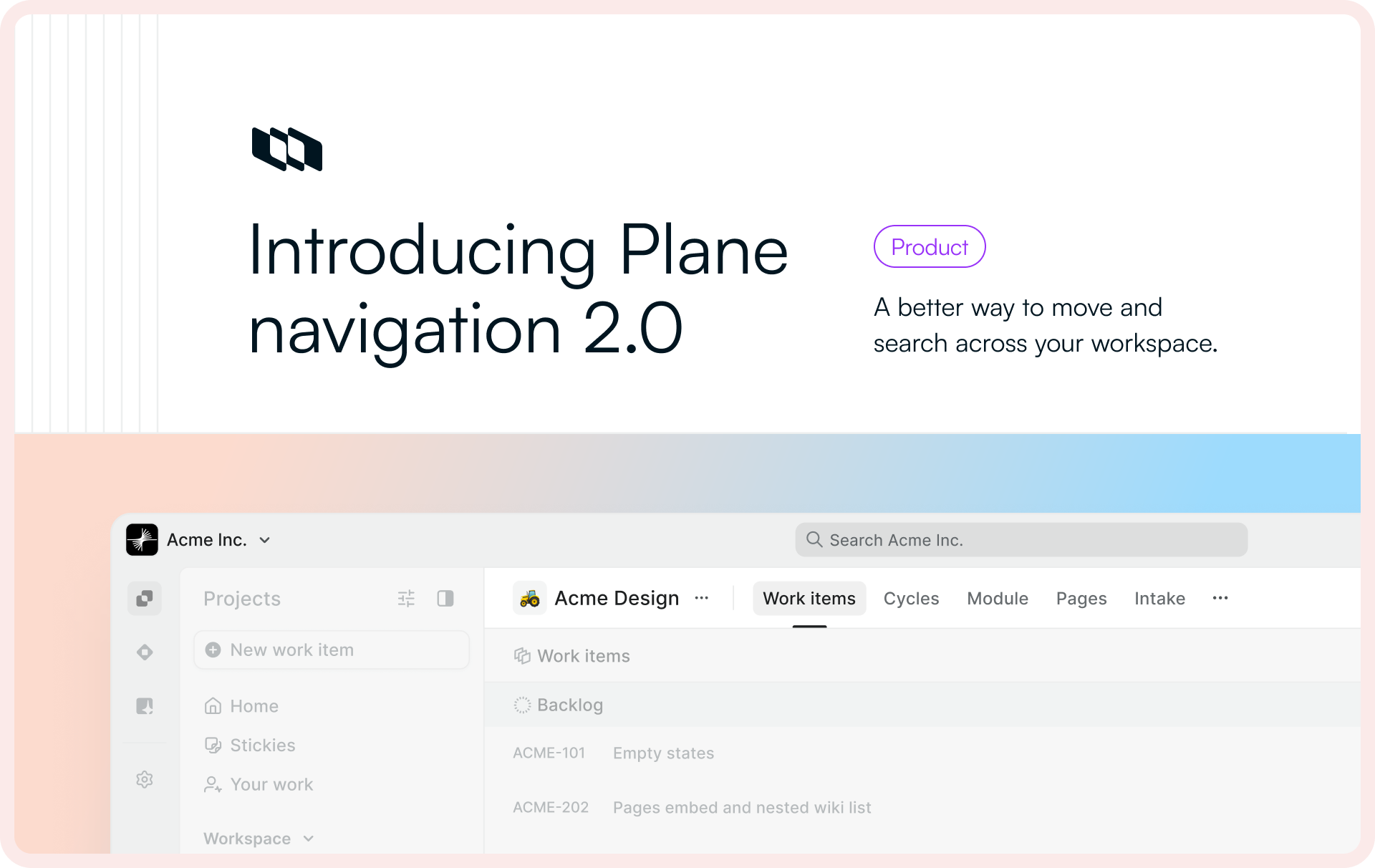
As Plane has grown, one thing has become really clear to us on the design team: how you move around Plane matters just as much as what you can do in it. If navigation feels heavy, everything feels heavy.
Our original left navigation was designed for a much smaller Plane — a few projects, a smaller wiki, a manageable set of notifications. Search and Inbox sat in the same area as your projects. Every project expanded to show all of its parts. For that stage, it worked well enough.
But as many of you started running dozens or even hundreds of projects in Plane, this started to break down. The sidebar turned into a very long list. Global tools like Search and Inbox looked like they belonged to Projects, even though they’re really about all your work. Finding the right place became slower and more tiring than it should be.
So as designers, we went back to first principles: navigation should feel clear, calm, and in your control — even when your workspace is huge.
Today, we’re introducing Plane navigation 2.0: a new navigation experience designed for teams that have outgrown the old sidebar. In this post, I’ll share the thinking behind the new design and how it should make Plane feel faster, simpler, and easier to live in every day.
Solution 1 — Moving Search and Inbox to the top
The first thing we did was make Search and Inbox truly global.
Search now lives in the top navigation, and it works the same way no matter where you are in Plane. Type a keyword once, and you’ll see results from Projects, Wiki, and Plane AI in one place. You don’t have to think, “Am I searching this project or all of Plane?” — it’s always the whole workspace.
We’ve done the same with notifications. Previously, Inbox felt like “just another tab” inside projects. Now, Inbox sits in the top bar. It’s a single, consistent place for everything that needs your attention, across all apps(Projects, Wiki, AI).
This top navigation is stable: it doesn’t change as you move between projects or parts of Plane. From here, you can also access your Preferences, so the controls that shape your experience are always one click away.
In short: global actions (Search, Inbox, Workspace, Preferences) now live in a global space, so you spend less time hunting and more time doing.
Tip: Use Command/Ctrl + F to access global search on Plane
On left navigation pane, the Search and Inbox are only restricted to Projects.
We solved this by introducing a Global navigation for workspace switching, global search, Inbox and Preferences.
Solution 2 — Customizable project navigation
The second problem we tackled was what happens when you’re part of a lot of projects.
In the old navigation, every project in the sidebar could be expanded to show all its features: work items, epics, cycles, modules, pages, settings, and more. That was fine if you had 2–3 projects. But if you were in 20 or 40 projects, the sidebar quickly became a long, noisy list you had to scroll through just to find the right place.
To fix this, we’ve moved project features into the project detail itself.
When you open a project now, you’ll see its features as horizontal tabs (pills) near the top: cycles, modules, pages, work item types, etc. The same pattern continues on the page detail view, so you can move between key areas without digging through the sidebar. This keeps the left side cleaner and makes each project feel like its own focused workspace.
At the same time, we know some teams like seeing things in the sidebar. So we’ve added navigation customization:
- You can choose between horizontal tabs or vertical tabs in the left sidebar for project features.
- If you’re part of many projects, you can decide which ones appear in the sidebar and keep the rest tucked away. Use the More menu to pick your top 5–10 projects and reorder them with drag and drop.
The idea is simple: the more Plane has to show you, the more control you should have over what you see and how you move around it.
Before vs after screens
Too many projects unfurled can be overwhelming
Project detail with horizontal navigation bar
Customize the way you want from left pane "customize icon"
Set the number of projects to view on the side pane. Customize the order at any given point in time.
Solution 3 — Collapsible navigation for maximum focus
The third part of this redesign is all about focus and flexibility.
Plane now has a navigation system that can comfortably handle dozens or even hundreds of projects, without forcing you to look at everything all the time. To make that possible, almost every navigation area in Plane is now collapsible.
You can:
- Hide the entire left navigation when you want to focus just on your boards or wiki pages.
- Switch the side rail to icon‑only or icon‑with‑text mode (by right‑clicking it) to make it slimmer and free up more space for your work.
The idea is simple: Plane shouldn’t feel like a plugin store or a wall of UI. You decide how much chrome you see, and how much screen is given back to your actual work.
We’ve spent a lot of time refining these details so Plane can stay flexible for teams of all sizes. As always, we’d love to hear how this new navigation feels for you and your team.
For feedback or comments please join our discord or write to support@plane.so
Recommended for you



 Download for Mac
 Download for Android